Просмотр новости
Найдите то, что Вас интересует
 Спутники
 РН
РН SpaceX
 Роскосмос
 NASA
NASA
СпутникиРНSpaceXРоскосмосNASAAs we recently covered, Microsoft has been quietly cleaning house, permanently retiring both the Sidebar app list and Collections features from Microsoft Edge. Unsurprisingly, this decision hasn’t sat well with everyone, and many users are already missing the quick access the Sidebar app list provided. But before you start looking for a new daily driver, […]
The post How to restore Microsoft Edge Sidebar app list and Collections appeared first on PiunikaWeb.
As we recently covered, Microsoft has been quietly cleaning house, permanently retiring both the Sidebar app list and Collections features from Microsoft Edge. Unsurprisingly, this decision hasn’t sat well with everyone, and many users are already missing the quick access the Sidebar app list provided.
But before you start looking for a new daily driver, there might still be a glimmer of hope. Renowned browser sleuth Leopeva64 recently highlighted a workaround using command-line flags that can bring both of these features back from the dead.
While these workarounds have been floating around for a while, they are incredibly relevant right now if you are desperately missing your old Edge layout. Here is how you can try to restore them.
How to bring back the Edge Sidebar app listMicrosoft may have officially retired the Hub Apps Sidebar, but the code still lingers in the background. You can force the browser to ignore the retirement mandate by tweaking the Edge desktop shortcut.
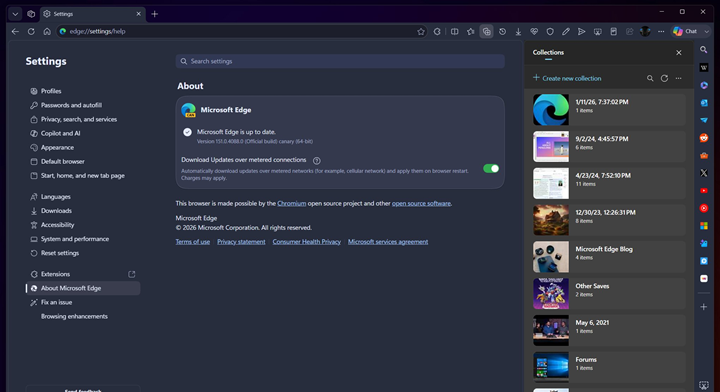
--disable-features=msHubAppsSidebarRetirementIf successful, your sidebar should populate with your apps once again. You can see how this specific flag setup looks in the properties menu in the image below.
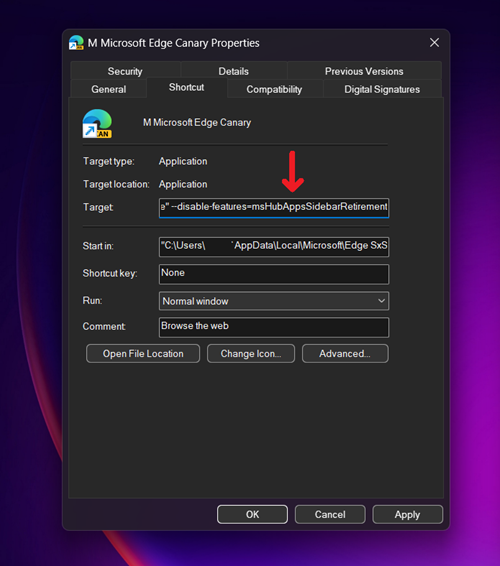
The successful restoration of the sidebar on Edge Canary is also shown in the images below.
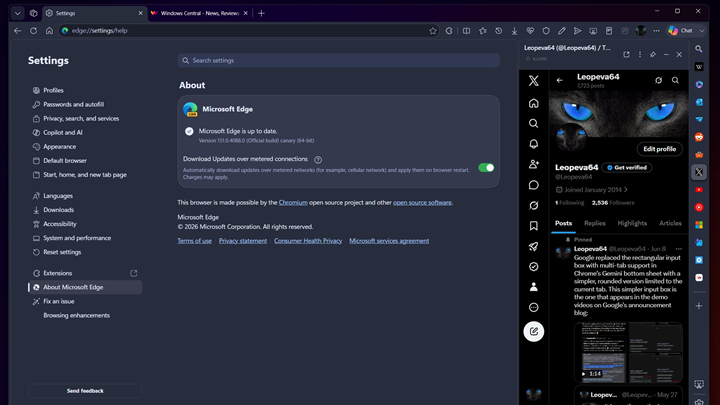
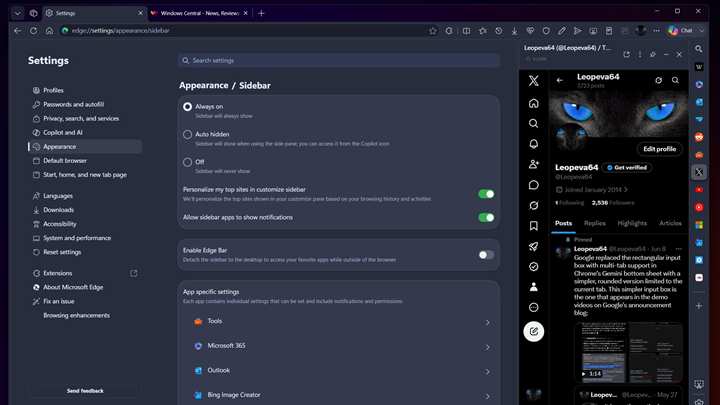
Collections might not have enjoyed the same massive popularity as the Sidebar app list, but power users who relied on it for research and organization immediately felt its absence. Luckily, the restoration process is identical.
--disable-features=msEdgeCollectionsUnship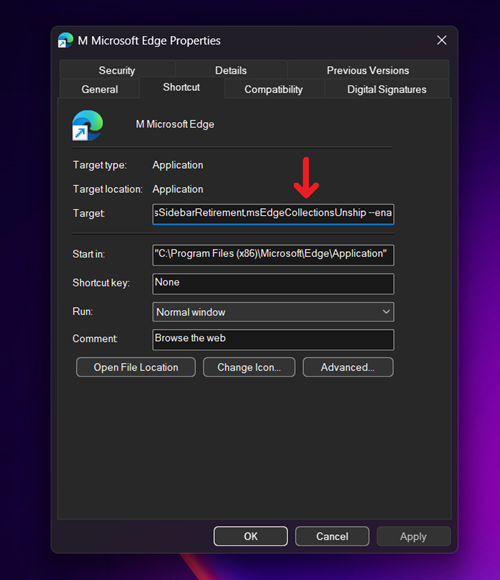
A quick word of caution? Your mileage may varyNote: If you want to restore both features simultaneously, you can chain the commands together in the Target field, separated by a comma (e.g.,
--disable-features=msHubAppsSidebarRetirement,msEdgeCollectionsUnship).
I have to be completely upfront with you: when my colleague and I took these flags for a spin on our own machines, we hit a brick wall. We tested the workaround thoroughly on both the stable version 149 and the bleeding-edge Canary version 151, but neither the Sidebar app list nor Collections magically reappeared for us.
However, Leopeva64 maintains an incredibly solid track record with browser discoveries and confirms this still works for them on Canary version 151. It is entirely possible that Microsoft is executing a staged rollout of the permanent block, meaning they may have already severed the connection for some users (like us) while leaving the backdoor open for others.
As the tipster rightfully warned, Microsoft can and will remove this workaround entirely at any time. But given how simple the process is, it is absolutely worth trying your luck to see if you can squeeze a few more weeks or months of life out of your favorite retired Edge features.

We stand out from the tech-media crowd because we break news stories; we mainly bring you stuff that you won’t find anywhere in the mainstream tech media. Our stories have been picked up by some of the world’s most popular websites and media outlets—more info is available here.
| # | Наименование новости | Тональность | Информативность | Дата публикации |
|---|---|---|---|---|
| 1 | Microsoft Cancels AI-Powered History Search Feature in Edge After User Backlash | 0 | 5 | 29-06-2026 |
| 2 | How to replace Edge as the default browser in Windows — and why you shouldn’t | 0 | 12.14 | 14-08-2026 |
| 3 | Here’s how to turn off Firefox widgets on the New Tab page | 0 | 18.04 | 11-06-2026 |
| 4 | OneDrive suddenly backing up Samsung Gallery without permission? Microsoft’s Sept. 2026 sync shutdown may explain why | 0 | 18.34 | 25-05-2026 |
| 5 | Chrome now lets you quickly remove the Tab Search icon without messing with flags | 0 | 15.97 | 03-06-2026 |
| 6 | Microsoft Edge exclusively had this Windows 11 feature for 10 years that Chrome finally got | 0 | 15.65 | 26-07-2026 |
| 7 | How to fix Google Chrome New Tab Page’s huge gap between search bar & shortcuts | 0 | 17.84 | 19-06-2026 |
| 8 | Microsoft Edge 152 adds a useful feature for fighting scam notifications | 0 | 22.36 | 28-08-2026 |
| 9 | Here’s how to disable the new bottom bar on Chrome for Android | 0 | 15.23 | 05-08-2026 |
| 10 | You will now get major Edge updates every two weeks | 0 | 19.26 | 29-08-2026 |