Просмотр новости
Найдите то, что Вас интересует
 Спутники
 РН
РН SpaceX
 Роскосмос
 NASA
NASA
СпутникиРНSpaceXРоскосмосNASADiscover the best plugins for securing WordPress pages, restricting access, and protecting sensitive content from unauthorised users.
The post Best plugin to secure WordPress pages appeared first on TeamUpdraft.
If you need to secure a WordPress site, protecting individual pages is often one of the first things to consider. Whether your website contains client documents, private resources, member-only content or internal business information, simply publishing a page isn’t enough. Without the right protection in place, anyone with the URL may be able to access content that was never intended to be public.
We’ve seen site owners accidentally expose everything from customer portals and training materials to staging pages and downloadable files because they assumed search engines or visitors wouldn’t find them. In reality, it only takes one shared link or indexing mistake for private content to become accessible.
That’s why many website owners use a plugin to secure WordPress pages. These tools let you restrict access to specific pages, protect sensitive content and control who can view important areas of your website without locking down the entire site.
In this guide, we’ll look at the best plugins for securing WordPress pages, the features worth looking for, and how to choose the right solution for your website, whether you’re protecting client content, membership areas, course materials or internal resources.
Not every page on your website is meant for everyone.
If your site contains client portals, membership content, training materials, downloadable resources or internal documentation, you’ll want to control who can access them. Leaving these pages publicly available can expose sensitive information or allow visitors to view content that was never intended to be shared.
A WordPress page security plugin gives you that control. Depending on the plugin you choose, you can password protect individual pages, restrict content to logged-in users, create member-only areas or limit access based on user roles.
The right solution depends on how you want to protect your website, but the goal is always the same: making sure the right people can access your content while everyone else stays out.
Installing a security plugin is a good start, but it isn’t something you can simply forget about. Like WordPress itself, security plugins receive regular updates to fix vulnerabilities, improve protection and stay compatible with the latest version of WordPress.
Keeping your plugin up to date is just as important as choosing the right one. An outdated security plugin may miss newly discovered threats or stop working as intended after a WordPress update.
It’s also worth considering performance. Some security plugins include a wide range of features that can add unnecessary overhead if you don’t need them. Choosing a well-maintained plugin that balances security with performance helps keep your website protected without affecting the experience for your visitors.
Some of the fastest recoveries we’ve seen after a security incident weren’t necessarily because the site had the strongest protection. They happened because the site owner had a recent backup and a clear recovery plan. Security reduces risk, but backups give you a way back when something unexpected happens.
Not all WordPress security plugins offer the same level of protection. Some are designed for simple password protection, while others include advanced access controls, user role management and activity logging.
Before choosing a plugin, it’s worth checking that it includes the features you actually need. Here are some of the most useful capabilities to look for.
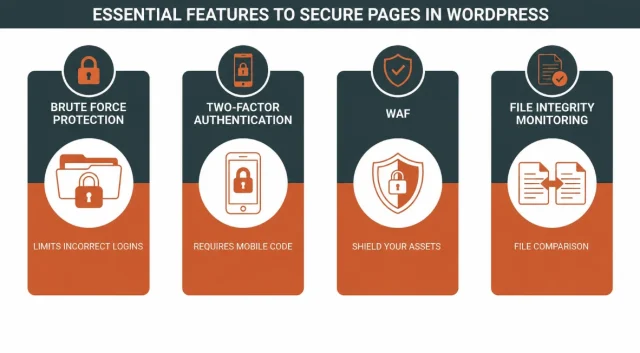
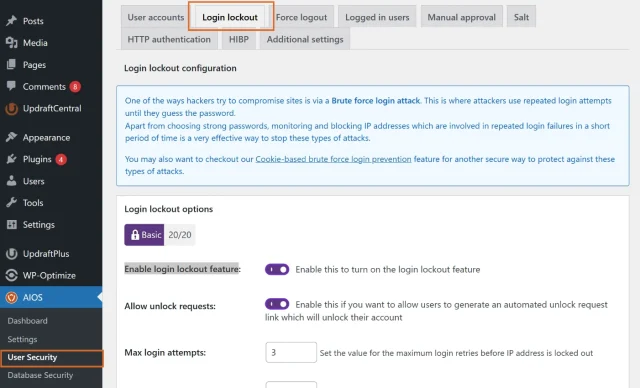
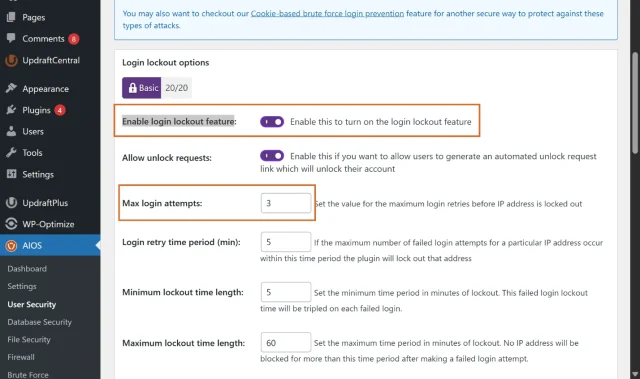
Brute force is a fancy way of saying “guessing your password over and over.” Bots can try thousands of combinations in seconds. You need a tool that limits login attempts. If someone gets it wrong three times, they should be blocked for an hour. It is simple, effective, and stops 90% of basic attacks.
You probably use this for your bank or your email. It is time to use it for WordPress. Even if a hacker steals your password, they cannot get in without a code from your phone. This is arguably the single most effective way to secure your admin pages.
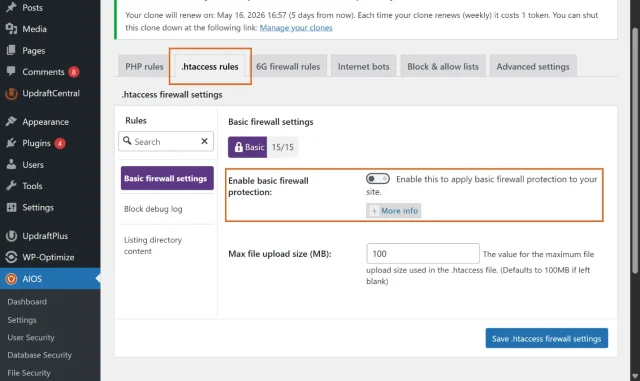
A firewall sits between your site and the rest of the internet. It looks at the traffic coming in and says, “Hey, you look like a bot trying to inject malicious code. You’re not coming in.” A good plugin will have a “6G” or “7G” firewall that is updated regularly to recognize new threats.
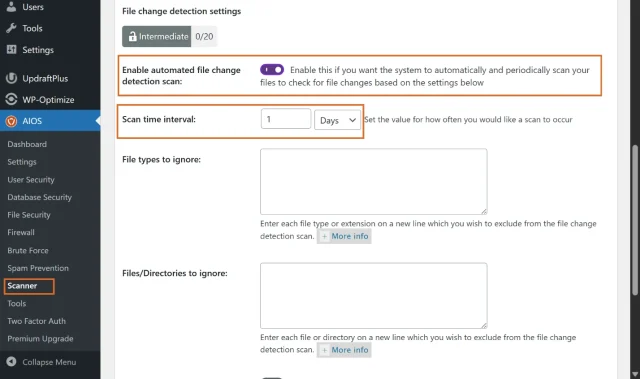
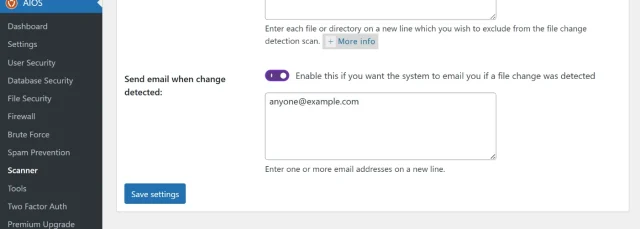
Sometimes, the bad guys do get in, and they usually leave a “backdoor” by changing one of your core WordPress files. File integrity monitoring alerts you the second a file is changed so you can revert it immediately.
Section titled The best plugins to secure WordPress pages compared
I have tested dozens of tools over the years, and while there are many “good” ones, only a few really stand out for being easy to use while remaining powerful. Here is a breakdown of the top contenders.
| Feature | All-In-One Security (AIOS) | Wordfence | Sucuri |
|---|---|---|---|
| Ease of Use | Very High (Beginner friendly) | Medium (Lots of settings) | Medium (Cloud-based focus) |
| Login Protection | Includes 2FA & Custom URL | Includes 2FA | Basic |
| Firewall | PHP & .htaccess levels | Endpoint WAF | Cloud-based WAF |
| Backups | Integrated with UpdraftPlus | No | No |
| Spam Protection | Advanced Bot Detection | Basic | Basic |
All-In-One Security (AIOS) stands out because it combines powerful security features with a straightforward interface. Rather than overwhelming you with complex settings, it groups features into clear categories and includes a Security Strength Meter that helps you identify areas where your website’s security could be improved.
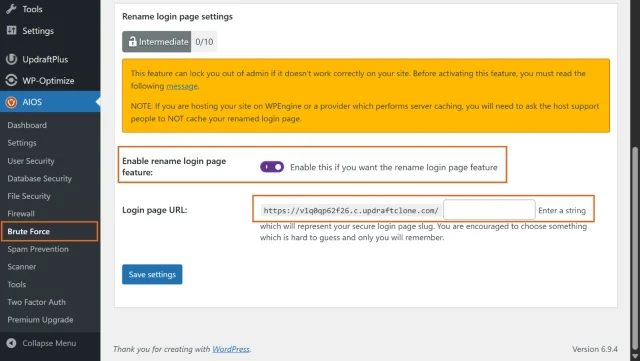
One feature many WordPress site owners find useful is the ability to change the default WordPress login URL. Moving your login page away from the standard /wp-admin or /wp-login.php location can help reduce automated login attempts from bots, adding another layer of protection alongside features such as login lockouts and two-factor authentication.
AIOS also integrates with UpdraftPlus, allowing you to create database backups before applying certain security changes. Combined with regular backups, this gives you a simple way to recover your website if something doesn’t go as planned.
If your login page is still at /wp-admin, you’re essentially leaving the front door key under the mat. AIOS renames your login URL and adds a “bouncer” to the door, making sure only you and your team get past the velvet rope.
If you are a first-timer, the thought of “configuring a firewall” might sound intimidating. Don’t worry. The beauty of All-In-One Security (AIOS) is that it is built for people who aren’t security experts.
First, we need to get the tool onto your site. Log into your WordPress dashboard and look at the black sidebar on the left.
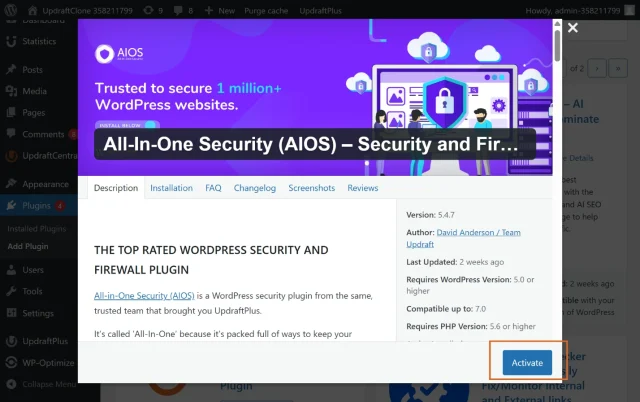
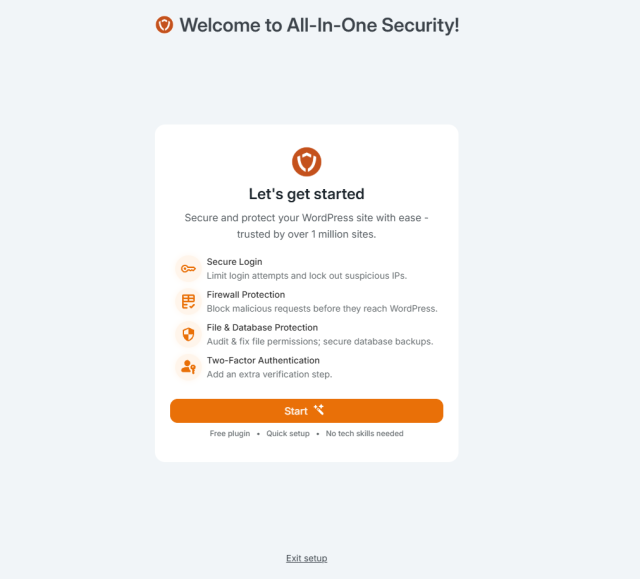
When you activate the new versions of AIOS, you will be greeted with a setup wizard. If you are just starting out, and/or do not have time to pick apart your security measures, selecting the recommended settings in the wizard will get you to a great starting place. Once you have more time on your hands, you can get back to learning about more of AIOS features.
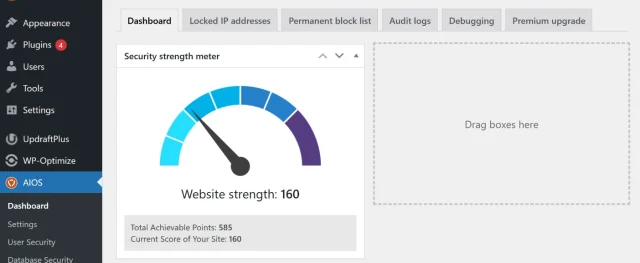
Click on AIOS > Dashboard. The first thing you will see is a colorful gauge. This is your “Security strength meter.” As a beginner, your goal isn’t necessarily to get to the max score (which can sometimes be too restrictive), but to get out of the “danger” zone. This dashboard gives you a great bird’s-eye view of your site’s health.
Most hackers try to get in through your login page. Let’s stop them.
By default, every WordPress site has a login page at [yourwebsite.com/wp-admin](https://yourwebsite.com/wp-admin). Bots know this. Let’s move the door.
Think of this as a security guard standing at your front gate.
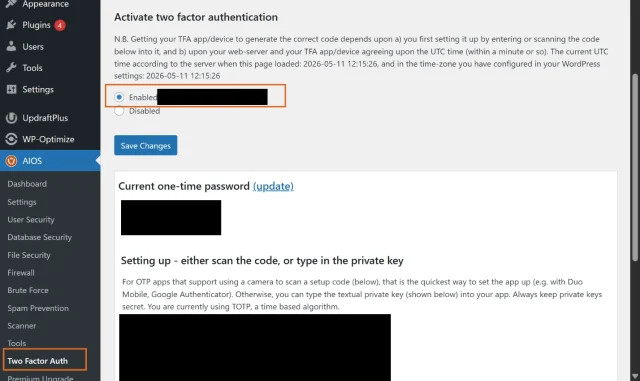
Section titled Step 6: Enable Two-Factor Authentication (2FA)
This is the single most important step for 2026.
If a hacker managed to change a file on your site, you’d want to know right away.
Section titled The “Invisible” layer: Why backups are part of security
I need to tell you something that many security experts leave out: no security is 100% perfect. Even the biggest tech companies in the world get hacked sometimes. If a brand-new “zero-day” vulnerability is discovered, your site could be at risk for a few hours before a patch is released.
This is where your backup strategy becomes part of your security strategy. I always tell people that a site without a backup isn’t a site; it’s a temporary experiment. If your site gets defaced or locked, you don’t need to panic. You just go to your UpdraftPlus dashboard, click “Restore,” and your site is back to normal in minutes.
Even the strongest security setup can’t guarantee that problems will never happen. UpdraftPlus Premium can automatically create a backup before WordPress, plugin, or theme updates, giving you a safe restore point if an update fails or your site is compromised.
Section titled Common mistakes to avoid with WordPress security
Even with the best plugins, you can accidentally leave the door open if you aren’t careful. Here are some of the most common pitfalls I see.
This is the first thing every bot tries. If your username is “admin,” you have already given hackers 50% of what they need to get in. Create a new user with “Administrator” privileges, give it a unique name, and delete the old “admin” account.
I know it’s tempting to ignore those little red circles in your dashboard, but those updates often contain critical security fixes. If you’re worried about an update breaking your site, just run a quick backup with UpdraftPlus before you click “Update.” That way, if something goes wrong, you can undo it instantly.
Every inactive plugin or theme is a potential doorway for a hacker. If you aren’t using it, delete it. Don’t just deactivate it; the files are still sitting on your server and can still be exploited.
One of the biggest misconceptions in WordPress security is that installing a security plugin solves the problem permanently. Most successful attacks don’t happen because a site never had protection in place; they happen because software wasn’t updated, security settings weren’t reviewed, or a known vulnerability was left exposed for too long. Security works best when it’s treated as an ongoing process rather than a one-time task.
Protecting WordPress pages isn’t about finding a single magic setting or installing the most expensive security plugin you can find. The strongest protection comes from combining several layers of security, including login protection, two-factor authentication, firewall rules, file monitoring, and reliable backups.
If you’re looking for a secure WordPress pages plugin, focus on tools that make these features easy to manage rather than adding unnecessary complexity. A solution such as All-In-One Security (AIOS) provides the core protections most website owners need, while remaining approachable for beginners and experienced WordPress users alike.
If you only take one action after reading this guide, make it securing your login page. Enable two-factor authentication, limit login attempts, and make sure you have a recent backup available if something goes wrong. Those few steps alone can significantly reduce your risk and help protect the most important areas of your website.
The best time to improve your WordPress security is before you need it. A few minutes spent strengthening your defences today could save hours of recovery work in the future.
The best plugin depends on the type of protection you need, but for most WordPress websites, All-In-One Security (AIOS) provides a strong combination of login protection, firewall rules, two-factor authentication, file monitoring, and malware protection. It is suitable for both beginners and experienced WordPress users.
How do I protect a WordPress page from public access?You can protect WordPress pages using password protection, membership plugins, user role restrictions, or security tools that limit access to specific areas of your site. The best approach depends on whether you’re protecting client content, member-only resources, or administrative pages.
Can I password-protect pages in WordPress?WordPress includes built-in password protection for individual pages and posts. However, for more advanced protection, such as login security, access restrictions, and monitoring, many site owners use a dedicated security plugin alongside WordPress’s native features.
Can I use two security plugins at the same time?Running multiple security plugins is generally not recommended. Features such as firewalls, malware scanners, and login protection can conflict with each other, causing performance issues or unexpected behaviour. A single, properly configured security plugin is usually the safer option.
Does AIOS protect login and admin pages?AIOS includes features designed specifically to protect login and administrative areas, including two-factor authentication, login lockouts, firewall protection, file monitoring, and custom login URLs. These features help reduce the risk of unauthorised access to the most sensitive parts of your website.
| # | Наименование новости | Тональность | Информативность | Дата публикации |
|---|---|---|---|---|
| 1 | Is WordPress Secure? What You Need to Know | 0 | 6.71 | 06-08-2026 |
| 2 | How WordPress Sites Get Hacked (And How to Stop Each Attack) | 0 | 5.05 | 15-07-2026 |
| 3 | What’s the best way to backup WordPress | 0 | 6.57 | 31-07-2026 |
| 4 | How to safely delete a WordPress site without losing data | 0 | 5.75 | 29-07-2026 |
| 5 | How to duplicate a WordPress site: Best plugins compared | 0 | 5.59 | 07-07-2026 |
| 6 | How to optimize images for WordPress | 0 | 7 | 22-07-2026 |
| 7 | Best WordPress themes for travel blogs and explorers | 0 | 6.78 | 10-08-2026 |
| 8 | How to improve LCP in WordPress and pass Core Web Vitals | 0 | 6.38 | 08-07-2026 |
| 9 | How to restore the default WordPress dashboard | 0 | 5.85 | 04-08-2026 |
| 10 | Boost Your Site’s Protection with the Top 5 Best Plugin for WordPress Security | 0 | 11.61 | 02-08-2024 |