Просмотр новости
Найдите то, что Вас интересует
 Спутники
 РН
РН SpaceX
 Роскосмос
 NASA
NASA
СпутникиРНSpaceXРоскосмосNASAHas your WordPress dashboard changed? Learn how to restore the default layout and bring back missing dashboard widgets.
The post How to restore the default WordPress dashboard appeared first on TeamUpdraft.
Have you ever logged into your website only to be greeted by a chaotic wall of notifications, weird widgets and missing menus? If so, you are definitely not alone. Learning how to restore the default wordpress dashboard is an essential skill for anyone managing a site. It helps you regain control, focus on your content and eliminate annoying visual clutter.
This guide is built for everyone. Whether you are logging in for the very first time or you are an experienced developer, you will find a solution here. We will start with the easiest fixes and work our way up to advanced troubleshooting.
Before we jump into the fixes, it helps to understand why your workspace changes in the first place.
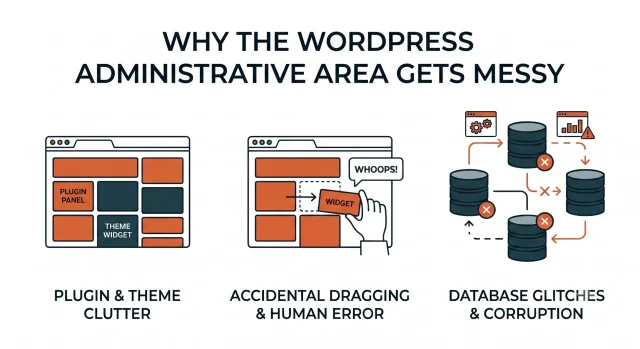
WordPress is highly customizable. This flexibility is fantastic, but it also means things can get disorganized very quickly. Every time you install a new plugin or theme, it usually wants your attention. Developers love to add custom widgets right on your main welcome screen. Over time, these panels stack up, pushing the default tools out of view.
Another common reason is human error. The interface allows you to drag boxes around freely. It is very easy to accidentally click and drag a widget to the bottom of the page without realizing it.
Finally, database glitches can happen. The platform saves your personal layout preferences in the database. If that data gets corrupted during an update, your layout might break entirely.
Section titled What do we mean by “restoring the default WordPress dashboard”?
The first step is working out what’s actually changed. “Restoring the default dashboard” can mean different things depending on the problem you’re trying to fix.
You might be looking to:
Although these issues can all make your dashboard look different, they don’t all have the same solution. Hidden widgets or a rearranged dashboard are usually caused by user preferences, while missing menu items are often the result of a plugin conflict or incorrect user permissions. If your dashboard is completely blank or broken, the cause is more likely to be a PHP error, theme issue or plugin conflict.
| Problem | Best First Fix | Difficulty |
|---|---|---|
| Too many dashboard widgets | Use Screen Options | Beginner |
| Widgets are in the wrong place | Drag and drop them manually | Beginner |
| Posts, Pages or Settings are missing | Check your user role | Beginner |
| Plugin banners are cluttering the dashboard | Disable notices or review plugins | Beginner/Intermediate |
| Dashboard keeps breaking after updates | Test plugin and theme conflicts | Intermediate |
| Layout will not reset | Delete saved dashboard user meta | Advanced |
| Dashboard is completely blank | Disable plugins via FTP/file manager | Advanced |
| You want a cleaner dashboard for clients | Use code or a dashboard customisation plugin | Advanced |
Start with the beginner methods. Only move to code, FTP or database changes if the safer options do not work.
Most of the time, you do not need complex tools to fix your layout. The platform has a built in feature designed specifically for managing your workspace.
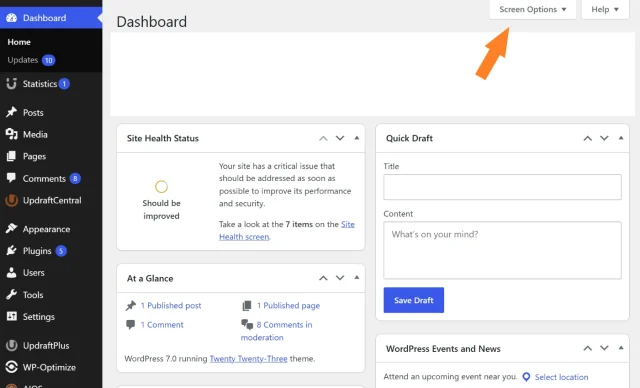
2. Clicking that tab opens a dropdown panel. Inside, you will see a list of checkboxes. Every box corresponds to a widget currently active on your setup.
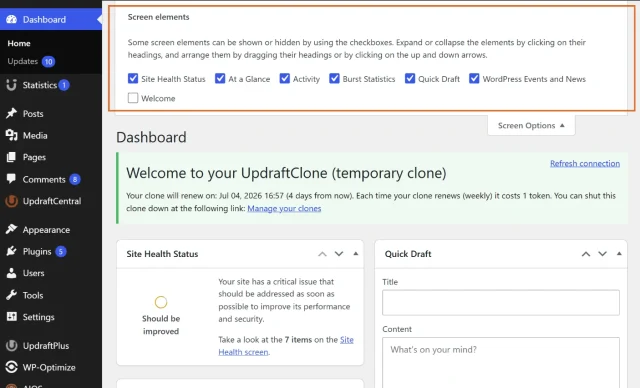
3. To clean things up, simply uncheck the boxes for the items you no longer want to see. The changes happen instantly. The widgets will disappear from your view immediately.
You can hide third-party notifications, custom news feeds and anything else taking up space. I recommend keeping the At a Glance and Site Health Status boxes checked, as they provide useful technical insights.
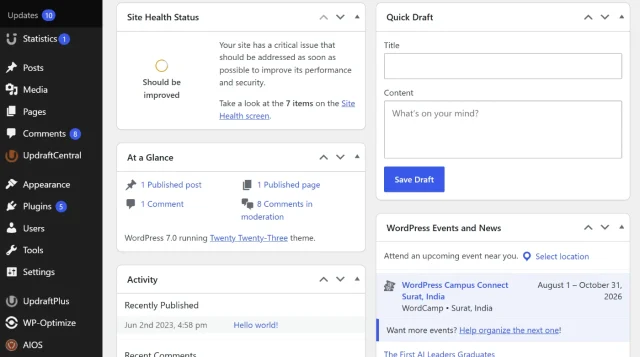
Sometimes you have the right panels visible, but they are just in the wrong order. The layout uses a simple grid system that you can manipulate with your mouse.
The typical default layout features the Welcome panel at the very top. Below that, the At a Glance and Activity boxes sit on the left side. The Quick Draft and WordPress Events boxes usually sit on the right.
Making database edits without a safety net is risky business. UpdraftPlus lets you create a complete backup with just one click so you can experiment safely.
Section titled How to restore the default WordPress dashboard using code
If you manage websites for clients or have multiple users, you may want a more permanent way to keep the dashboard clean. Rather than hiding widgets for your own account, you can remove selected dashboard widgets for everyone using a small PHP snippet.
I recommend adding the code using a child theme or a code snippets plugin. Avoid editing your parent theme’s functions.php file directly, as your changes will be overwritten the next time the theme updates.
WordPress includes a function called remove_meta_box() that lets you remove individual dashboard widgets. All you need is the ID of the widget you want to hide.
Here’s a simple example. The code uses the wp_dashboard_setup hook to remove selected dashboard widgets before the dashboard is displayed.
function clean_up_my_dashboard() {
    // Remove the 'At a Glance' widget
    remove_meta_box( 'dashboard_right_now', 'dashboard', 'normal' );

    // Remove the 'Quick Draft' widget
    remove_meta_box( 'dashboard_quick_press', 'dashboard', 'side' );

    // Remove the 'Activity' widget
    remove_meta_box( 'dashboard_activity', 'dashboard', 'normal' );

    // Remove the 'WordPress Events and News' widget
    remove_meta_box( 'dashboard_primary', 'dashboard', 'side' );
}
add_action( 'wp_dashboard_setup', 'clean_up_my_dashboard' );
As long as this code remains active, the selected widgets will no longer appear on the dashboard. It doesn’t delete them or remove any WordPress functionality; it simply prevents those dashboard panels from being displayed.
This approach can be particularly useful for client websites or multi-author sites, where a cleaner dashboard helps users focus on the tools they actually need and reduces distractions from unnecessary plugin widgets or notifications.
Sometimes the user interface methods just do not work. If your layout data gets deeply corrupted, you might need to go straight to the source. Your personal layout preferences are stored in the website database. Specifically, they live inside a table called user meta.
By deleting these specific preference rows, you force the system to generate a brand new default layout the next time you log in. This is the closest thing to a factory reset.
wp_usermeta. Keep in mind your database might use a different prefix instead of wp.user_ID. Look for a column called meta_key. You are hunting for keys that end with dashboard.The next time you refresh your administrative area, it will be completely reset. All your widgets will be back in their original default positions.
One of the most common reasons a WordPress dashboard becomes cluttered is third-party plugins. Many plugins add banners, notifications and dashboard widgets to promote premium features, ask for reviews or display statistics. While this can be useful occasionally, it doesn’t take long for your dashboard to become crowded if you have several plugins installed.
A good place to start is reviewing the plugins you use and removing any you no longer need. It’s also worth choosing plugins that respect your workspace by keeping notifications to a minimum and only displaying information that’s genuinely useful.
For example, if you want to monitor your website traffic, you need quick access to the data that matters. Burst Statistics provides your key website metrics in a clean, straightforward interface without filling your dashboard with unnecessary distractions, making it easier to focus on managing your website.
Tired of analytics widgets taking over your entire screen? Burst Statistics delivers powerful, privacy-friendly traffic insights while keeping your administrative area perfectly clean and fast.
Sometimes the problem is not the main screen widgets, but the black navigation menu on the left side. This menu can become incredibly long and confusing. If you are missing standard menu items like Posts, Pages or Settings, you might be dealing with a user role issue. Not every user has the same capabilities.
An account set to the Author role will only see menu items related to writing. They will not see plugins or general settings. If your menu looks too bare, check that your account is actually set to Administrator.
If you are an Administrator and things are still missing, a security or user role plugin might be causing the conflict. Try deactivating your plugins one by one to see if the menu returns to normal.
Exposed admin pages are the easiest way in for brute force attacks. AIOS hides your login, adds two factor authentication and blocks repeated login attempts automatically.
The scariest issue is logging in and seeing absolutely nothing. This is famously known as the white screen of death. When this happens, you cannot use the screen options or drag widgets.
This usually points to a severe PHP error or a memory exhaustion issue. A faulty plugin or a broken theme update is almost always the culprit. Since you cannot access the normal interface, you have to use an FTP client or your host file manager.
If that does not work, you might need to increase your PHP memory limit. You can do this by editing your configuration file and defining a higher memory limit.
Restoring the default WordPress dashboard usually starts with simple fixes. In many cases, Screen Options, drag-and-drop layout changes or a quick user role check will solve the problem.
If the dashboard is still broken, move carefully through plugin testing, code-based widget removal or database preference resets.
The most important rule is to back up your site before making advanced changes. A messy dashboard is annoying, but a broken database or PHP file can take your whole site offline.
Once your dashboard is clean again, keep it that way by reviewing plugins regularly, limiting unnecessary admin notices and using tools that respect your workspace.
Start with Dashboard > Home > Screen Options and re-enable any hidden widgets. Then drag widgets back into position. If that does not work, check for plugin conflicts or reset your saved dashboard preferences in the database.
Why is my WordPress dashboard different from someone else’s?Dashboard settings are saved per user. One person may hide widgets, move boxes around or have different permissions. User roles and plugin settings can also change what each person sees.
Does hiding a dashboard widget disable the plugin?No. Hiding a widget only removes it from your dashboard view. The plugin remains active and continues working in the background.
Can I create a custom default dashboard for my clients?Yes, you can do this. Developers often use code snippets or specialized user role plugins to create a simplified layout. This prevents clients from getting confused or accidentally changing critical settings.
What should I do if the WordPress dashboard is completely blank?Disable plugins using FTP or your host’s file manager by renaming the plugins folder. If the dashboard comes back, reactivate plugins one by one to find the cause. If that does not work, check your theme and PHP error logs.
Is it safe to delete data in phpMyAdmin?It is safe if you know exactly what you are doing. However, deleting the wrong table can completely break your website. You must always generate a full database backup before opening phpMyAdmin and executing any commands.
| # | Наименование новости | Тональность | Информативность | Дата публикации |
|---|---|---|---|---|
| 1 | How to safely delete a WordPress site without losing data | 0 | 5.75 | 29-07-2026 |
| 2 | Is WordPress Secure? What You Need to Know | 0 | 6.71 | 06-08-2026 |
| 3 | What’s the best way to backup WordPress | 0 | 6.57 | 31-07-2026 |
| 4 | How WordPress Sites Get Hacked (And How to Stop Each Attack) | 0 | 5.05 | 15-07-2026 |
| 5 | How to optimize images for WordPress | 0 | 7 | 22-07-2026 |
| 6 | How to duplicate a WordPress site: Best plugins compared | 0 | 5.59 | 07-07-2026 |
| 7 | Best WordPress themes for travel blogs and explorers | 0 | 6.78 | 10-08-2026 |
| 8 | Best plugin to secure WordPress pages | 0 | 8.26 | 14-07-2026 |
| 9 | How to improve LCP in WordPress and pass Core Web Vitals | 0 | 6.38 | 08-07-2026 |
| 10 | Pages Dashboard issues | 0 | 5 | 11-07-2026 |