Просмотр новости
Найдите то, что Вас интересует
 Спутники
 РН
РН SpaceX
 Роскосмос
 NASA
NASA
СпутникиРНSpaceXРоскосмосNASAGigabyte's new 27" 1440p WOLED monitor with a 240Hz refresh rate and 'RealBlack glossy' coating. An affordable OLED option released for 2026
Category: Reviews
Courtesy of TFTCentral
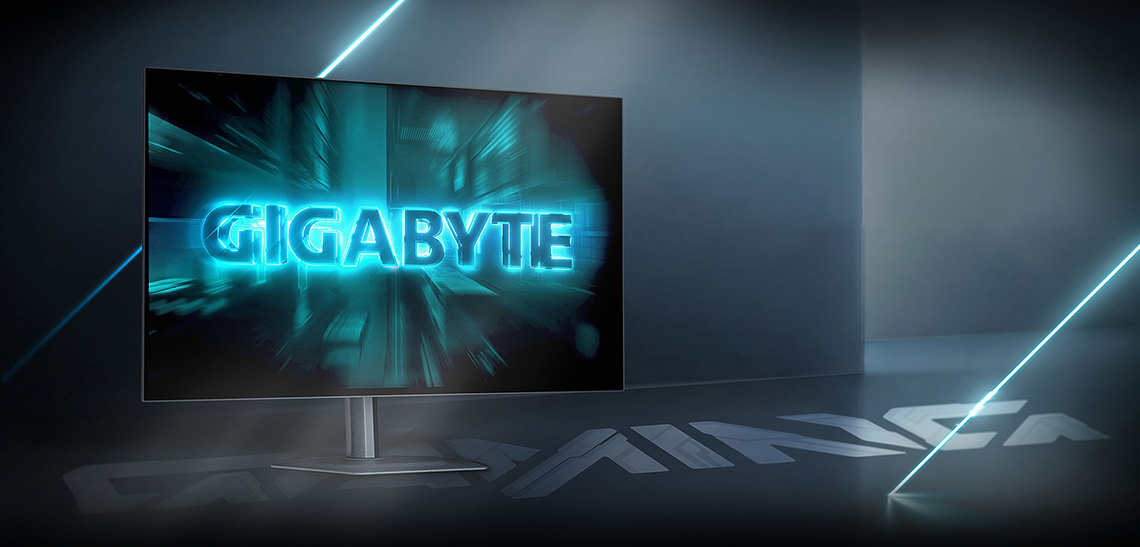 Introduction
Gigabyte have recently released a new monitor in their range, providing a very attractively priced option for those looking to venture in to the world of OLED displays. The GO27Q24G offers a familiar 27″ screen size with a 2560 x 1440 resolution, along with a 240Hz refresh rate. It’s using a WOLED panel from LG Display featuring their Micro Lens Array+ (MLA+) technology. It’s not the latest Tandem WOLED technology, but the use of this slightly older panel gen allows for a very competitive price point, while still offering some excellent performance and specs.
One of the key features of this new model is the use of an updated glossy screen coating from the panel manufacturer, marketed under the brand name of ‘RealBlack glossy’ by Gigabyte. This is the same glossy panel coating we’ve seen on some other modern WOLED monitors, including their own MO27Q28GR display also launched recently. We’ve also seen this same coating on some competing monitors from Asus, including the recently reviewed ROG Strix XG27AQDMG Gen 2, which uses the exact same panel as this Gigabyte model and offers a similar spec. This glossy coating offers a super clear and sharp image, which we know many people are interested in.
#affiliate. We may earn a commission if you purchase from our affiliate links in this content – TFTCentral is a participant in the Amazon Services LLC Associates Programme, an affiliate advertising programme designed to provide a means for sites to earn advertising fees by advertising and linking to Amazon.com, Amazon.co.uk, Amazon.de, Amazon.ca and other Amazon stores worldwide. We also participate in a similar scheme for Overclockers.co.uk, Newegg, Bestbuy, Walmart, B&H and some manufacturers.
Key Specs A note about the WOLED panel naming convention
Note that the WOLED panel used here is part of what we refer to as “Gen 2”. Originally produced in 2024. it uses MLA (Micro Lens Array+) as opposed to being one of the most recent “4th Gen” Tandem WOLED technology panels. It also has the older sub-pixel layout that was used at the time, as opposed to the updated layout that came in Gen 3 and Gen 4 panels.
The updated panel used here went in to mass production in late 2025 and uses the same underlying panel as the 2024 version, just with an updated glossy coating finish. We distinguished this 27″ 1440p 240Hz panel from the later “Gen 3” panels since those later panels included a shift to an improved sub-pixel layout. The “Gen 2” naming is our own, but the important thing to note here really is that it’s the same panel from 2024, with an updated coating finish. Other aspects have not been updated.
For more information on the different generations, naming schemes, Tandem WOLED and so on, check out our video here.
Design and FeaturesThe GO27Q24G comes in a familiar design aesthetic which looks the same as their other recent OLED monitors. There’s a 4-side “borderless panel” with a very thin plastic edge, and then a thin black panel border before the image starts. The total border measures ~8.5mm along the edges and top, and ~12mm along the bottom. There’s no writing, logos or labels visible from the front view, it looks very neat and minimalist.
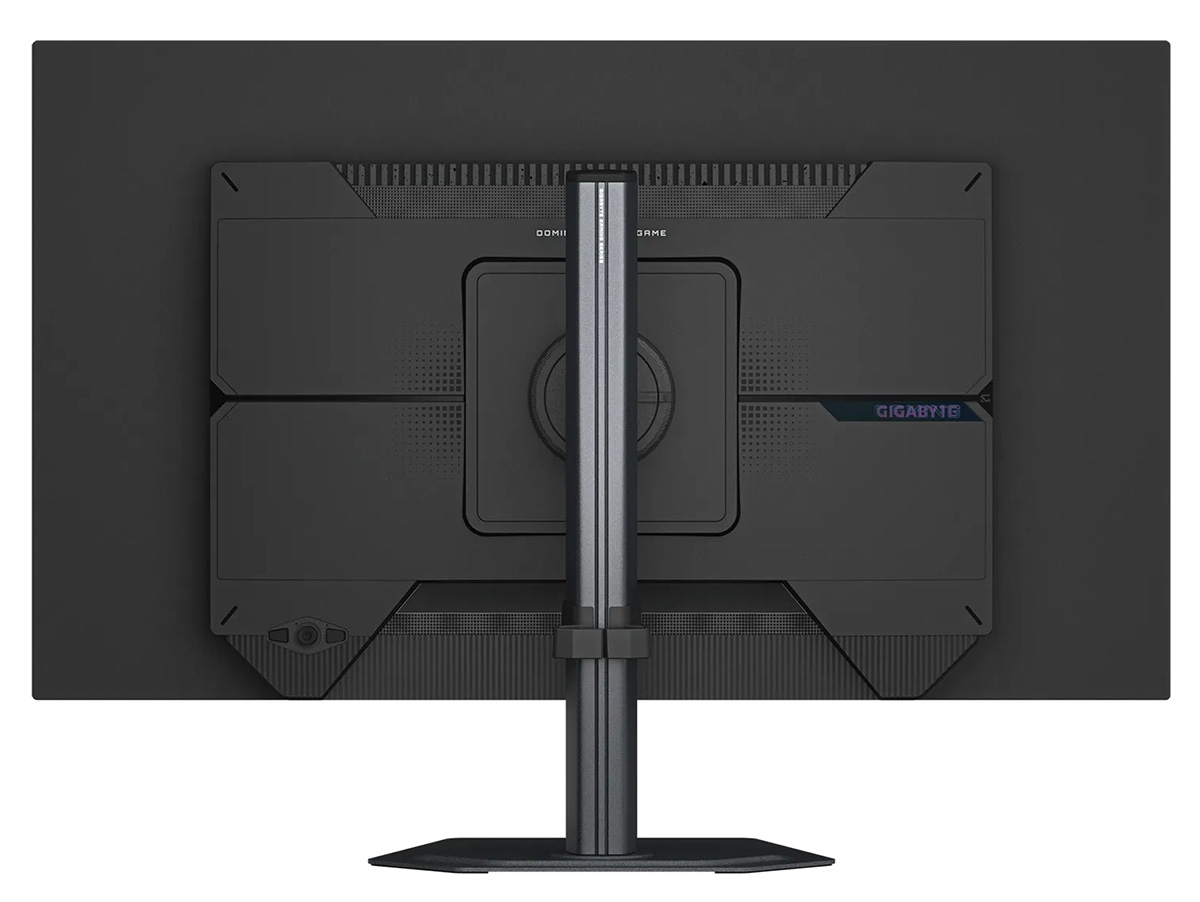
The back of the screen is encased in a matte black plastic with the stand attaching via a quick release mechanism in the middle. This can also be removed in favour of 100 x 100mm VESA mounting if needed.
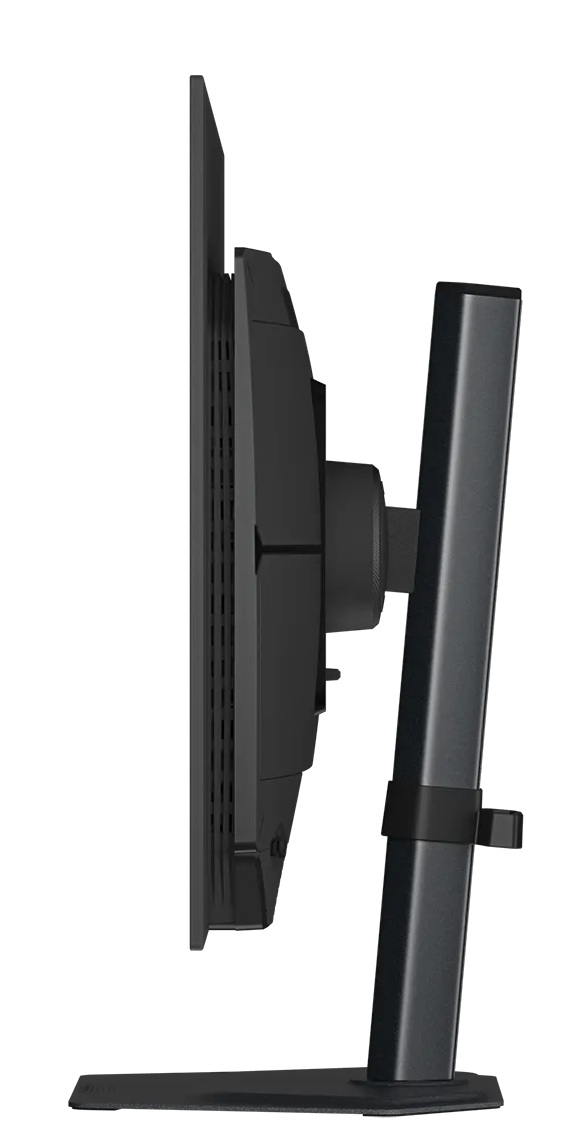
The side view of the screen shows a thin panel section, but a bulkier central section where the internal electronics and connections are housed. The arm is a dark grey metal, as is the thin foot to the stand. There’s a full range of tilt, height, swivel and rotate adjustments offered from the stand which are all smooth and pretty easy to use. The side to side swivel is a little limited in adjustment range, but should be adequate for most situations on a desk.
Connections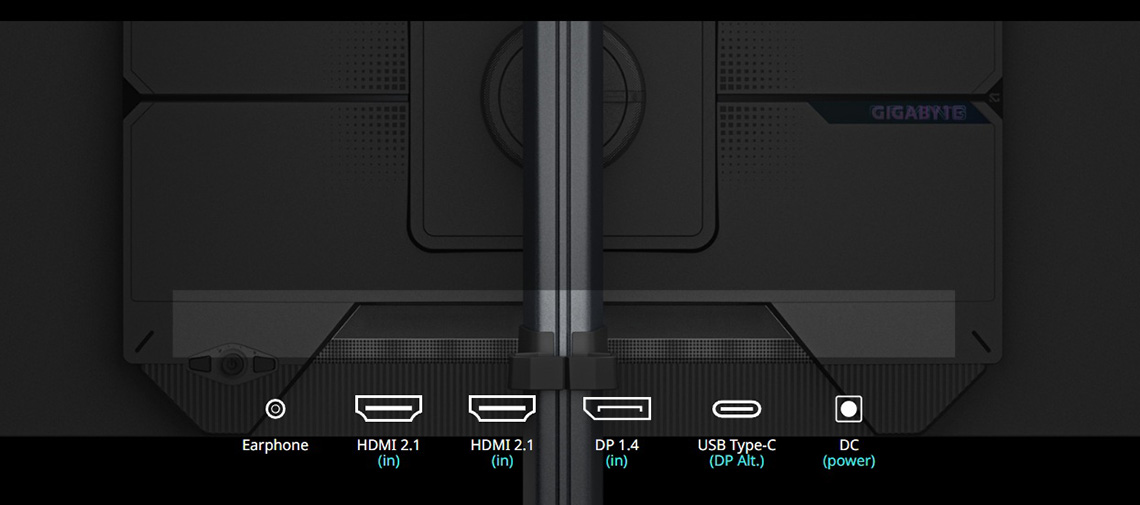
On the back of the screen there are 1x DisplayPort 1.4 (with DSC), 2x HDMI 2.1 and 1x USB type-C connections for supporting video. The USB-C has DP Alt mode and 15W power delivery. There’s no USB-A data ports on this model though, so no KVM switch function is offered. PiP and PbP modes are supported for handling multiple video inputs if needed. There’s a headphone jack on the back of the screen, but note that there’s no integrated speakers on this model, unlike many of Gigabyte’s other OLED monitors.
OSD menu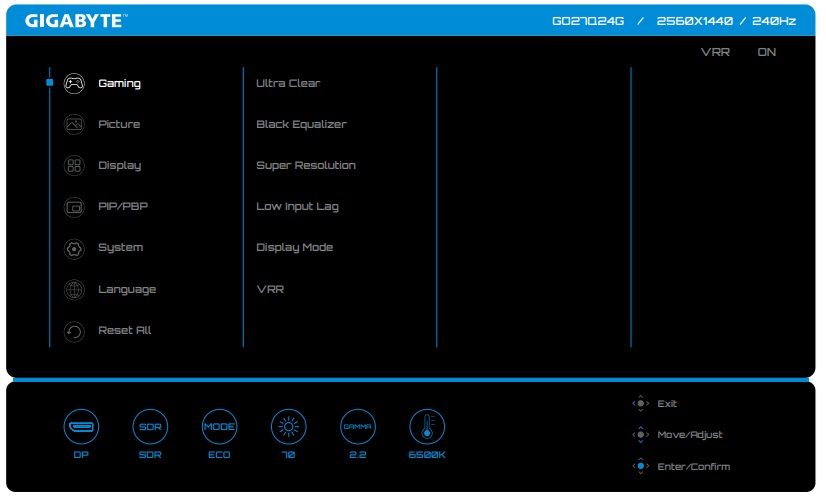
The OSD menu is controlled via a single joystick toggle on the back right hand side of the screen, providing quick, easy and intuitive navigation around the menu.
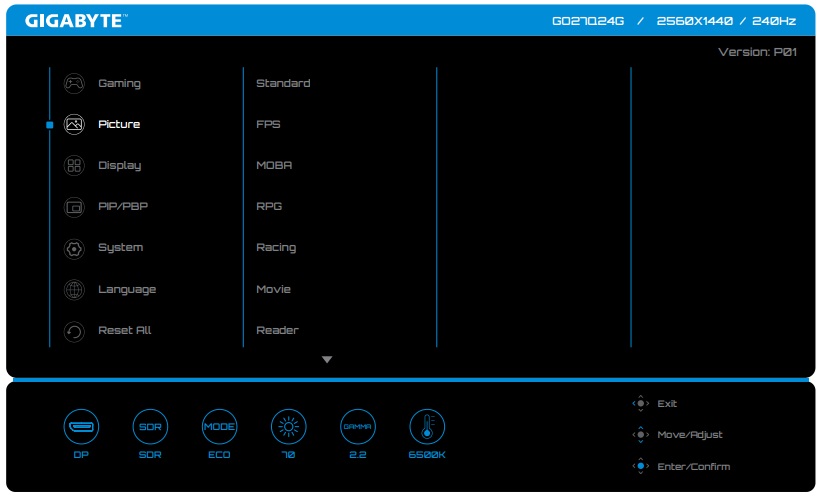
There’s a very good range of settings available and some quick access sections using the directions on the toggle. There’s also a pressable button on the back for the ‘Tactical Switch 2.0’ feature which switches to a smaller simulated screen size for gaming.
‘RealBlack Glossy’ Coating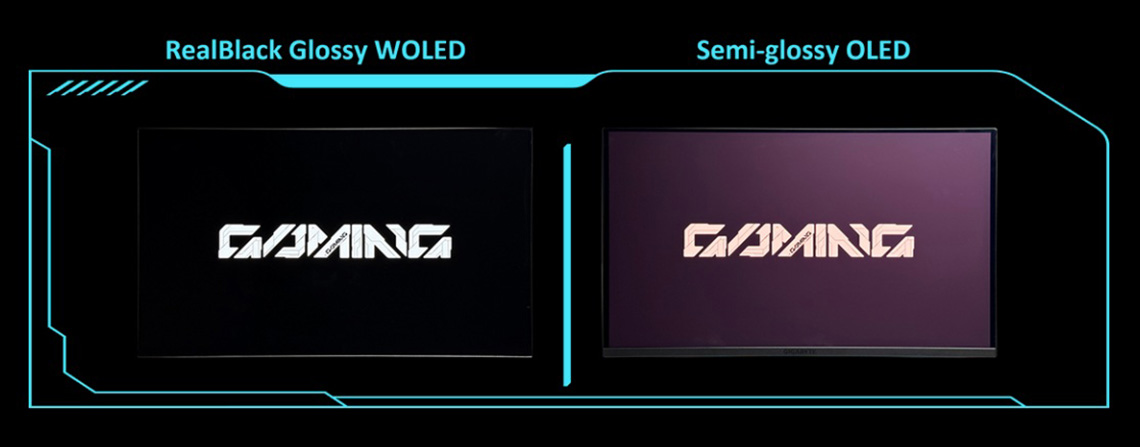
One of the key selling points of this new Gigabyte display is the inclusion of their so-called ‘RealBlack glossy’ screen coating. This is a screen coating applied at the factory by the panel manufacturer LG.Display instead of (not on top of) the matte AG coating, and it’s an updated version of their original glossy coating they released back in 2024.
This new coating offers:Related content: More Glossy WOLED Monitors! Gigabyte Launch Two New Models, With More to Come
OLED Care
Gigabyte offer a 3 year warranty with the monitor, including burn-in cover which gives some added peace of mind around usage and image retention risks. This is the same as on their other recent OLED monitors.
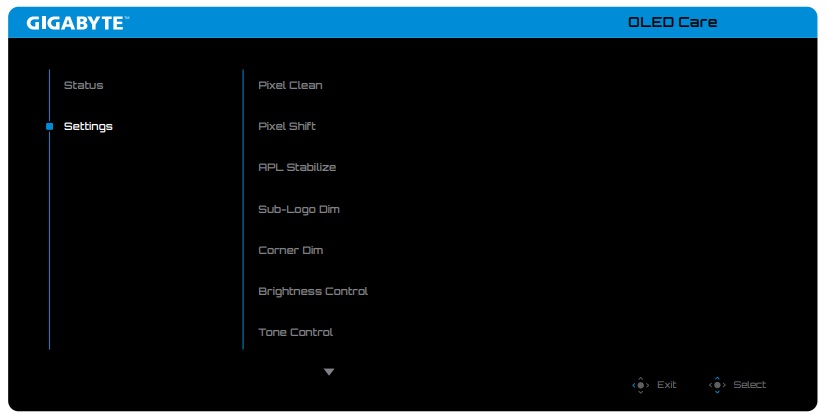
To help mitigate the risks of image retention Gigabyte provide an extensive range of OLED care options within the OSD menu which are covered below
| OLED Care and Warranty | |
| Warranty period | 3 years |
| Burn-in cover |  |
| Screen saver |  |
| Pixel / screen shift | |
| Logo dimming | |
| Taskbar detection | |
| Motion / proximity sensor | |
| Other OLED care features | Corner dim Brightness control Tone control |
There’s a couple of features here which are less commonly seen in the OLED space which include: Corner Dim: Reduces the brightness at the four corners of the screen. Brightness Control: Reduces image retention by balancing brightness across screen areas. Tone Control: Optimizes brightness over time to reduce aging and extend panel life. We’d like to see Gigabyte explore motion sensors for their OLED monitors in the future perhaps, although we appreciate you can’t have everything at a low price point.
Brightness and ContrastFor this testing we disabled the OLED care features in the OSD menu as those can have a small impact to screen brightness in certain situations. We would recommend enabling as many of those features as possible to mitigate risks of burn-in, although you may need to experiment for your particular usage to ensure none are distracting or problematic. We also moved to the ‘performance’ power mode which opened up proper access to all the settings.
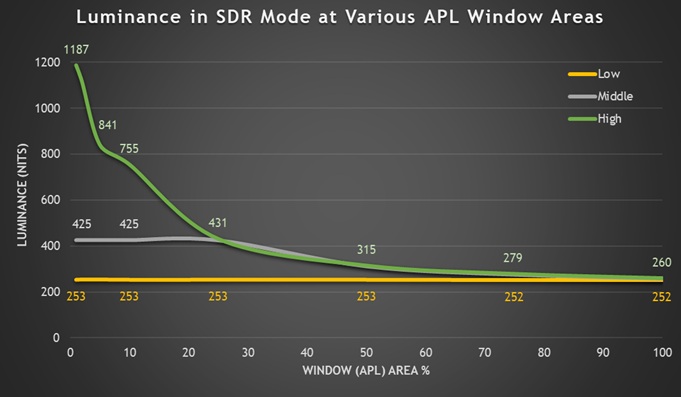
If you leave the screen set to ‘APL stabilize’ low in the OLED care menu then in SDR mode it operates with a uniform brightness behaviour without any ABL dimming, and so you get consistent brightness levels during desktop usage regardless of your content and windows sizes. We measured a maximum 253 nits in SDR which was typical for an OLED panel although a little lower than the specified 275 nits. More recent Tandem WOLED panels can reach brighter, up to around 339 nits for instance in the case of Gigabyte’s MO27Q28G model.
You can disable uniform brightness if you want to get a boost in potential SDR brightness up to ~425 nits in the ‘middle’ mode and an even higher 1187 nits in ‘high’ mode, although you would then have to live with some ABL dimming in certain situations. This is more noticeable in the high mode, with the middle mode being less aggressive in dimming. These modes are likely ok though for SDR gaming and multimedia, and other dynamic content; with the uniform mode (low) preferrable for desktop applications and general uses.
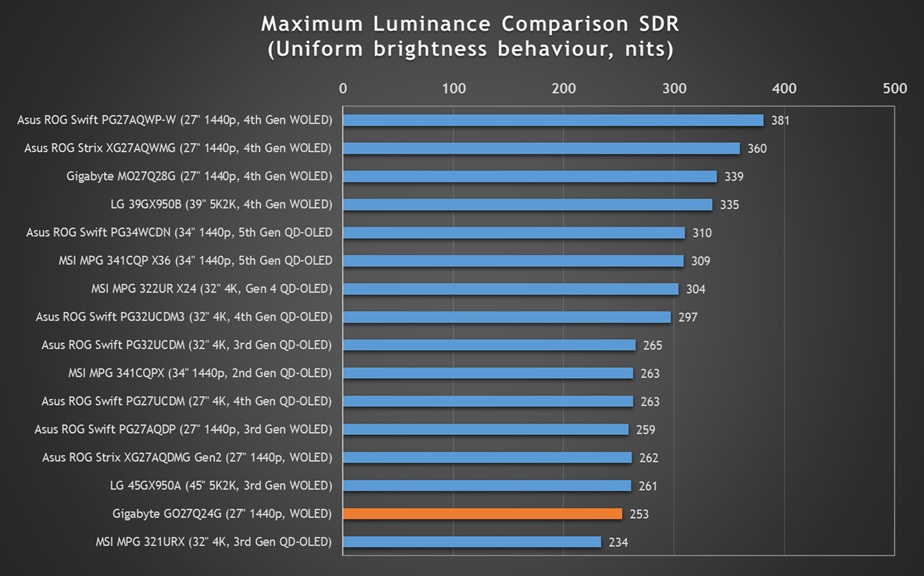
Only the most recent Gen 4 Tandem WOLED (335 – 380 nits) and some of the Gen 4 / 5 QD-OLED panels (~310 nits) reach noticeably higher, and so the performance here is as expected for an older gen WOLED panel offering. The minimum adjustment range is decent at 28 nits, making it useable in darker room conditions.
| Black depth and contrast | APL stabilize middle / high | APL stabilize low (uniform brightness) |
| Max luminance (nits) | 1187 (high) 425 (middle) | 253 |
| Min Luminance (nits) | 28 | 28 |
| Uniform / No ABL | | |
| Remains uniform in Windows desktop | | |
Keep in mind also that as a result of the amazing contrast ratio of the OLED panel, the perceived brightness in SDR mode is equivalent to an approximate 445 nits LCD monitor, even when using the uniform brightness mode so that should be plenty bright enough for most users. We explained the principles behind this in our article here, although we can’t officially give this screen a ‘TrueBright’ certification tier as that’s a programme created for QD-OLED monitors. The same principles apply though.

Performance is measured and evaluated with a high degree of accuracy using a range of testing devices and software. The results are carefully selected to provide the most useful and relevant information that can help evaluate the display while filtering out the wide range of information and figures that will be unnecessary. For measurement, we use a UPRtek MK550T spectroradiometer which is particularly accurate for colour gamut and colour spectrum measurements. We also use an X-rite i1 Pro 2 Spectrophotometer and a X-rite i1 Display Pro Plus colorimeter for various measurements. Several other software packages are incorporated including Portrait Displays’ Calman color calibration software – available from Portrait.com.
We measure the screen at default settings (with all ICC profiles deactivated and factory settings used), and any other modes that are of interest such as sRGB emulation presets. We then calibrate and profile the screen before re-measuring the calibrated state.
The results presented can be interpreted as follows:
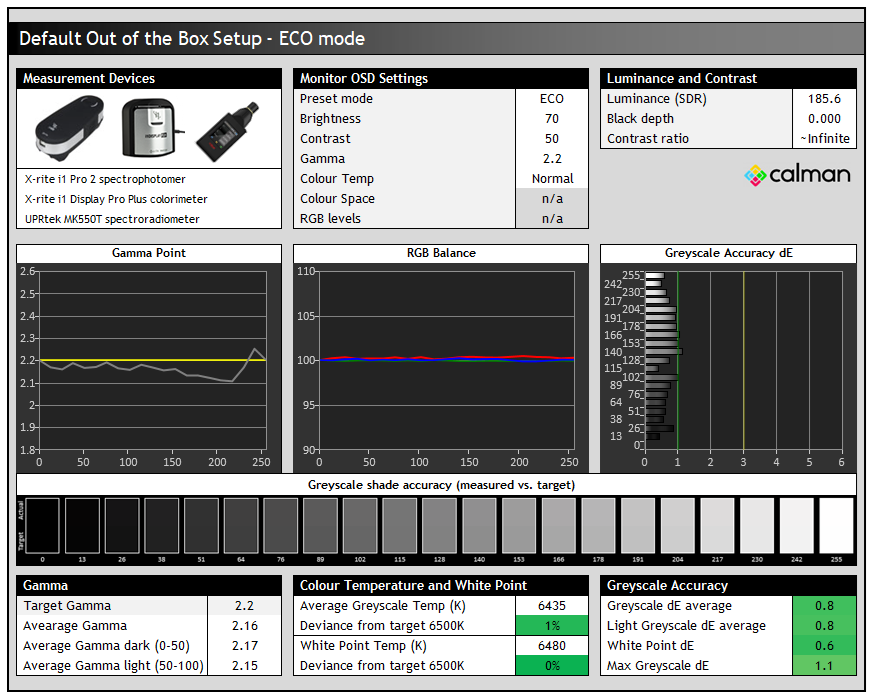
The screen is set in the ‘ECO’ preset mode by default with the full wide gamut of the backlight active. In that mode we found a very accurate performance for gamma and greyscale, with a very good RGB balance and excellent greyscale accuracy which was impressive.
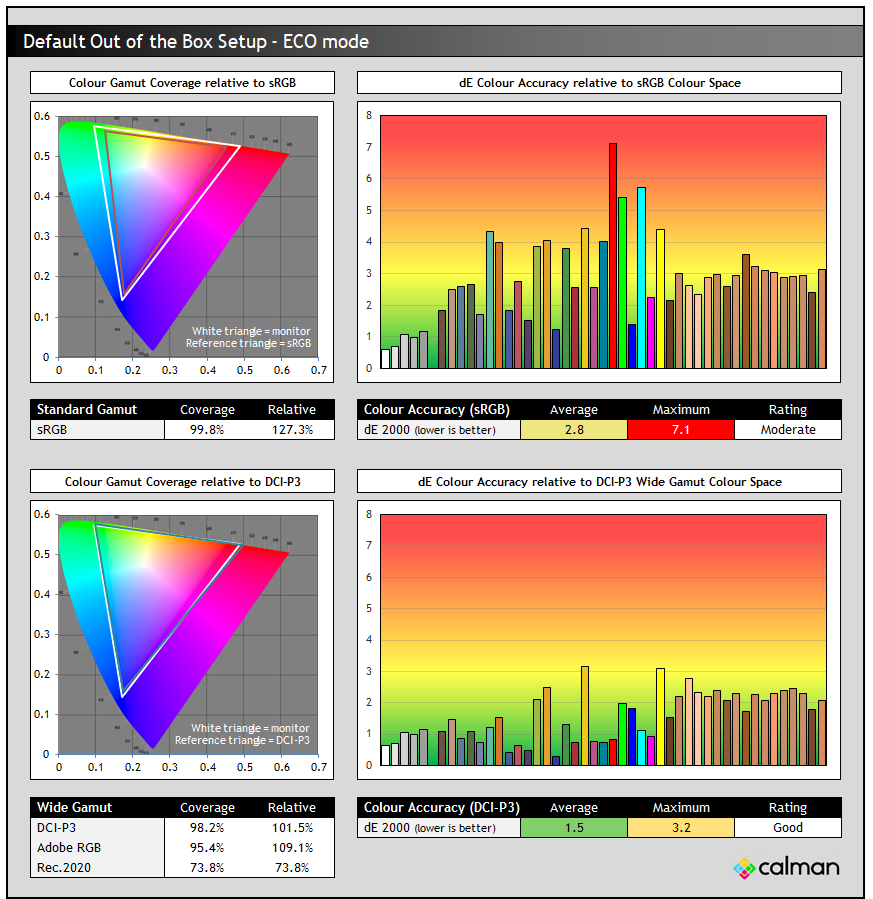
With the wide native wide colour gamut active here, the accuracy of sRGB colours was only moderate, with a dE 2.8 average measured. This is normal for a wide gamut screen and to be expected and we will look if we can improve sRGB / SDR accuracy in a moment.
The native colour gamut of this panel basically matches the DCI-P3 reference and with that closer match the accuracy of DCI-P3 colours out of the box was good, with a dE 1.5 measured. This native mode is ideal for working with HDR content or providing a more vivid and saturated image that some people prefer, especially for gaming and multimedia.
DCI-P3 Emulation
Gigabyte provide a colour space setting in the menu with an option for DCI-P3 which seems to make a couple of changes. Unfortunately when using this mode and the other colour space emulation approaches, you lose access to all the colour, gamma and contrast settings. You only have access to the brightness control (thankfully) but this mode is quite limited in flexibility as a result.
Most noticeably this DCI-P3 mode changes to an sRGB gamma curve instead of 2.2, making near-black detail brighter and improving shadow detail, although changing the appearance of darker content overall. The RGB balance, colour temp and greyscale accuracy remained very good as before, it’s just the gamma which has changed.
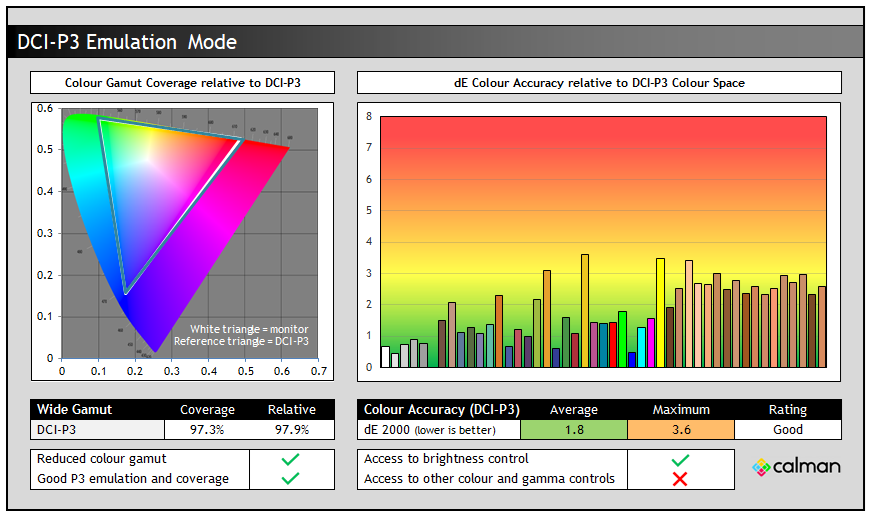
This mode seems to clamp the native mode ever so slightly, dropping the DCI-P3 coverage a tad to ~97%, and removing the very minor over-coverage, now measured at 97.3%. This makes very little practical difference, and colour accuracy remained basically the same with dE 1.7 average measured in that mode. Gamma and greyscale remain unchanged and since the native mode is so close to DCI-P3, you might as well just use that as it leaves you with better control over the other settings, unless you want an sRGB gamma instead of 2.2.
Adobe RGB Emulation
Gigabyte also provide a colour space setting in the menu for Adobe RGB when using the normal preset modes (like ECO, or Custom) which operates with a 2.2 gamma again, but clamps the colour space back closer to this target. You again lose access to all the OSD controls other than for brightness.
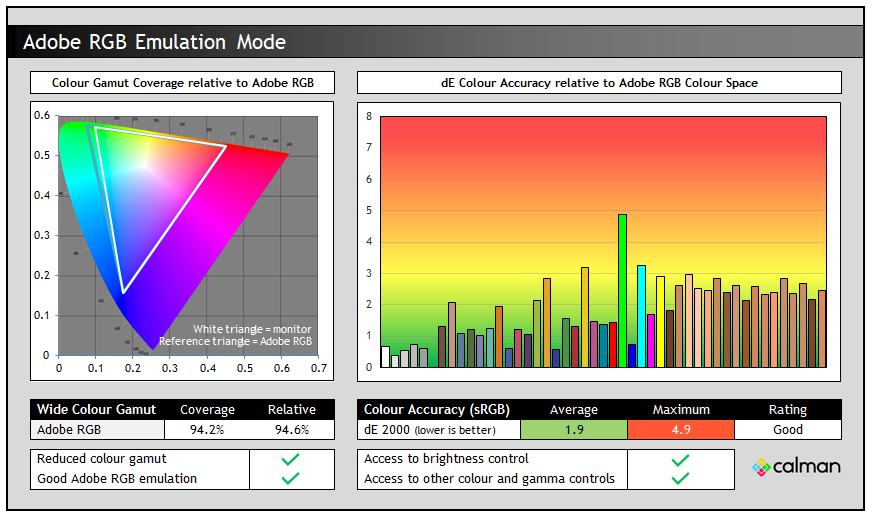
In the native mode we’d measured 95.4% absolute coverage, and 109.1% relative coverage (i.e. some over-coverage of Adobe RGB). Using this mode reduced that over-coverage nicely, although we were still a little short of full coverage due to the limitations of the panels native gamut. This mode did offer good colour accuracy for Adobe RGB content though, with the main deviance being in green shades where the colour space of the panel couldn’t quite cover the full area. It’s useful to see this mode offered as well though.
sRGB EmulationGigabyte provide access to an sRGB emulation mode in a slightly different way to the DCI-P3 and Adobe RGB options. Rather than it being an option in the colour space section, you have to activate the specific sRGB preset mode instead. That does have some drawbacks though, as you lose access to pretty much all the other settings for colours, gamma etc and only retain access to the brightness control. At least that’s available still, but we would have preferred a more flexible mode, like we had with DCI-P3 and Adobe RGB options.
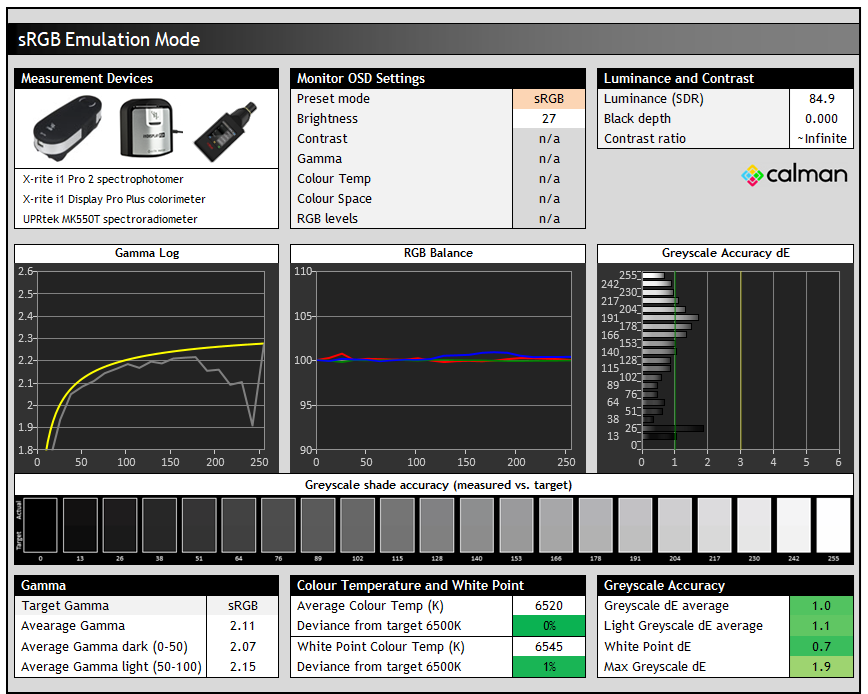
This mode is configured to the slightly different sRGB gamma curve, instead of 2.2. This improves the near black shadow detail by increasing the luminance for those shades, something that we will look at in more detail in a moment. The RGB balance, colour temp, white point and greyscale accuracy remained very good as in the other mode. Note that the default brightness is set lower in this mode, but can be changed to suit.
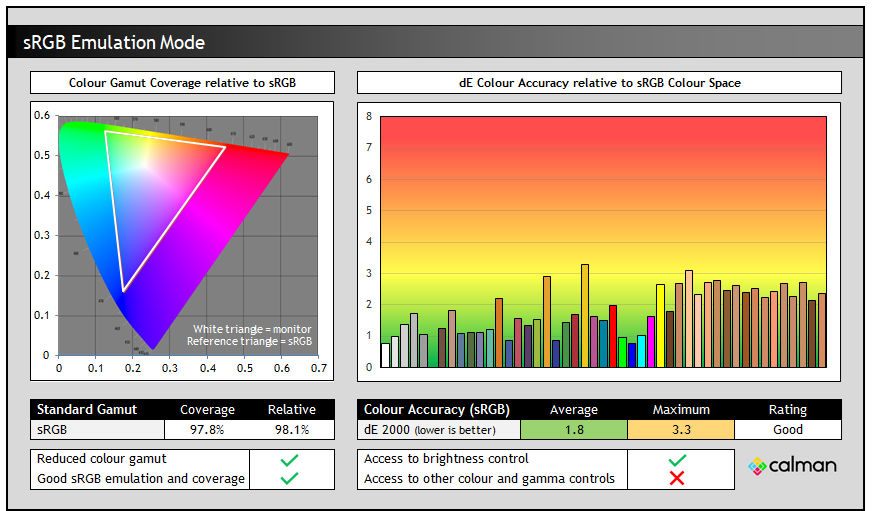
The main thing that this mode does it that it clamps the native colour space back very close to the sRGB reference, removing the ~27% over-coverage we’d seen in the native mode. This now offers good colour accuracy for sRGB / SDR content, although it could have perhaps been a little better tuned we felt, although it’s still good. The main limitation with this mode is the locked settings which doesn’t give you much flexibility.
Shadow DetailWe also explored and tested the near-black shadow detail which can sometimes be a challenge on OLED panels, even though they have a true 0 nits black depth and ~infinite contrast. We explored the reasons for this and the challenges that display manufacturers face when calibrating OLED panels in our detailed article here.
For these tests screen was configured to 200 nits white luminance, and we tested the screen in several colour space modes, as well as at different refresh rates.
Native gamut mode
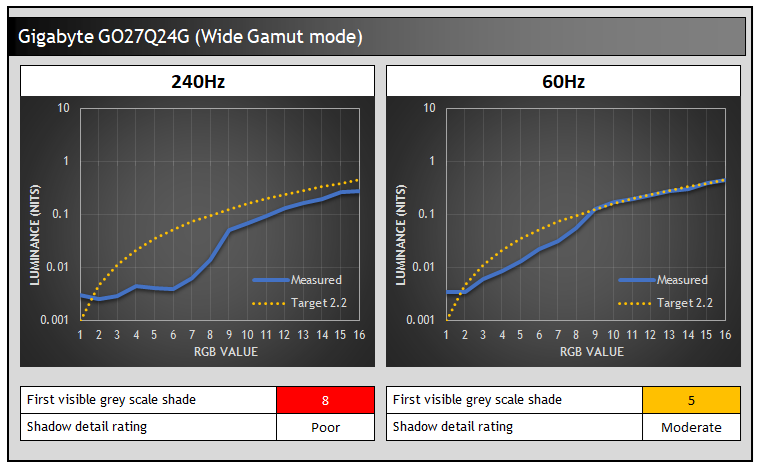
Shadow detail was weak on this screen in the native mode as we’ve seen on some OLED panels in the past. The gamma was factory calibrated at a 60Hz refresh rate which is common, and so performance was a little better at that refresh rate, straying further from the target luminance for darker shades at the higher 240Hz refresh rate. We explored that topic in more detail in our article here. This meant that near-black shades were a bit brighter at lower refresh rates due to the gamma shift, which made darker content a bit easier to see.
In both the DCI-P3 and sRGB modes the gamma is actually configured to the sRGB gamma curve, which as you can see is again accurately calibrated at 60Hz, and ever so slightly lower at 240Hz. The shadow detail and overall brightness of darker content was substantially improved in these modes which was great news. This is perhaps one reason to use the DCI-P3 mode for wide gamut / native mode, and the sRGB mode if you want to work with SDR content more commonly.
Black Equalizer settingGigabyte provide a ‘Black equalizer’ setting in the menu which can adjust darker scenes quite well. Turning this up from the default 10 to a setting of 12 helps improve shadow detail in native mode (RGB 3 now visible at 240Hz) without raising the black depth visibly, but anything higher starts to raise black as well. You probably don’t need this if you’re using the sRGB/DCI-P3 modes, but it is useful if you’re using the native mode. You can experiment with this for darker gaming and multimedia if needed.
Calibration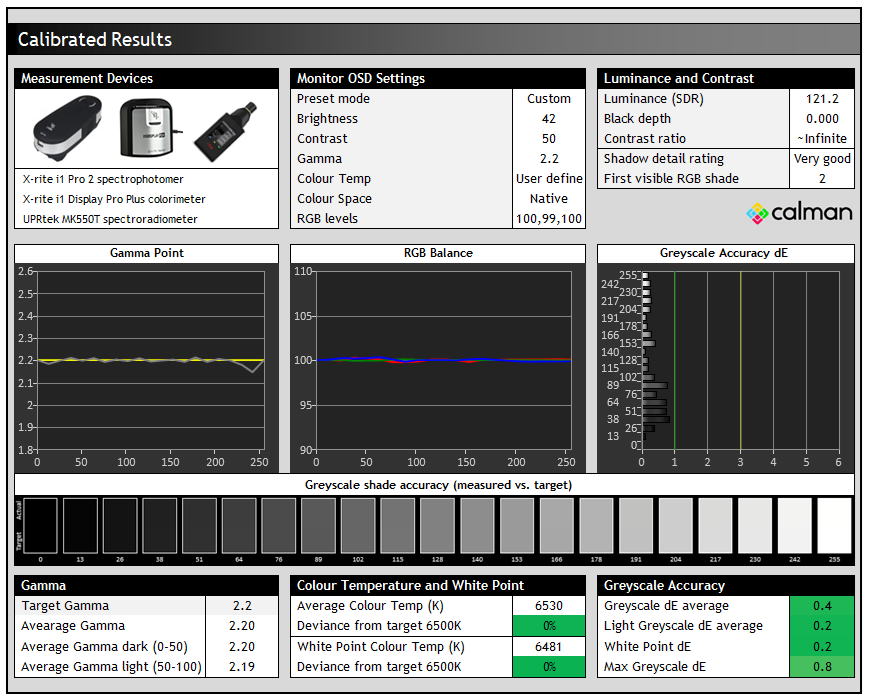
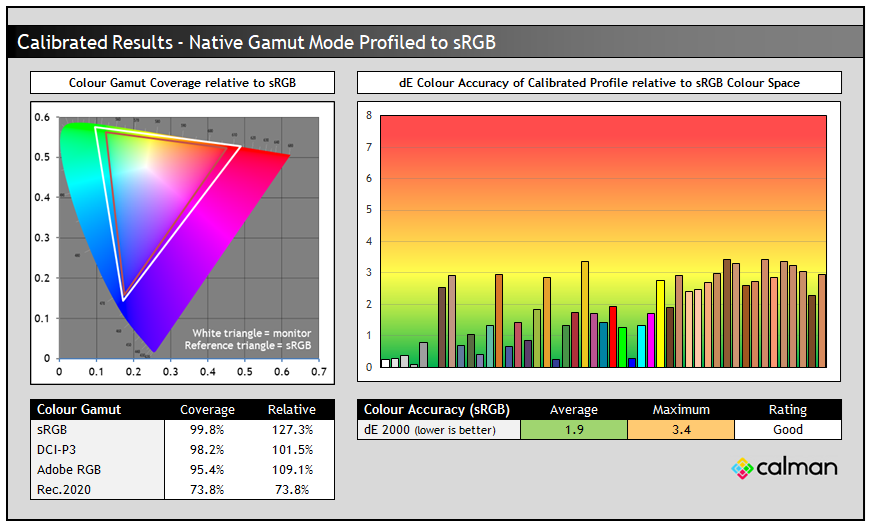
Calibration and profiling can produce some very good overall results and could be useful though if you wanted to operate the screen within its native wide gamut mode, but then map the colour space back to something else like sRGB or Adobe RGB for instance for colour-aware applications (e.g. Photoshop). You would need a suitable calibration device and software for this, or you could also try our calibrated ICC profile.
The screen was profiled to 2.2 gamma, 6500K colour temp and to the sRGB colour space. The screen was left in its native wide gamut mode, but this profile will be used in colour-aware applications to map back to sRGB in this instance.
Overall the calibrated results were good as you’d hope, although it didn’t seem to be possible to fully correct the colour accuracy despite multiple attempts. We’ve seen this on other WOLED monitors in the past before including the equivalent Asus model using this panel, but we’re not sure of the cause. Gamma and greyscale was excellent and this also improved shadow detail very well.
Best Settings Guide
Find the recommended settings and a calibrated ICC profile for your display.
[View here]
The resolution of 2560 x 1440 is standard on a 27″ sized screen and is comfortable without scaling being required, providing a decent desktop space for multi-tasking and split screen work. Higher pixel densities from 4K resolutions are available in this size of OLED monitor, but at higher prices, and the lower 1440p resolution is more suitable for fast-paced gaming, being a lot easier to power than 4K. As this is an OLED panel you need to be mindful of image retention risks for lots of static work, although there’s a good range of OLED Care options and a robust 3-year warranty offered as well.
Sub-pixel layout and text clarityThis screen uses an older Gen WOLED panel which features their original RWBG sub-pixel layout, later optimized on more recent panels to RGWB. This means that text clarity is not as good as some of the modern panels, a potential concern if you’re looking to use it for lots of text and office applications, but not really an issue for gaming and multimedia. It leads to more noticeable fringing on text in static uses and this screen is more suited to dynamic content. If you’re concerned about text clarity then you will probably prefer some of the high pixel density options like the 27″ 4K models available on the market if you can stretch your budget further.
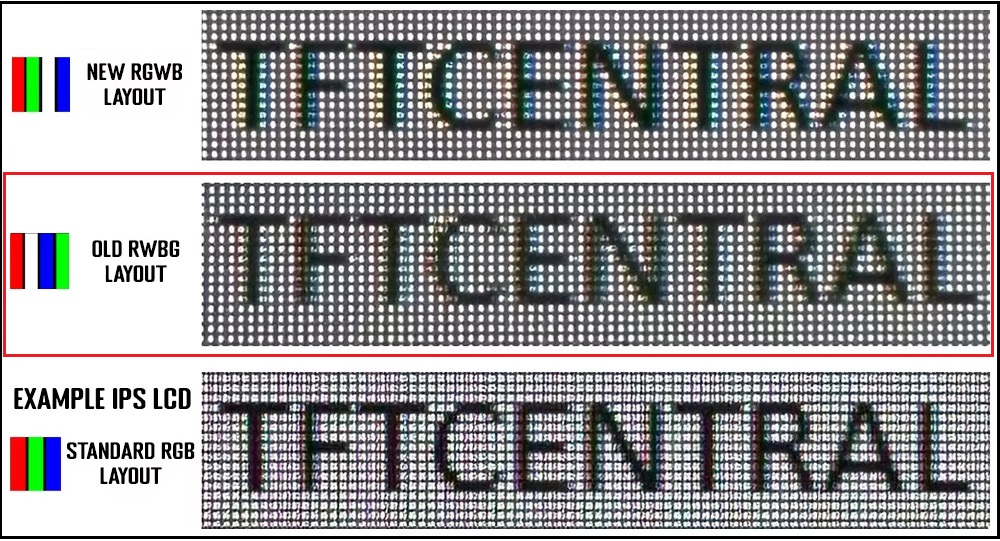 Magnified macro photos of text on two different 27″ WOLED panels. IPS LCD for referenceGlossy coating
The improved ‘RealBlack glossy’ coating provides a super sharp and clear image, free of any grain which is great news. That removes the very minor grain visible on the first generation glossy WOLED panel. Gigabyte didn’t actually ever use that coating themselves on their OLED monitors, we only saw that from Asus with their XG27AQDMG back in 2024. The glossy coating certainly looks crisper and cleaner than the matte anti-glare coated WOLED panels you can find on the market.
A lot of people prefer this coating finish, and it helps the image pop more as well. On the other hand, it is not as well suited to viewing in brighter room conditions or where you have light sources and windows facing the screen. It’s a lot more reflective and produces mirror-like reflections which can be distracting in some situations. You will need to consider your usage environment to decide if glossy is right for you, or if you’d be better off with a matte anti-glare coating.
Useful Office Features| Features | Notes | |
| USB type-C connectivity (DP Alt mode) | | |
| USB type-C power delivery | | 15W |
| Daisy chaining support | | |
| KVM switch | | |
| PiP and PbP support | | |
| USB data ports | | |
| Easy access USB data ports | | |
| Integrated speakers | | |
| Audio output / headphone out | | |
| Mic input | | |
| Integrated webcam | | |
| Ambient light sensor | | |
| Motion sensor | | |
| Stand adjustments | | Tilt, height, swivel, rotate |
| VESA mount support | | 100 x 100mm |
| Integrated power supply | | Small external brick |
| Tripod socket | | |
| Firmware updates | | |
| Fan-less design | |
As this is part of Gigabyte’s affordable OLED range it is missing some features compared with their flagship OLED monitors. There’s no USB-A data ports on this screen, which is a shame. That also means that despite there being a USB-C connection (with a fairly low 15W power delivery) there’s no KVM switch function. There’s also no speakers on this model, something featured on most of their other OLED monitors, albeit with low power delivery. There is however PiP/PbP support and a headphone connection which are useful, and the stand provides a great range of adjustments too.
Blue Light
| Blue light output | |
| Blue peak wavelength | 455 nm |
| Blue light portion | 35.61% |
| Low blue light modes available | But ‘Reader’ mode preset |
| Low blue light mode temp | 5026K (Reader mode) |
The native panel spectral distribution is shown above at a calibrated 6500K white point, where the blue peak is at 455 nm. The spectral distribution shows this is a previous-Gen WOLED panel before they shifted to a 4-layer structure for their Tandem WOLED technology in 2025.
There aren’t any specific ‘Blue Light Filter’ settings in the menu but there is a ‘Reader’ preset mode which has the colour temp set to warm by default, and results in a ~5026k white point. That may be useful in the evening or for lots of text work potentially.
Flicker free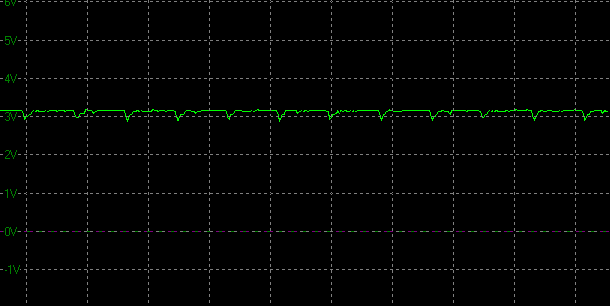
| Flicker | |
| Flicker free verified | |
| PWM / flicker frequency | n/a |
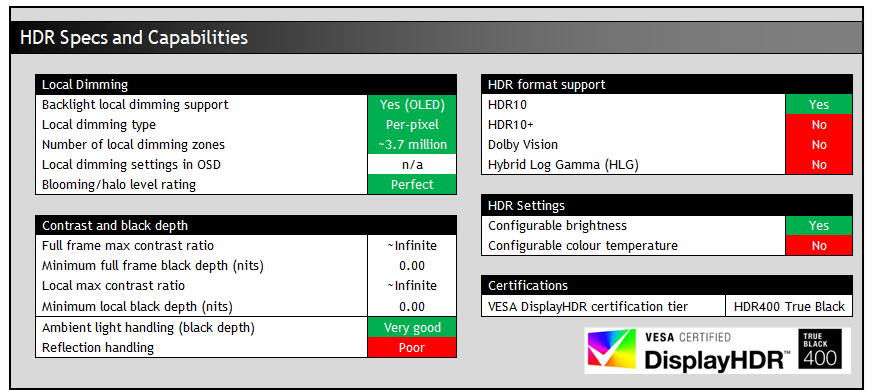
Being an OLED panel, the GO27Q24G is well-equipped to handle HDR content with its per-pixel level dimming allowing for true blacks, a basically infinite contrast ratio and the avoidance of all blooming and halos. In these regards it can easily surpass any Mini LED backlit LCD monitor. However, it cannot reach the same luminance levels as Mini LED screens, and carries a “peak brightness” spec of 1300 nits, which will then also lower as the content on your screen changes and the APL increases which is normal on this technology. This is one key area where Mini LED screens can look brighter and deliver a more impactful HDR experience.
The WOLED panel maintains better contrast and black depth in the presence of ambient light than alternative QD-OLED panels, which show raised blacks that start to go grey as ambient light increases, especially where those light sources are in front of the screen. Some improvements have been made with 2026 ‘QuantumBlack’ coated QD-OLED panels, but they still remain behind WOLED in this regard.
The ‘RealBlack glossy’ coating used on this screen also helps with black depth retention, as it doesn’t diffuse light across the panel like a matte AG coating would, but on the flip side you do need to be more mindful of mirror-like reflections with this coating and the screen is not as well suited to brighter viewing environments.

Test and demo the HDR on your display using our handy compilation, highlighting black depth, contrast and peak brightness capabilities.
[View here]
Like other recent Gigabyte OLED monitors the GO27Q24G offers a wide range of HDR modes, settings and configurations to choose from. Each mode is basically a preset configuration of different settings, and in many of the modes you can change these settings if you want. The main setting which also impacts brightness in HDR is the APL stabilize setting which is available in the OLED care menu. The defaults for each mode are shown below:
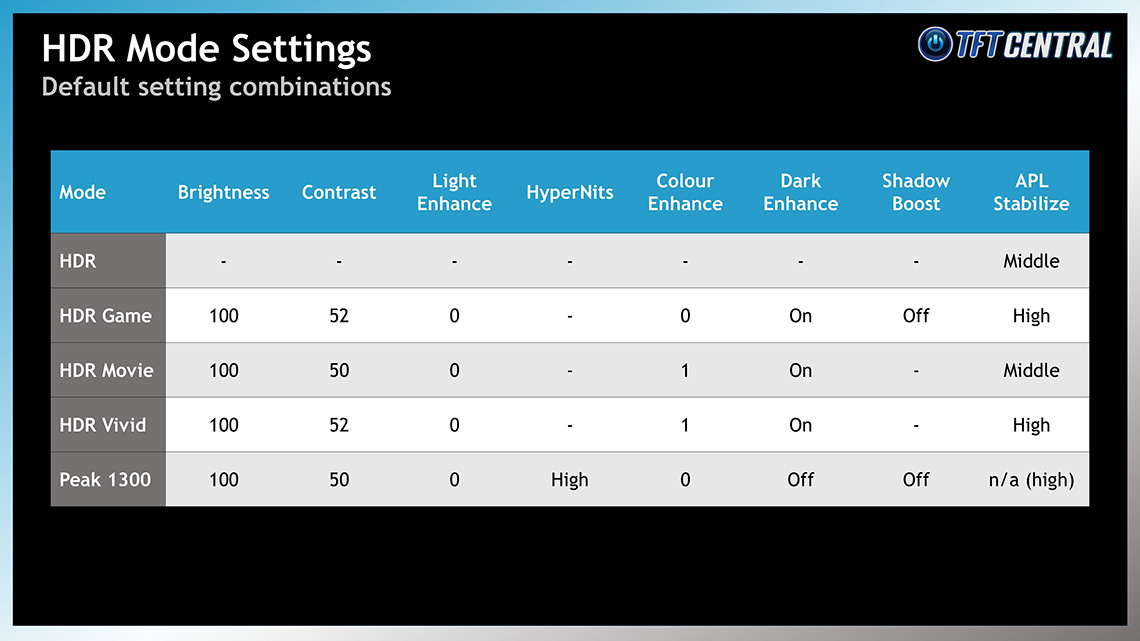
You can see that the normal “HDR” mode has most of it’s settings locked and behaves like a traditional “True Black” mode that we’ve seen on loads of OLED monitors before. The ‘Peak’ mode is the only one to offer access to the new HyperNits feature which we explored in detail recently, and you will also a new ‘Shadow Boost’ setting available in that mode too which we will also explore later.

Performance is measured and evaluated with a high degree of accuracy using a range of testing devices and software. The results are carefully selected to provide the most useful and relevant information that can help evaluate the display while filtering out the wide range of information and figures that will be unnecessary. For measurement, we use a UPRtek MK550T spectroradiometer which is particularly accurate for colour gamut and colour spectrum measurements. We also use an X-rite i1 Pro 2 Spectrophotometer and a X-rite i1 Display Pro Plus colorimeter for various measurements. Several other software packages are incorporated including Portrait Displays’ Calman color calibration software – available from Portrait.com.
We measure the screen at default settings (with all ICC profiles deactivated and factory settings used). The results presented can be interpreted as follows:
HDR accuracy section
For HDR, any local dimming is left enabled, and so we measure the black depth adjacent to a white test image and calculate the “local contrast ratio” from there. We also measure the black depth towards the edges of the screen, away from the white test area in order to calculate the “maximum full frame contrast ratio” across the whole panel. These figures will often be different on LCD screens with local dimming, as this dimming can be more effective for dark areas further away from light areas.
HDR colours section
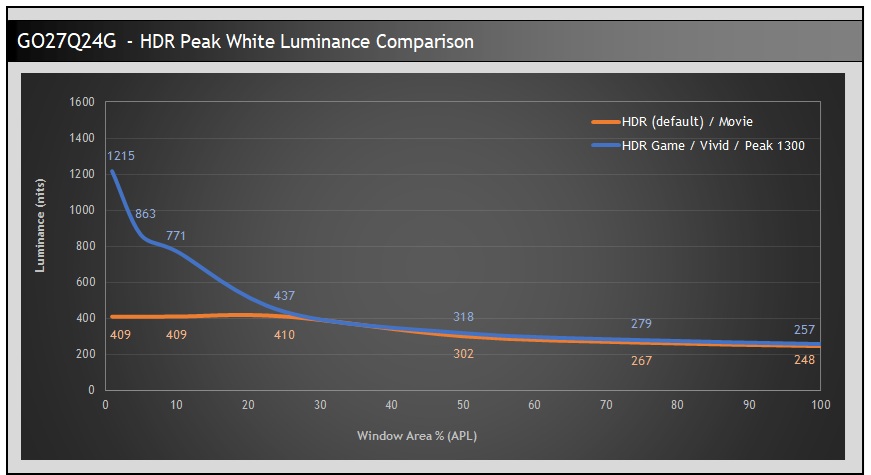
You can see from the default settings table that the HDR default mode and movie mode are set with APL stabilize on medium, whereas the Game, Vivid and Peak modes have it set to high. A quick comparison of the peak white luminance performance at different APL shows the variation between the different modes, impacted by the APL stabilize setting.
These measurements alone don’t tell the full story, but you can see that those modes with APL stabilize on high can reach much higher peak brightness in each case. Note also that those modes set on the APL stabilize medium setting only reach around 410 nits maximum, and are locked to lower luminance levels, primarily to conform to the VESA DisplayHDR 400 True Black certification process and significantly reduce ABL dimming during changing content.
Average greyscale luminance and perceived brightness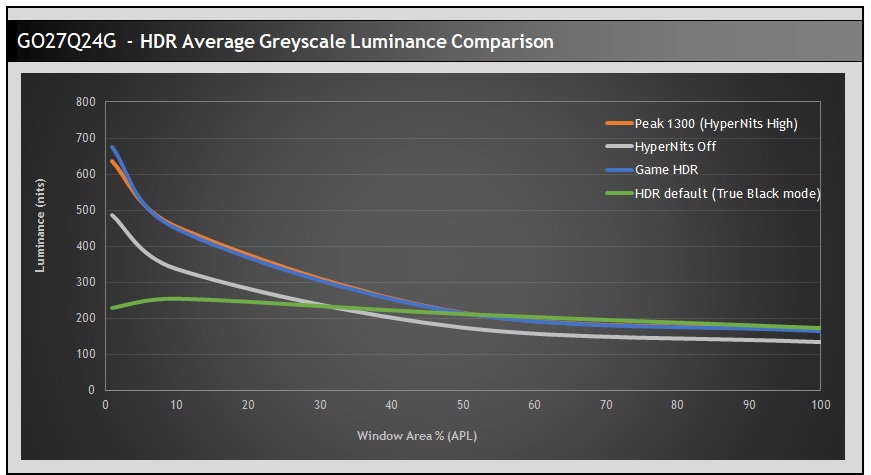
If we compare the average greyscale luminance we can see that the Game HDR and Peak 1300 modes (with HyperNits = High) offer the highest overall brightness experience and we expect these will be the preferred modes for most users as a result. You’ve got a choice though between those two configurations, or you may want to use them both potentially.
The HDR Game mode has a slightly boosted contrast setting and ‘Dark Enhance’ enabled with the aim being to improve darker gaming situations. On the other hand the Peak 1300 mode could be more useful for movie and video playback with the flexibility to customise the other settings as you want. Both modes offer access to the new ‘Shadow Boost’ setting as well, but you now have two modes where you can configure things for different use-cases. At the moment since the ‘Dark Enhance’ and ‘Shadow Boost’ modes are mutually exclusive, you may wish to have one mode configured to use the first setting, and the other to use the second setting. See our HyperNits testing article for more measurements on those two settings to see how they perform and improve darker content.
EOTF Measurements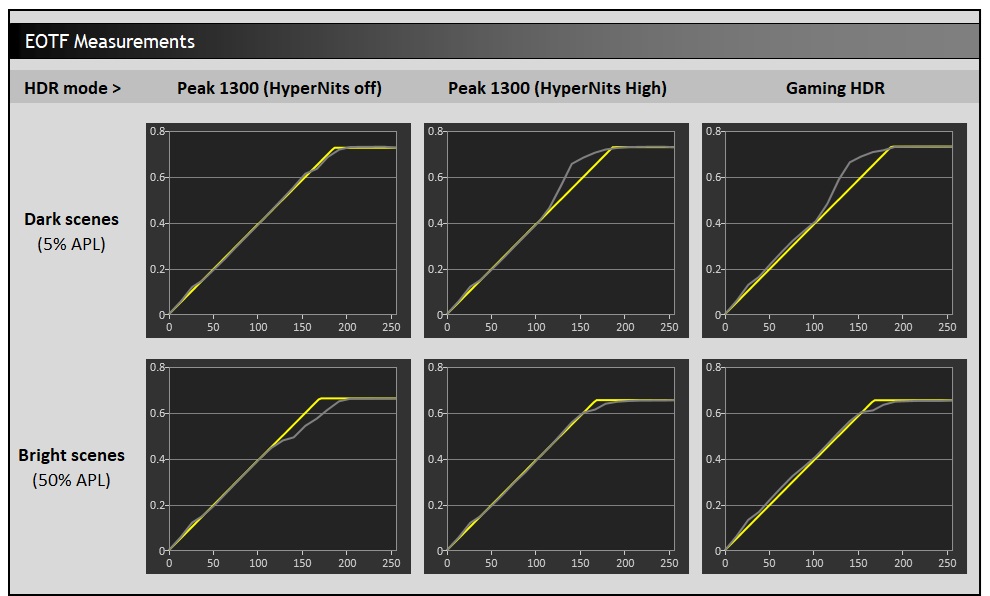
We’ve provided EOTF measurements for a few of the available modes above. The HDR Game and Peak 1300 modes (HyperNits = High) offer very similar EOTF performance and are likely the optimal modes people will want to use. There is some over-brightening in low APL scenes which can lead to a little loss of detail in some situations. However, this helps to retain an accurate EOTF tracking in higher APL / brighter overall scenes, as well as making the overall HDR experience brighter. This is pretty typical behaviour for an OLED monitor configured in this way.
In contrast you can see that if you turn off HyperNits in the peak 1300 mode, the EOTF tracking shows some pretty significant roll-off in brighter scenes, leading them to be a lot darker than intended. This behaves like a familiar “peak xxx nits” mode you’ll see on many OLED screens, with the HyperNits feature introduced to overcome brightness drops.
EOTF and Greyscale Measurements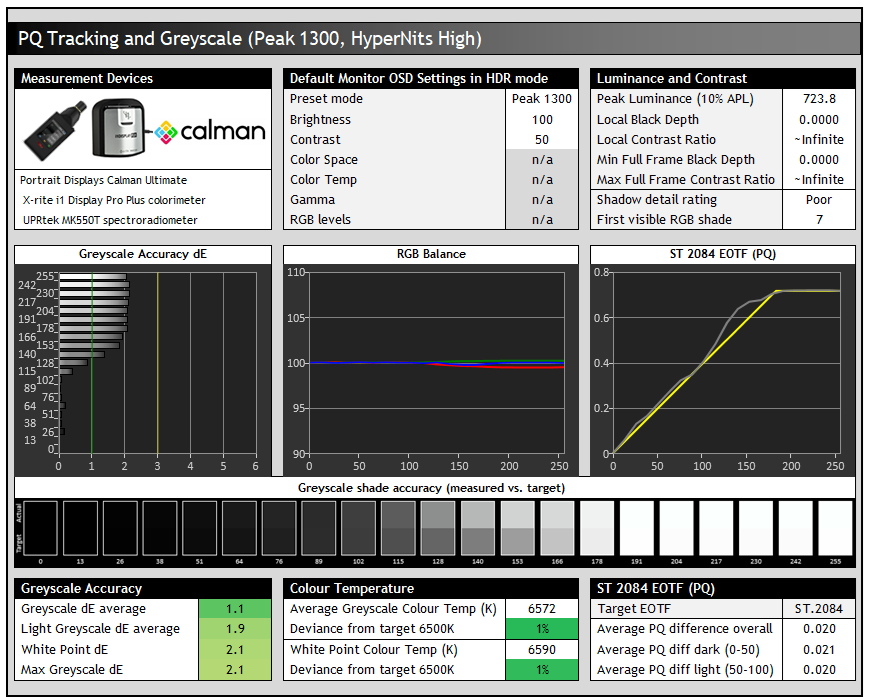
Having settled on the Peak 1300 mode (HyperNits High) as one of the two preferred configurations, we measured this in a bit more detail to evaluate the greyscale accuracy and temperature. There’s a good RGB balance in HDR mode with a decent overall greyscale temp and a good white point as well which was good news. There aren’t any controls for colour temp in HDR mode, just a setting called ‘color enhance’ which can tweak vividness a little. Thankfully the greyscale temp is very good by default anyway and close to D65.
Shadow detail was unfortunately weak in HDR mode as we’d found in the native SDR mode, with the first visible greyscale shade being RGB 7 at both native 240Hz and at 60Hz. You can brighten some of the dark details using the ‘shadow boost’ setting in the menu, but it only makes minor improvements overall, and doesn’t change which is the first visible RGB shade. It can help brighten darker scenes a little though. The ‘black equalizer’ setting is unfortunately not available in HDR mode as that had worked pretty nicely in SDR for improving shadow detail. This is one of the weaker areas of the screens performance and something we’d like to see improved in the future where possible.
HDR Colours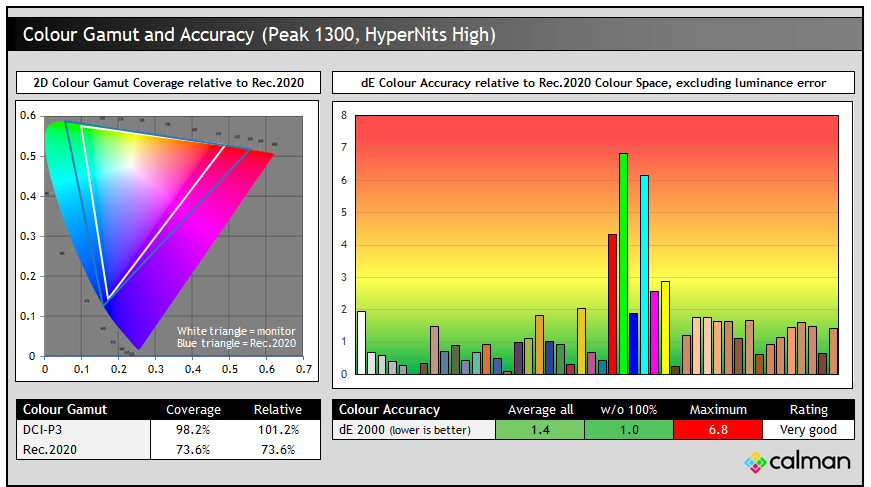
The colour gamut in HDR mode was the same as in native SDR mode (no additional clamping) and we had a good match to the DCI-P3 colour space used for a lot of HDR content. Colour accuracy was very good overall with dE 1.0 average, if we ignore the 100% primaries from Rec.2020 which this panel cannot reach.
Gaming
The GO27Q24G is well-suited to gaming, using an OLED panel which is well-known for its near-instant response times and excellent motion clarity capabilities at high refresh rates. It can also support HDR gaming very well with amazing blacks and contrast ratio. The ‘RealBlack glossy’ coating provides a super clear and clean image although you need to be mindful of the positioning of external light sources relative to the screen to reduce reflections.
| (at native resolution) | Refresh Rate |
| Maximum Refresh Rate DisplayPort | 240Hz |
| Maximum Refresh Rate USB type-C | 240Hz |
| Maximum Refresh Rate HDMI | 240Hz |
| VRR range | 48 – 240Hz |
| VRR certifications (to date) | NVIDIA ‘G-Sync Compatible’ |
| ClearMR certification tier | |
The screen has a lower refresh rate (240Hz) than many other recent OLED monitors, which now offer 360 – 540Hz commonly. This is a more mid-tier refresh rate, but it’s certainly not slow and still provides great motion clarity and frame rate support. There’s many people who don’t want or need anything higher than this, either because they’re not playing competitively, don’t play games that support super high frame rates, or don’t have a powerful enough system to drive it anyway. Having a lower refresh rate on this new panel helps ensure a more affordable price point too. There’s no dual-mode support on this model either, although if it did have one it would only offer you a lowly 720p mode so it’s unlikely to be missed by most people.
To help support the demands of 1440p @ 240Hz the screen features adaptive-sync, giving Variable Refresh Rate (VRR) support for both NVIDIA and AMD systems which is great news. It has received certifications under the NVIDIA ‘G-sync Compatible’ scheme so far, and we expect AMD ‘FreeSync Premium’ will also follow as this was used for many of Gigabyte’s other OLED monitors.
| Other Features | |
| OLED VRR Anti flicker | |
| Black Frame Insertion (BFI) | |
| Dual-mode support | |
| Gaming extras | Timer Refresh rate / FPS counter Black equalizer Tactical Switch 2.0 |
| Emulated gaming sizes | 24″ emulation. 4:3 and 5:4 modes |
There’s a familiar wide range of gaming settings and extras on offer here too from the ‘Game Assist’ menu and a few options in the main OSD menu. This includes their UltraClear mode which operates a black frame insertion function for improved motion clarity in certain gaming situations which we will test in a moment. There’s also an OLED VRR Anti-flicker control, and a useful black stabilizer setting for adjusting darker content.
Response Times and Motion Clarity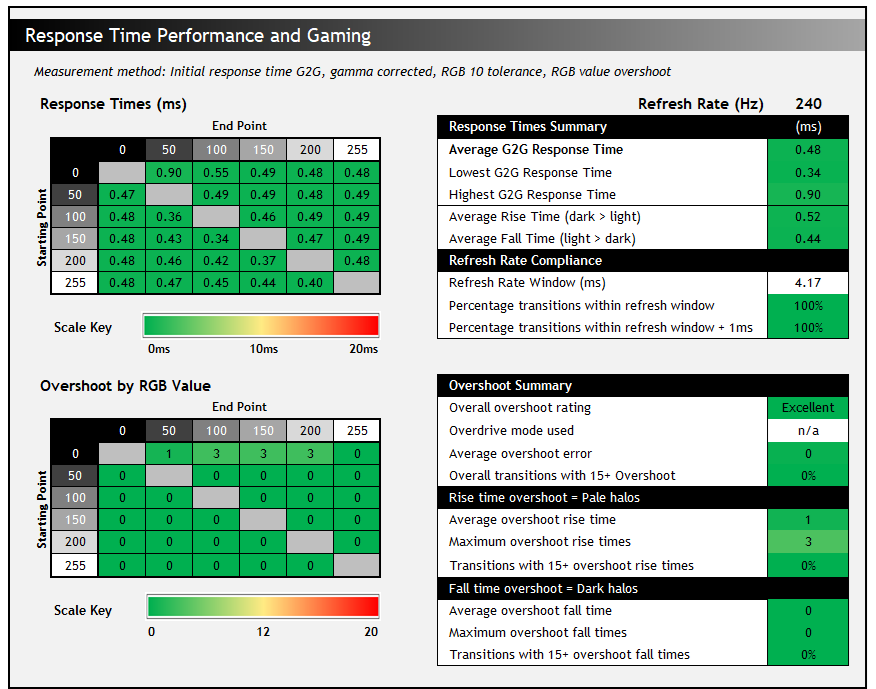
The OLED panel offers the usual near-instant response times you’d expect, and there’s a native 240Hz refresh rate which offers very good motion clarity. Powering these kind of frame rates at 1440p will be easier than on 4K equivalent screens.
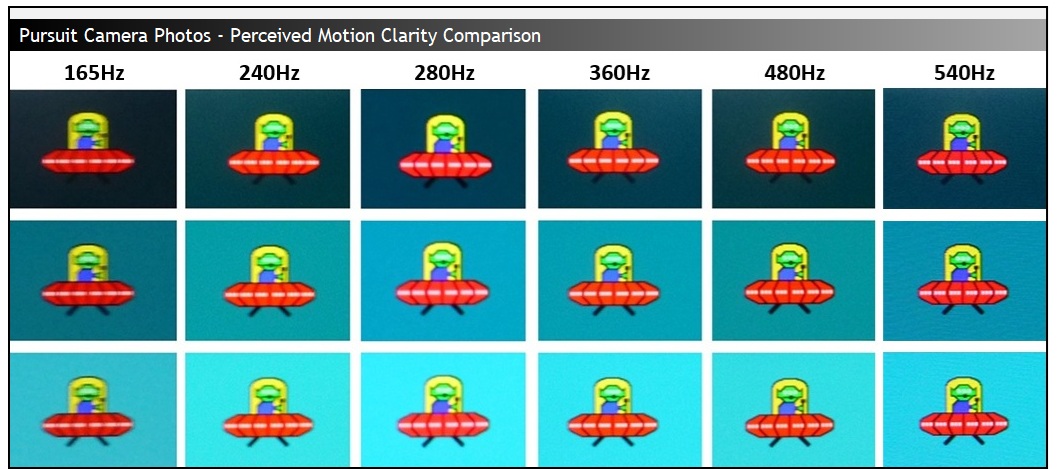 Pursuit camera photos captured at 960 px/sec scroll speed
You can find much higher refresh rates from some other OLED monitors now, but let’s not lose sight of the fact though that 240Hz on an OLED is still very good, equivalent in motion clarity to a ~360Hz LCD and likely more than enough for most gamers. If you’re a serious or competitive gamer or focused on taking gaming experience further then other options are available but at a higher price point. The Asus ROG Swift PG27AQWP-W for instance uses the fastest currently available OLED panel and has a 540Hz native refresh rate, plus a dual-mode function for 720Hz at 720p.
VRR Flicker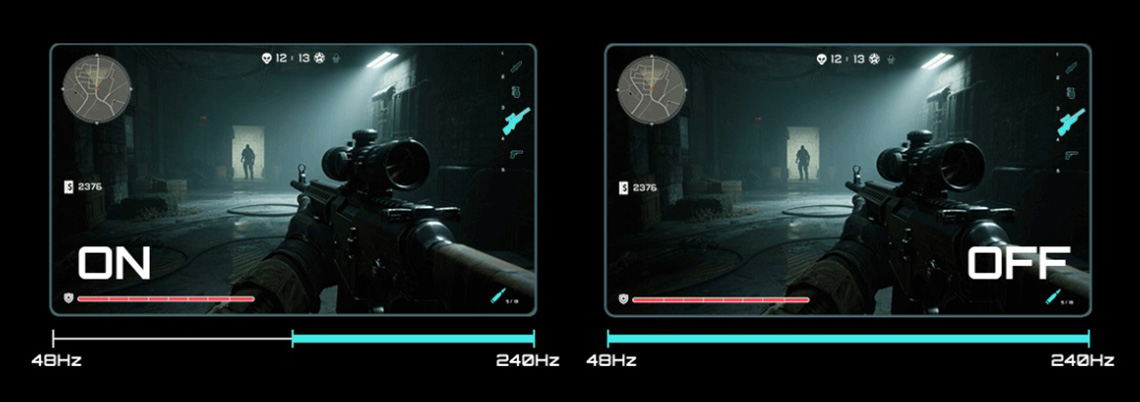
All OLED monitors can show flicker and gamma fluctuations in VRR situations and this is something we studied and tested in detail in our article here. Remember that just because a screen can show flicker, doesn’t mean you’ll necessarily experience it during your usage and from your system. Please see our detailed article for loads more information about this issue on OLED monitors.
Gigabyte have included their recently introduced ‘Anti-flicker’ settings on this screen, with options for ‘off’, ‘middle’ and ‘high’ available in the OSD menu. The screen switches to black for a couple of seconds when you change this setting.
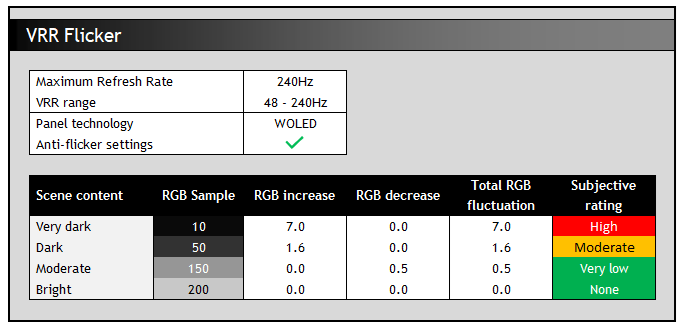
With the anti-flicker modes turned off we saw an active VRR range of 48 – 240Hz with LFC used below that. Like other WOLED technology panels we tested in our detailed study, the gamma response is directly tied to the frame rate during VRR situations. For instance at RGB 10 this gets progressively brighter up to RGB 17 as the frame rate drops from 240fps to 48fps. This only applies when using VRR we should reiterate.
As a result it is large swings in frame rate that cause the most potential flicker and gamma shift. The trick with this panel would be to keep frame rates as consistent as possible, at whatever level you can achieve, to reduce the likelihood of flicker. Remember that this data represents the maximum potential flicker, and it would be less with more steady frame rates. We saw the most noticeable flicker in darker scenes and content where it reaches high levels on this screen, with basically none visible in lighter content which was very good. The flicker did seem to be a bit more pronounced than on the competing Asus model.
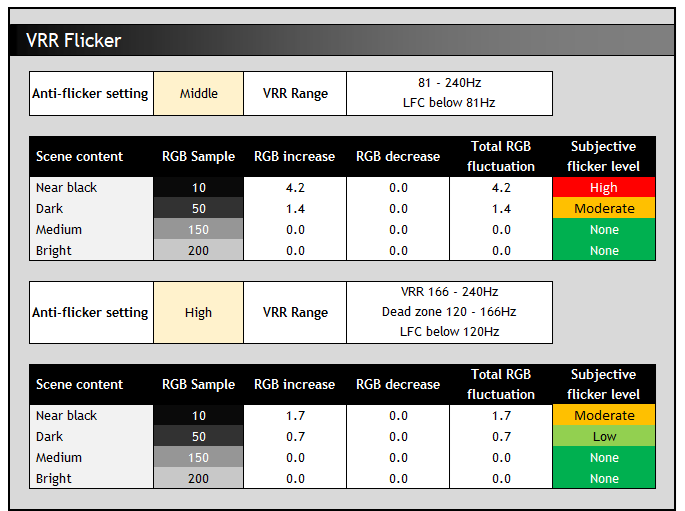
The anti-flicker modes restrict the VRR range in an effort to reduce the gamma shift that can occur with large frame rate swings. Using the Middle setting just restricts the range a little from 48 – 240Hz to 81 – 240Hz and that has a small impact on total potential flicker since the frame rate doesn’t drop as low, and so the gamma can’t shift as much.
The ‘high’ mode has the most benefit on visible flicker but that’s because It introduces a “dead zone” in the range where VRR is turned off altogether which obviously eliminates VRR flicker for that portion completely, but means that VRR is not actually being used so that could perhaps introduce some tearing artefacts in some cases potentially. It also adjusts the point at which LFC kicks in, shifting that to kick in earlier at 120fps instead of the previous lower 48fps level for ‘off’ mode. Worth experimenting with if you experience any problems in real-world content.
Extreme Low Motion Blur (ELMB), BFI modeLike some other recent Gigabyte OLED monitors, the GO27Q24G has an added BFI (Black Frame Insertion) mode for blur reduction. Gigabyte call this ‘UltraClear’ and it’s the alternative to a strobing motion blur reduction backlight you might find on some LCD monitors. Rather than the backlight being strobed off and on rapidly (because there is no backlight on an OLED panel), a black frame is inserted periodically in to the image instead.
| Motion Blur Reduction Mode | ||
| Motion Blur Reduction mode / BFI | | |
| Refresh rates supported | 120Hz only | |
| 60Hz single strobe operation | | |
| Blur reduction available with G-sync/FreeSync VRR | | |
| Available in SDR mode | | |
| Available in HDR mode | | |
| Viable with games consoles | | |
| Lag penalty | ~0.7ms | |
| Brightness capability (SDR, max refresh rate supported) | ||
| Brightness control available | | |
| Independent brightness between on/off modes | | |
| Motion blur OFF – Max brightness | ~253 nits (uniform brightness mode) | |
| Motion blur ON – Max brightness | 125 nits | |
UltraClear mode is available only in limited scenarios as it is on other OLED monitors. It can only operate at half the maximum refresh rate of the panel, and so in this instance it runs only when you manually set your refresh rate to 120Hz. You also have to disable adaptive-sync VRR in the menu first, and so the operation remains pretty clunky. It’s only available in SDR and not in HDR too like on other Gigabyte OLED monitors with this feature that we’ve tested. There is a lag penalty of only around 0.7ms when using UltraClear mode compared with standard 120Hz mode. More lag info in the following section.
With UltraClear enabled, the brightness control is at least still available all the way up to 100, but annoyingly it’s not remembered independently to the off state which makes it a bit frustrating as you have to change it each time you enable or disable this mode. We’d like to see independent memory between on/off modes for brightness in the future. We measured a maximum brightness of only 125 nits in UltraClear mode, but it does operate with a uniform brightness behaviour (no ABL dimming) at all times on this screen which is why it’s a little lower than some other models. You do not have access to the ‘APL Stabilize’ setting when using UltraClear mode, so you cannot disable this. The Asus equivalent screen reached up to 172 nits peak in their equivalent ELMB mode, but that had ABL dimming and dropped down to 132 nits for full screen white for instance which makes it very similar to this Gigabyte screen in many situations.
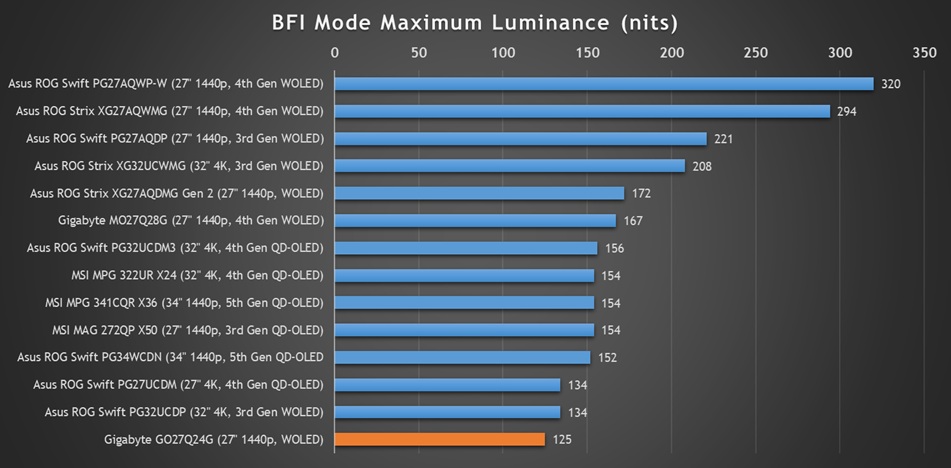
If you’re concerned about brightness in this mode we’ve seen more recent WOLED panels reach a bit brighter, especially the 4th Gen Tandem WOLED offerings like their MO27Q28G for instance (167 nits) and some competing models from Asus (294 – 320 nits).
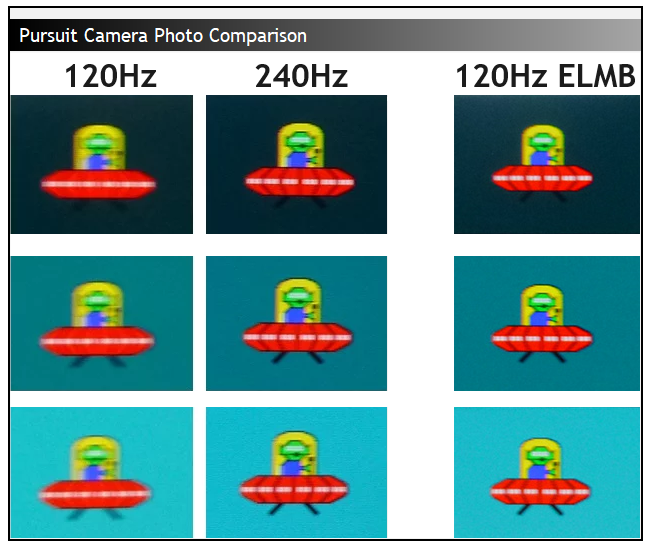 Pursuit camera photos comparing 120Hz and 240Hz normal operation, alongside ELMB / BFI at 120Hz
Above is the perceived motion clarity of the screen at 120Hz and 240Hz when running in normal mode, and then also at 120Hz with UltraClear enabled. You can see that the motion clarity looks the same at 120Hz with UltraClear as it does at 240Hz with the mode turned off. This is to be expected given the 50:50 duty cycle of the BFI function. This clarity is the same across the entire screen though thanks to the super-fast response times of the OLED panel, you don’t need to worry about which area of the screen is the cleanest and clearest, like you do on an LCD screen with a strobing blur reduction backlight.
UltraClear use-casesThis mode can help improve perceived motion clarity at 120Hz nicely, and so might be useful if you can only power up to around 120 fps from your system, or if you’re using a device which only supports that refresh rate maximum, such as a modern games console. You could game at 120Hz and use UltraClear in that mode to bump your motion clarity up to the equivalent of 240Hz – a shortcut if you will to reaching 240Hz-like motion clarity.
If your system is more powerful, you can get the same motion clarity if you stick with 240Hz and can reach up to 240fps. That’s along with the improved latency and frame rates that running that high will offer. You can also then use VRR and other settings, so if you can power the screen at that level you will probably want to try and just use the screen in normal mode instead where possible. Had this BFI mode also been available at 240Hz, it could have offered another step up in motion clarity, reaching 480Hz-like levels. Sadly it’s only possible at half the native refresh rate at the moment.
LagRead our detailed article about input lag and the various measurement techniques which are used to evaluate this aspect of a display. The screens tested are split into two measurements which are based on our overall display lag tests and half the average G2G response time, as measured by our oscilloscope. The response time element, part of the lag you can see, is split from the overall display lag and shown on the graph as the green bar. From there, the signal processing (red bar) can be provided as a good estimation of the lag you would feel from the display. We also classify each display as follows:
Lag Classification (updated)
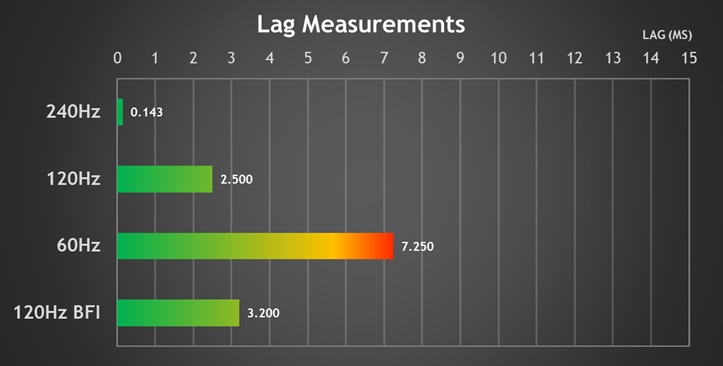
There is an extremely low lag at native refresh rate, measured at 0.143 ms total display lag, and leaving us with only 0.02 ms of estimated signal processing lag which is basically nothing and is perfectly fine for competitive gaming situations. There’s only a little bit more at 120Hz (2.5ms) but 60Hz is a bit slower still (7.25ms) which is normal for most screens. The UltraClear BFI mode adds only ~0.7ms of additional lag compared with the native 120Hz mode which is good and makes that a potentially useful option overall without having to put up with loads more lag.
Console Gaming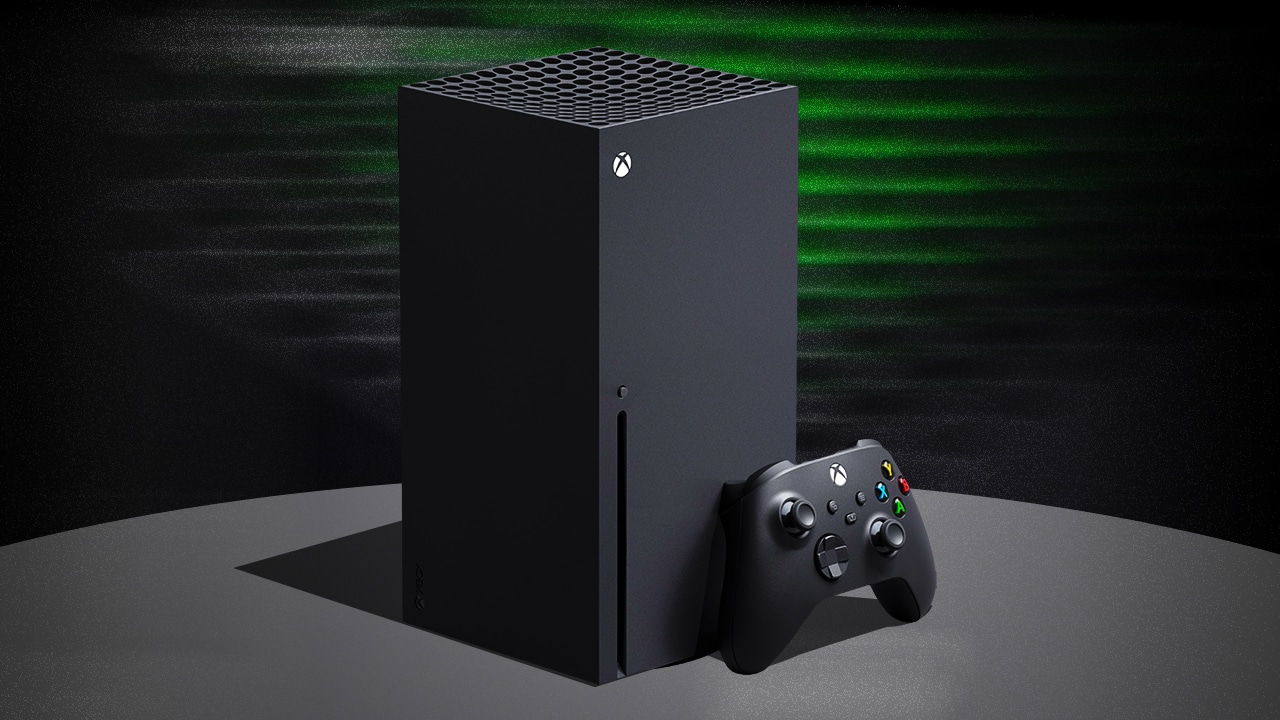
The screen has a native 2560 x 1440 resolution (1440p) panel, but can accept a “virtual 4K” input signal, allowing for wide support of modern games consoles. Importantly this allows for HDR support from an Xbox Series X which can only run in HDR mode at 4K.
| Console Gaming | |
| Native panel resolution | 2560 x 1440 |
| Maximum resolution and refresh rate supported | 4K @ 120Hz |
| Virtual 4K support | |
| 4K at 24Hz support | |
| 4K at 50Hz support | |
| HDMI connection version | 2.1 |
| HDMI-CEC auto switch | |
| VRR (variable refresh rates) | |
| Auto Low Latency Mode (ALLM) | |
| HDR10 support | |
| Dolby Vision HDR support | |
| Black Frame Insertion (BFI) support | at 120Hz |
| Integrated speakers | |
| Headphone connection | |
| Ultra high speed HDMI 2.1 cable provided | |
We confirmed via an Xbox Series X that 4K 120Hz works fine along with HDR10 support and features like VRR and ALLM. You can use the UltraClear blur reduction mode when running at 120Hz which is potentially useful to boost motion clarity, and there’s support for 4K 24Hz and 4K 50Hz video content too.
Note that there are no integrated speakers on this model unlike some of Gigabyte’s other screens, and so you’ll need to connect headphones or some kind of external soundbar/speaker system when using a console. That’s one potential gap for the GO27Q24G if you’re looking to play console games or connect other external devices but that’s one of the few things it’s missing.
ConclusionThe GO27Q24G is a very good, capable OLED monitor. Sure, it doesn’t have all the latest and greatest specs you can find in the OLED space – it’s a slightly older WOLED panel, it doesn’t have the newer sub-pixel layout which makes text a little worse, it’s got a mid-tier refresh rate and it doesn’t have the full feature set you might find on flagship models. But at a (current) price of only $399.99 USD / £379.99 GBP , it’s really hard to argue with that value.
The 1440p 240Hz panel is still a very popular spec and it’s great to see Gigabyte offer another glossy-coated OLED monitor in their range which we know will attract a lot of people. They might have done away with a few features we’re used to on some of their screens – there’s a lower spec USB-C connection, no KVM switch and no speakers for instance. But on the other hand they’ve included loads of their performance features like UltraClear BFI and VRR Anti-flicker modes, PiP/PbP support, a wide range of HDR options and controls, and their new HyperNits HDR feature too. Gaming is very good with good motion clarity, super-low input lag and great console support. SDR accuracy is generally very good too, with a lot of colour space modes available and well-tuned gamma and greyscale, although the shadow detail is quite weak in some cases. You can correct that through some of the settings in SDR mode which helps a lot, but it remains a bit of a challenge in HDR.
All in all if you’re looking to venture in to the World of OLED monitors but don’t want to spend loads of money on a top-tier model, this is a very strong entry-level offering and definitely worth checking out.

| Pros | Cons |
| Strong all-round performance for a great price | Shadow detail is weak in some configurations |
| Still lots of added extras like UltraClear BFI, VRR Anti-flicker and HyperNits HDR modes | More limited feature set due to price point |
| Good feature set considering the entry-level price point | Older generation WOLED panel, missing some of the Tandem WOLED improvements from the most recent panels |
We may earn a commission if you purchase from our affiliate links in this article- TFTCentral is a participant in the Amazon Services LLC Associates Programme, an affiliate advertising programme designed to provide a means for sites to earn advertising fees by advertising and linking to Amazon.com, Amazon.co.uk, Amazon.de, Amazon.ca and other Amazon stores worldwide. We also participate in a similar scheme for Overclockers.co.uk, Newegg, Bestbuy , B&H and some manufacturers.
Stay Up to Date| # | Наименование новости | Тональность | Информативность | Дата публикации |
|---|---|---|---|---|
| 1 | Игровой WOLED-монитор Gigabyte GO27Q24G с QHD-разрешением и частотой 240 Гц поступил в продажу | 0 | 5 | 09-07-2026 |
| 2 | Asus ROG Strix XG27AQDMG Gen 2 (aka XG27AQDMGR) | 0 | 21.86 | 28-04-2026 |
| 3 | GIGABYTE радует геймеров новым WOLED-монитором | 0 | 12.91 | 10-07-2026 |
| 4 | Обзор игрового QD-OLED WQHD-монитора Gigabyte AORUS FO27Q5P: на пределе возможностей | 0 | 13.09 | 18-12-2025 |
| 5 | Affordable 27" gaming monitor with 260 Hz peak refresh rate arrives on shelves | 0 | 14.9 | 22-08-2026 |
| 6 | Snag this 27-inch 4K 240Hz QD-OLED AOC Agon Pro monitor for under £550 from Amazon | 0 | 10.32 | 24-02-2026 |
| 7 | 480 Hz, 1300 nits: Gaming monitor with 27-inch OLED display scores biggest-ever discount | 0 | 14.73 | 22-08-2026 |
| 8 | (PR) AGON by AOC unveils the AOC GAMING Q27G4ZRAD Monitor | 0 | 6.91 | 21-08-2026 |
| 9 | Gigabyte разрабатывает как минимум четыре новых игровых монитора с дисплеями OLED | 0 | 13.96 | 25-08-2026 |
| 10 | Обзор игрового WQHD IPS-монитора Gigabyte M27Q2 QD: доступный универсал | 0 | 16.13 | 27-11-2025 |
