Просмотр новости
Найдите то, что Вас интересует
 Спутники
 РН
РН SpaceX
 Роскосмос
 NASA
NASA
СпутникиРНSpaceXРоскосмосNASA
You can easily remove any object from a photo using Apple Intelligence's Clean Up tool. Make your almost-perfect shots perfect.
(via Cult of Mac - Your source for the latest Apple news, rumors, analysis, reviews, how-tos and deals.)
You can easily remove any object from a photo using Apple Intelligence’s free Clean Up tool on your iPhone, Mac or iPad. It works fairly well — but it’s good to know its limitations.
As the only graphic designer among my friends, I’ve frequently been asked over the years to Photoshop unwanted elements out of pictures. Take, for example, a romantic shot of a couple in a gazebo, with a phone sitting on the handrail in an obvious spot. The image might look a lot better if you delete that stray device.
Or imagine a group photo from a fun night out, with someone’s dumpy tote bag sitting by their feet, or a picture from a big conference that shows an ugly lanyard around someone’s neck. With Apple Intelligence’s free Clean Up feature, anyone can make the tote bag and the lanyard disappear, right from their iPhone.
Now, you have the power to clean up your own photos — a chance to make your almost-perfect shots perfect in an instant.
In the early days of digital photography, Photoshop (which launched as a Mac exclusive in 1990) provided powerful new tools for editing images on computers. As Cult of Mac wrote, Photoshop started out as “a niche tool for graphics pros that let users erase blemishes, composite layers and tweak tones in ways that were once the domain of darkrooms and skilled photo retouchers.”
The software was complicated to use, cost a pretty penny, and required a high-end Mac to run well. But these days, users can quickly and easily edit photos on their iPhones, iPads and Macs using free built-in software as well as third-party apps.
The rise of AI makes digital image manipulation easier and more widespread, for good or ill. Here’s how Apple Intelligence’s Clean Up feature works.
Table of contents: Remove an object from a photo with Apple IntelligenceApple Intelligence is a set of AI features that run on compatible iPhones, iPads and Macs. Using powerful Neural Engines built into the hardware, many Apple Intelligence features can run for free on your own device.
However, to use Apple Intelligence, you’ll need an iPhone, Mac or iPad with an M-series chip, an A17 Pro chip or greater. That means the iPhone 15 Pro, all iPhone 16 models (and later), most Macs sold since late 2020, and recent iPad Air and iPad Pro models.
To turn on the Apple Intelligence features on a compatible iPhone, open Settings > Apple Intelligence & Siri and make sure Apple Intelligence is enabled. Your phone will download the models that power Apple Intelligence. (That could take a while, depending on the speed of your internet connection.)
Open the Clean Up tool on your phone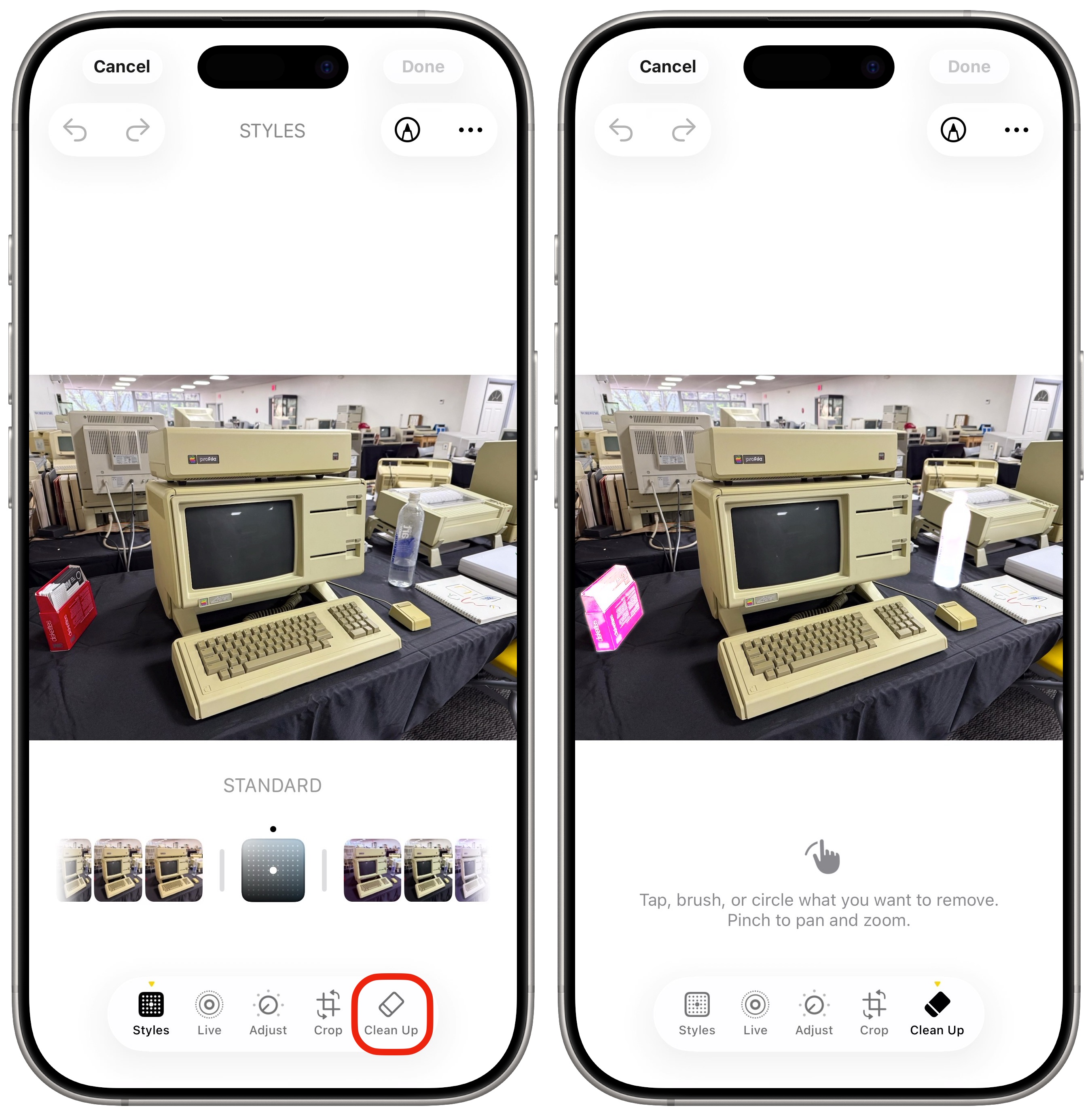 Just tap one of the highlighted objects in the photo to remove it.
After you’ve got Apple Intelligence running, it’s time to remove an object from a photo using the Clean Up tool. To do so, open a picture, tap Edit (the icon of settings sliders in the center right), and select the Clean Up tool at the bottom right. The first time you open it, the feature must download and prepare the AI model. Be patient: The initial download can take a few moments.
Tap or circle an object to removeIf you see anything in the picture that’s highlighted in light purple, you can simply tap it to remove it.
To remove something specific, drag your finger to select or circle the area you want to clean up. It will process for a moment, then remove the offending item and fill in the space where it previously appeared. Zoom in if you want to be more precise.
This works great if the thing you’re erasing doesn’t overlap anything else that’s important in the image and is completely surrounded by a similar pattern it can replicate. Dust and hairs on a black shirt, a smoke detector on a ceiling, a calendar on the wall, something sitting on a table — Apple Intelligence’s Clean Up feature makes it easy to remove those sorts of things from a photo.
 It’s not good at replacing large portions of an image with a lot of detail.
However, the Clean Up tool will try to fill in whatever you ask it to — and it might not do a very good job. (See also: Apple Photos’ new AI Clean Up feature works great … unless it doesn’t!)
Want to remove a car from a busy city street scene? Clean Up will probably mess up the signs and buildings behind the car you disappeared. Try to replace a giant, central part of an image? It’ll struggle to fill in the space.
Pixelate someone’s face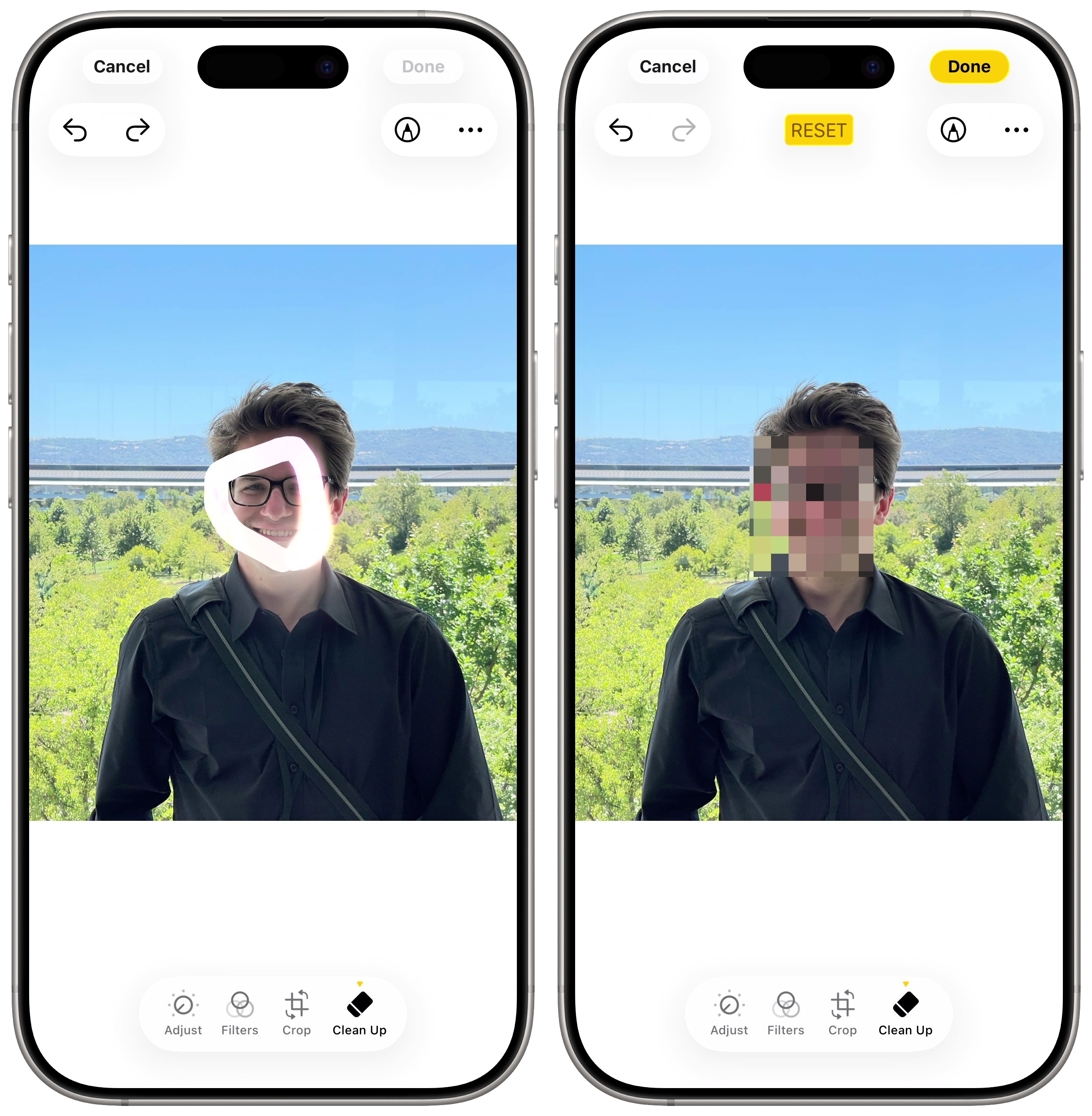 Hide your face just by circling it.
The one thing Apple Intelligence’s Clean Up tool won’t do is replace someone’s face. Try it, and Clean Up will pixelate the facial region. But this is actually a feature — if you want to post a picture on social media but need to hide someone’s identity, pixelating their face with Clean Up is a quick way to disguise them.
Just circle the area, and Apple Intelligence will pixelate the face for anonymity.
More Apple Intelligence featuresWe originally published this article on how to remove an object from a photo on October 16, 2024. We updated it with the latest information on April 28, 2026.
| # | Наименование новости | Тональность | Информативность | Дата публикации |
|---|---|---|---|---|
| 1 | 8 built-in editing tools to glow up your pictures on your iPhone | 0 | 24.6 | 30-05-2026 |
| 2 | Tons of new features in Photos help sort your massive library in iOS 27 | 6 | 6 | 30-06-2026 |
| 3 | 5 overlooked Mac features that save me time every day | 0 | 26.69 | 01-08-2026 |
| 4 | Easy way to record and transcribe your iPhone calls | 0 | 18.38 | 27-04-2026 |
| 5 | 5 tips for natural-looking, lo-fi pictures on your iPhone | 0 | 30.33 | 26-05-2026 |
| 6 | 7 mind-blowing Continuity features every Apple user should know | 0 | 24.34 | 12-08-2026 |
| 7 | This Apple Intelligence feature won’t work unless you pay for 2TB iCloud+ | -2 | 5 | 07-07-2026 |
| 8 | 4 daily games I love to play in Apple News+ (and one I despise) | 0 | 20.19 | 25-04-2026 |
| 9 | I replaced 7 Apple apps on my Mac. Here’s what I use instead. | 0 | 23.22 | 08-08-2026 |
| 10 | This $23 Mac app cleans up storage, speeds up workflows and unlocks hidden tools | 5 | 4 | 19-07-2026 |