Просмотр новости
Найдите то, что Вас интересует
 Спутники
 РН
РН SpaceX
 Роскосмос
 NASA
NASA
СпутникиРНSpaceXРоскосмосNASAIt can be quite distressing to get an Apple spyware alert on your iPhone. The thing is, this type of security notification is not the same as a typical security alert message or website warning you might come across from time to time. According to Apple, its threat notifications are designed to inform users of… Continue reading Got an Apple Spyware Alert? What It Means and What You Should Do
The post Got an Apple Spyware Alert? What It Means and What You Should Do appeared first on .
Summary: Apple spyware notification is a very dangerous alert that may be telling you that you are personally targeted with advanced spyware created by mercenaries. Find out what an iPhone spyware notification looks like and what action to take to stay safe.
It can be quite distressing to get an Apple spyware alert on your iPhone. The thing is, this type of security notification is not the same as a typical security alert message or website warning you might come across from time to time.
According to Apple, its threat notifications are designed to inform users of a possible attack using highly advanced mercenary spyware that would target them personally. Such an attack is quite rare, expensive, and aimed at just a few particular individuals. Since 2021, Apple has sent threat notifications to users in more than 150 different countries.
Now, let’s see what to do when you receive a threat notification on your iPhone. First of all, you shouldn’t panic and certainly shouldn’t click any links in emails that supposedly came from Apple.
What Is an Apple Spyware Alert?
The Apple threat notification is a highly confident alert from Apple stating that, according to Apple’s threat intelligence, there might be some activity that indicates the individual targeting of your device by mercenary spyware.
Mercenary spyware is distinct from other forms of malware or phishing attacks, which affect millions of individuals at a time. Such attacks may involve some highly sophisticated techniques that can compromise a device to steal information from it.
The exact details of when Apple sends such a notification remain undisclosed by Apple. According to the company, sharing such information would only benefit the attackers by helping them adopt new strategies.
How Does an Apple Threat Notification Appear?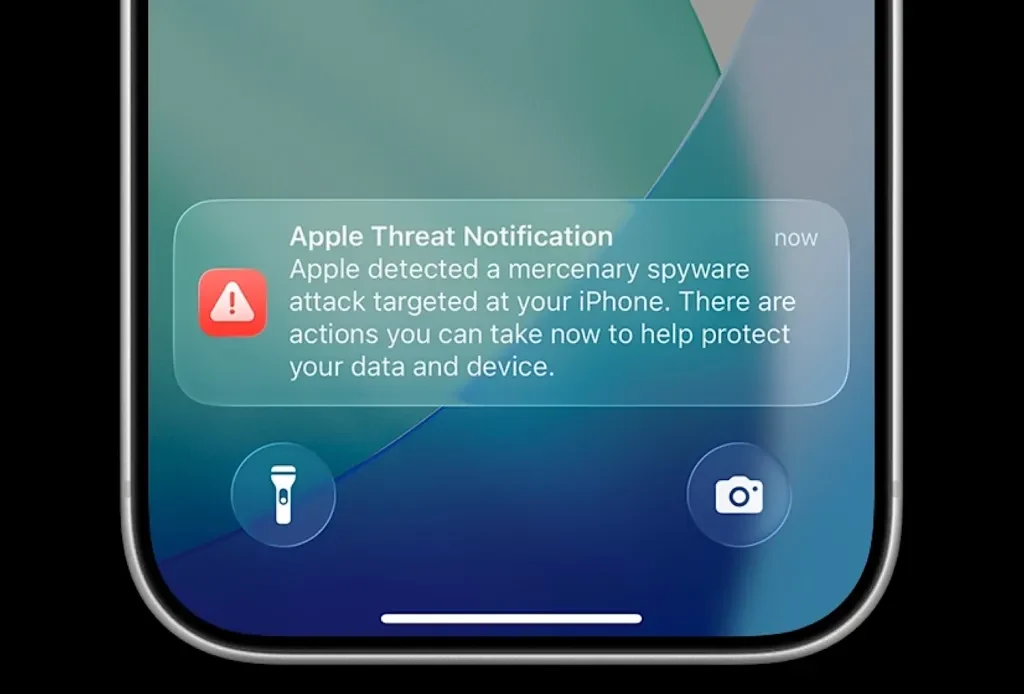
If the company discovers that there has been activity indicative of a mercenary spying software attack, the warning may be shown in various locations:
It will become difficult for a legitimate warning to get lost in the digital wilderness. However, scammers may send Apple warnings.
How to Verify an iPhone Spyware Notification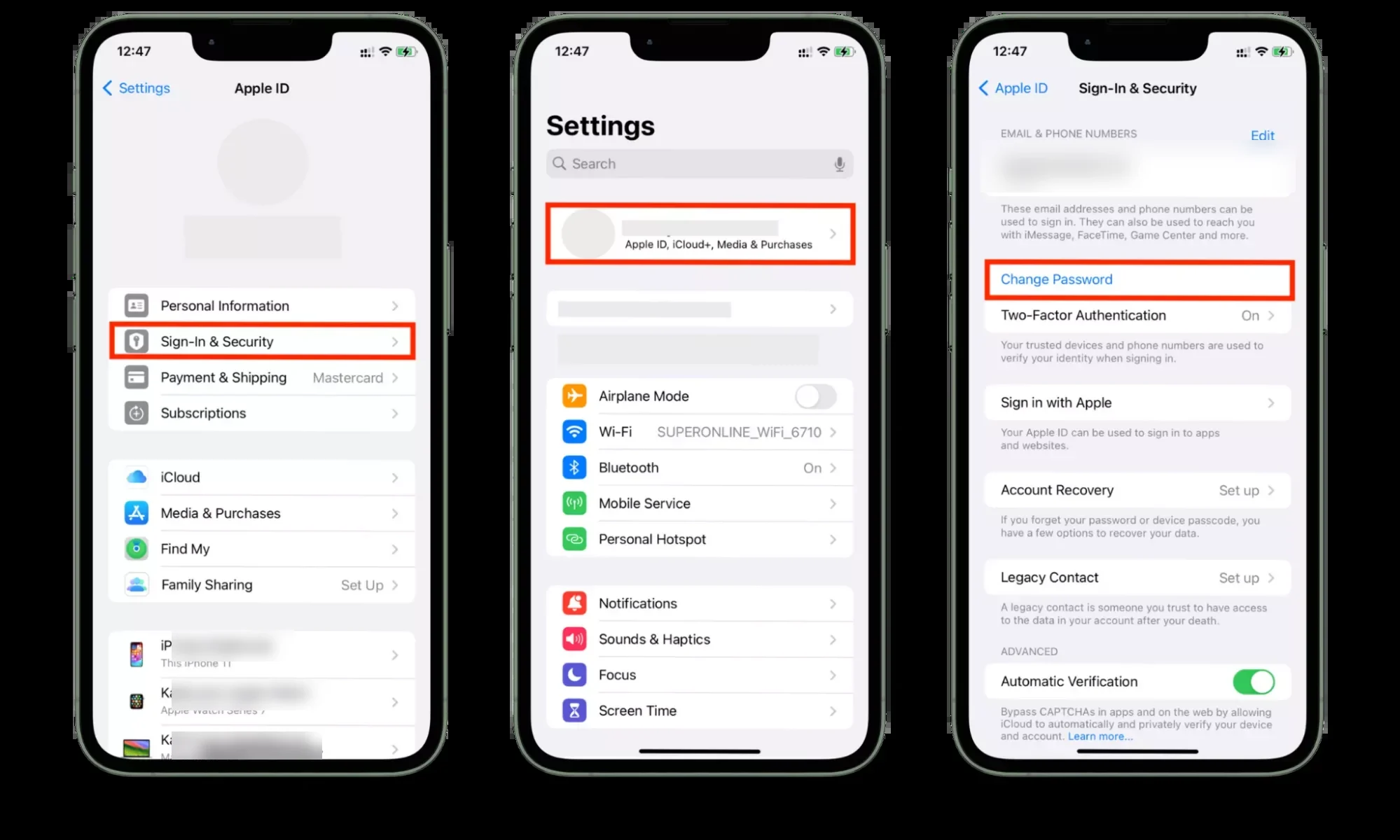
Before responding to the warning, verify that it is coming from Apple. In the case where you have received the warning via email, never follow links, open attachments, download an application or profile, or enter the password for your Apple Account or verification code.
Rather than doing this, you should:
According to Apple, no Apple threat notification would ever ask for your password or verification code by email or over the phone. If the message appears only in a random pop-up while navigating on the Internet, it’s worth noting that an “Apple Security Alert” is often a scam used to scare the user into downloading something or providing their login information.
What Should You Do After Receiving an Apple Spyware Alert?1. Pay Attention to the AlertOnce you make sure that it is an official alert from Apple, do not treat it like any other standard security alert on your iPhone.
As suggested by Apple, you should immediately take necessary precautions and even consult a specialist if needed.
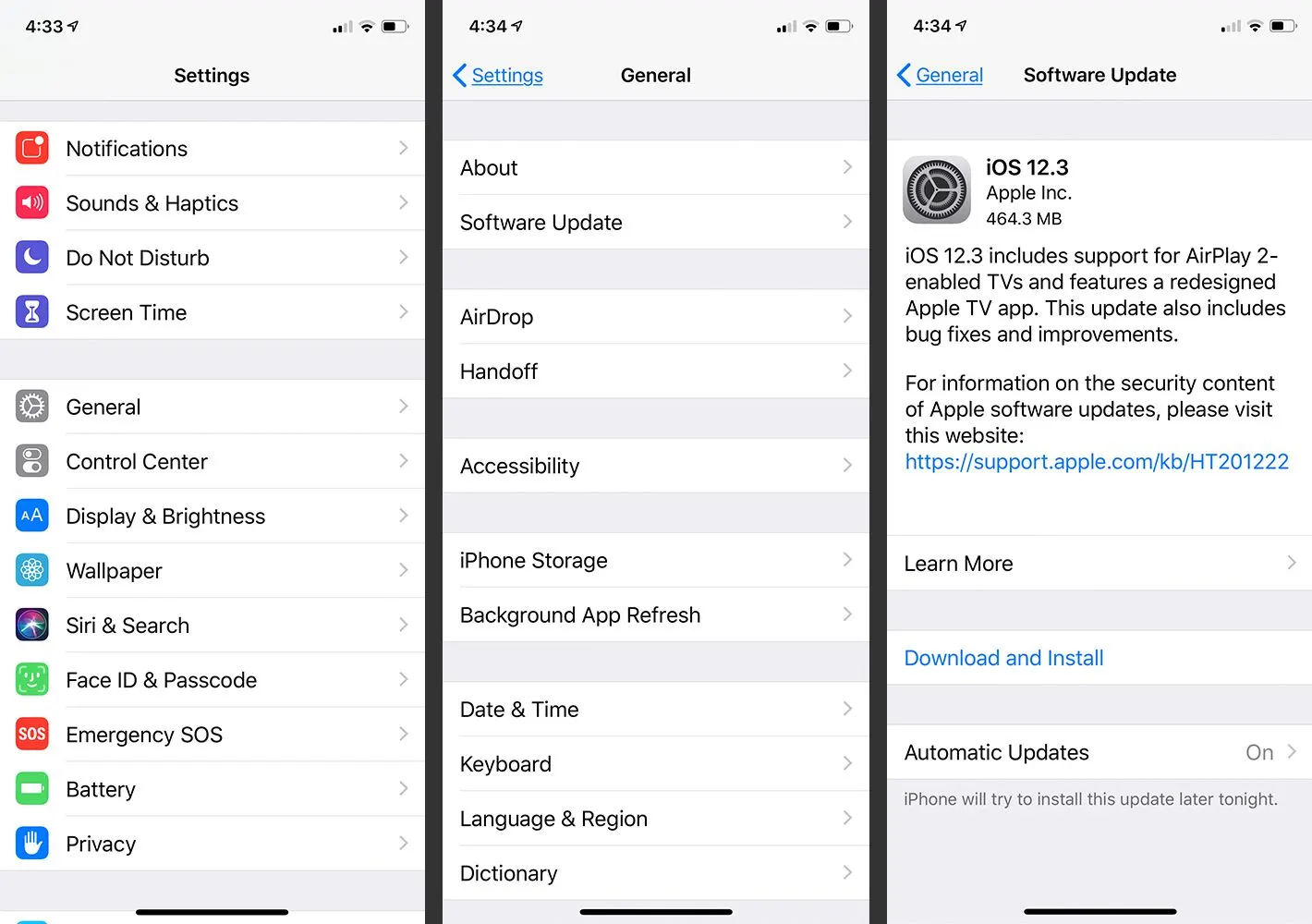
2. Update Your iPhoneInstall the latest updates of the iOS system, as it could fix some possible security issues. To do it, go to:
Settings > General > Software Update
Another powerful way to defend against sophisticated targeted attacks is Lockdown Mode. It is available at:
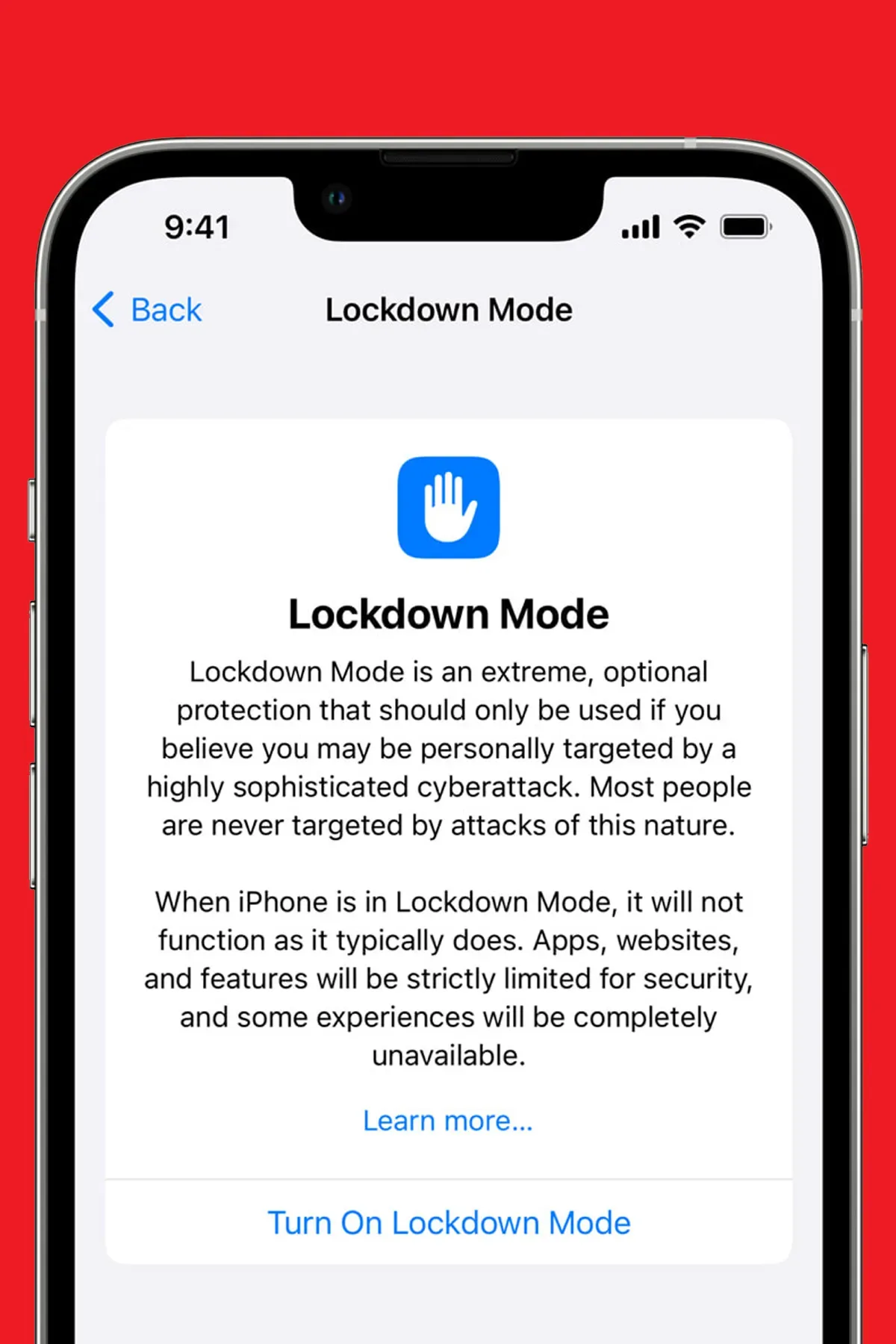
Settings > Privacy & Security > Lockdown Mode
The above measure will help to decrease the attack surface and limit access to some features and website capabilities. As the above limitations can impact your regular experience with the iPhone, the company suggests using it only if you suspect that you might be targeted by an exceptionally sophisticated attack. Enabling Lockdown Mode is among the recommended steps if you have been notified by Apple about the threats.
4. Secure Your Apple AccountA spyware attack and a general hacking attempt might differ from each other, but the latter needs to be taken into account anyway. Ensure that you use a unique password and that two-factor authentication is enabled. Apple also recommends looking through the list of devices linked to your Apple Account and removing the unrecognized ones. Go to your Apple Account settings and review:
If you notice any suspicious activity, change your password right away.
5. Enable Stolen Device Protection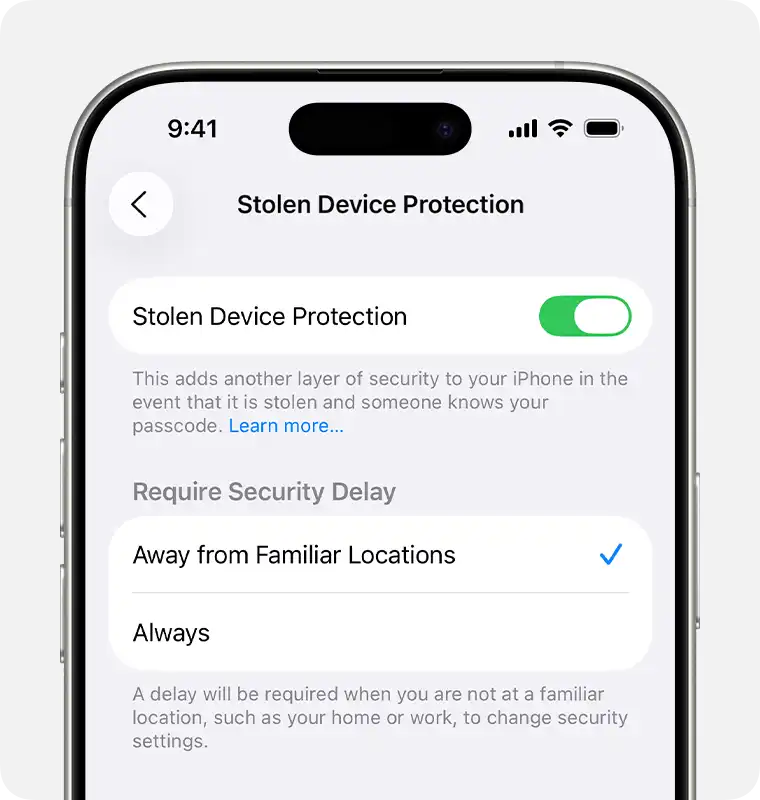
Apple also suggests using Stolen Device Protection to protect iPhone devices. This adds some extra layers of security in case the phone is taken by someone who knows the passcode of the iPhone. Stolen Device Protection can be found in:
Settings > Face ID & Passcode > Stolen Device Protection
This feature works very well for securing the settings and accounts of the devices.
6. Beware of Messages and LinksIn case you get an actual Apple spyware warning, it is advised not to respond to any suspicious messages, e-mails, and links. Avoid opening any strange attachments and configuration profiles that come from any source other than Apple.
Why Received Verification Code Without Requesting It – How to Stop It
7. Get Expert Security AssistanceApple highly recommends that anyone getting threat notifications get expert assistance. The support recommendations direct the user to organizations such as the Digital Security Helpline of Access Now, which provides quick response to those facing digital security threats. The expert will help you assess your situation and suggest what should be done next.
What If You Didn’t Receive an Apple Threat Notification?It is not necessary to turn on all security measures just because you have read something about spyware on the Internet. Apple says that most people do not face mercenary spyware at all. However, if there is a reason for you to think you might be the target of some mercenary spyware, you may enable Lockdown mode even without receiving a threat notification. To protect yourself normally, keep your iOS updated, use a passcode, two-factor authentication, unique passwords, apps from the App Store, and avoid malicious links.
Apple Spyware Alert vs. Fake Security Pop-UpNot all warnings that talk about “Apple security” are official notices about Apple spyware. An official Apple security warning has certain features. Apple will not request you to click on any links or download any applications, reveal your password, or verify a code by email or phone call. Beware if:
If you have any doubts, then go to the official Apple website by yourself instead of using any links from the warning.
Frequently Asked QuestionsConclusionAn Apple spyware alert is not an everyday iPhone notification and shouldn’t be treated like one. If you’ve verified that the warning genuinely came from Apple, take it seriously, update your devices, enable Lockdown Mode, secure your Apple Account, and seek expert assistance.
At the same time, don’t let a scary pop-up send you sprinting into the arms of a scammer. Verify the warning directly through Apple, never share passwords or verification codes, and avoid links or attachments in suspicious messages.
For most users, the best defense remains straightforward: keep your iPhone updated, use strong account security, enable two-factor authentication, and stay alert to phishing attempts. A little digital caution can go a surprisingly long way.
| # | Наименование новости | Тональность | Информативность | Дата публикации |
|---|---|---|---|---|
| 1 | Apple sends new ‘Threat Notification’ alerts over mercenary spyware attacks | 0 | 7.12 | 14-08-2026 |
| 2 | Apple sends fresh wave of mercenary spyware warnings worldwide | 0 | 17.98 | 14-08-2026 |
| 3 | New wave of Apple threat notifications reach 110 countries to warn about targeted attacks | 0 | 8.02 | 14-08-2026 |
| 4 | Apple warnt vor Söldner-Spyware: Diese Nutzer müssen handeln | 0 | 5.49 | 14-08-2026 |
| 5 | Apple issues warning to all 1.8bn iPhone users over 'extremely sophisticated' spyware attack | 0 | 7 | 16-02-2026 |
| 6 | Espionnage numérique : Apple lance une nouvelle vague d'alertes contre les logiciels espions mercenaires | 0 | 6.29 | 14-08-2026 |
| 7 | Apple предупредила владельцев iPhone об угрозе шпионского ПО | 0 | 6.05 | 14-08-2026 |
| 8 | Laptop Overheating? Best Ways to Lower the Temperature | 0 | 9.05 | 26-08-2026 |
| 9 | Protect your iPhone! Apple broadcasts threat notifications in 110 countries | 0 | 14.13 | 14-08-2026 |
| 10 | Apple предупредила владельцев iPhone из 110 стран об атаках шпионского ПО | 0 | 13.15 | 14-08-2026 |