Просмотр новости
Найдите то, что Вас интересует
 Спутники
 РН
РН SpaceX
 Роскосмос
 NASA
NASA
СпутникиРНSpaceXРоскосмосNASATo clear cache on a Mac, remove cached website data from your browser and, when necessary, delete temporary files created by individual apps. You ... [Read more...]
The post How to Clear Cache on Mac and Free Up Storage appeared first on Techdows.
To clear cache on a Mac, remove cached website data from your browser and, when necessary, delete temporary files created by individual apps. You usually do not need to clear every cache folder on macOS because the system and apps recreate cache files automatically when they need them.
Clearing cache helps when a website loads incorrectly, an app keeps showing outdated data, Safari or Chrome behaves strangely, or temporary files have become unusually large. It is less useful as a routine maintenance task, and deleting the wrong files from the Library folder can reset app settings or create new problems.
This guide covers Safari, Chrome, Firefox, user app caches, system caches, DNS cache, Microsoft Edge, and the safest ways to free cached storage on current versions of macOS.
Start with the cache related to the problem you are trying to fix. If one website is broken, clear that website’s browser data instead of deleting every cache on the Mac. If one app is malfunctioning, quit that app and clear only its cache.
How to Clear Safari Cache on MacDo not delete the entire Library folder, random folders under System, or files you cannot identify. macOS manages most system caches itself.
Safari stores cached page resources, cookies, login data, and other website information. Apple provides a built-in way to remove data for one website or all websites, which is safer than manually deleting Safari files from the Library folder.
Clear cache for one website in Safari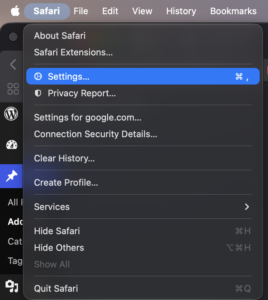
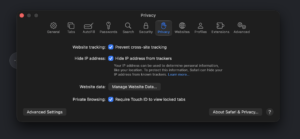
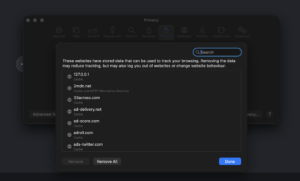
This removes stored website data, including caches and cookies associated with that site. You may need to sign in again the next time you visit it.
Clear all Safari cache and website dataUse this option when several websites are affected or Safari has widespread loading problems. Clearing all website data signs you out of many websites and removes local site preferences.
Clear Safari history and cached browsing dataIf you also want to delete browsing history:
Safari’s history command removes more than the visible history list, so use the Privacy settings method when you only need to troubleshoot one website.
How to Clear Chrome Cache on MacChrome stores cached images, scripts, fonts, and other website resources to make repeat visits load faster. Google recommends clearing cached browsing data when websites display incorrectly or keep loading outdated content.
Selecting only cached images and files clears the cache without deliberately removing saved passwords, browsing history, or cookies.
Chrome cache shortcut on MacPress:
Command + Shift + Delete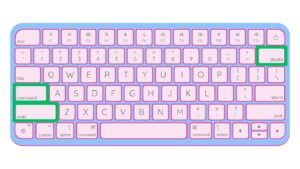
This opens Chrome’s Delete browsing data window directly.
Clear Chrome cache for one websiteIf only one website is broken, clearing all Chrome data is unnecessary. Open the affected site, click the site controls icon beside the address bar, open its site settings, and remove stored data for that site.
You can also test the page in an Incognito window first. If it works there, cached data, cookies, or an extension in the normal Chrome profile is likely involved.
How to Clear Firefox Cache on MacFirefox provides a separate option for temporary cached files, so you can remove the cache without deleting cookies or other browsing data.
Firefox also maintains a startup cache that can affect browser interface problems rather than website content.
Mozilla says clearing the startup cache does not remove your Firefox profile data or extensions.
How to Clear Microsoft Edge Cache on MacMicrosoft Edge uses Chromium, so its cache controls are similar to Chrome.
You can leave cookies, passwords, and browsing history unchecked when cache is the only thing you want to remove.
How to Clear App Cache on MacMost Mac applications store temporary files inside your user Library. These files can include thumbnails, downloaded images, temporary databases, update files, and other data that helps an app load faster.
The user cache folder is located at:
~/Library/CachesThe tilde represents your user account’s home folder.
Open the Mac cache folder~/Library/CachesDelete only cache folders you can clearly associate with the application you are troubleshooting. Some folders use a bundle identifier instead of the visible application name, such as com.company.application.
macOS and applications can rebuild many files stored there, but deleting the entire folder at once is unnecessary. It can force every application to rebuild data, increase load times temporarily, and sign you out or reset temporary state in some applications.
Target the affected app instead. If your goal is simply to recover storage, Apple’s storage management tools are a better starting point.
How to Clear System Cache on MacmacOS stores system-level caches separately from your personal app caches. Manually removing these files should not be a routine maintenance step because macOS manages them automatically.
A safer method is to restart the Mac. A restart clears temporary operating-system state and allows macOS to recreate files it needs.
Use Safe Mode to clear certain system cachesApple says starting a Mac in Safe Mode clears certain system caches automatically. This can also temporarily free storage when a Mac does not have enough room to complete an update or another operation.
Apple silicon MacRestart the Mac normally when you finish troubleshooting.
How to Clear DNS Cache on MacThe DNS cache stores recently resolved domain names and IP addresses. Clear it when a website has changed servers or DNS records and your Mac keeps connecting to an old address even though other devices work correctly.
Open Terminal from Applications > Utilities and run:
sudo dscacheutil -flushcache; sudo killall -HUP mDNSResponderPress Return, enter your Mac administrator password, and press Return again. Terminal does not display characters while you type the password.
The command normally returns no confirmation message. Close and reopen the browser, then test the website again.
Flushing DNS does not delete browser cookies, passwords, downloads, bookmarks, or browsing history.
How to Clear Cache on Mac Using TerminalYou can delete cache files through Terminal, but Finder gives you better visibility into exactly what you are removing. Terminal commands that recursively delete Library folders are easy to mistype and provide little benefit for normal cache troubleshooting.
If you know the exact application cache folder, you can inspect it first:
open ~/Library/CachesThis opens the user cache folder in Finder, where you can identify and remove the appropriate application cache manually.
Avoid copying commands from websites that use sudo rm -rf against broad Library or system paths. Such commands can delete considerably more than temporary cache files.
The cache-clearing process is the same on a MacBook Air, MacBook Pro, iMac, Mac mini, Mac Studio, and Mac Pro when they run the same version of macOS.
Your processor also does not change the Safari, Chrome, or application-cache instructions. Apple silicon Macs and Intel Macs mainly differ in procedures such as entering Safe Mode.
Therefore, you do not need separate cache-cleaner software for an M1, M2, M3, M4, or later Apple silicon Mac.
How to Clear Cache on Mac Without Deleting PasswordsBrowser cache, cookies, browsing history, and saved passwords are separate categories. Select only the cache category when your browser provides that option.
Safari combines cached website information with other website data in its management interface, so removing a site’s data can sign you out of that website.
How to Clear Cache on Mac Without Losing Browsing HistoryChrome, Firefox, and Edge let you clear cached files while leaving browsing history untouched. Open each browser’s clearing dialog and select only its cache option.
In Safari, use Safari > Settings > Privacy > Manage Website Data rather than History > Clear History. This lets you remove stored website data without intentionally clearing your entire visible browsing-history list.
Does Clearing Cache Free Up Space on Mac?Yes, clearing a large cache can recover storage immediately, but cache files often return because applications create them again as you use them.
If your Mac is genuinely running out of storage, open:
Apple menu > System Settings > General > Storage
Review large applications, Downloads, documents, old iPhone or iPad backups, Mail attachments, media, and Trash before spending time deleting normal caches. Apple recommends these areas when you need meaningful long-term storage savings.
Safe Mode can temporarily clear certain system caches when you need enough free space to complete an update, but that space can be used again after macOS recreates the cache.
When Should You Clear Cache on a Mac?Cache clearing makes sense when there is a specific symptom connected to cached data, including a website showing old content, a page rendering incorrectly, an app displaying stale information, a browser repeatedly failing on one site, or an unusually large application cache.
Clearing every cache every few days does not provide a lasting speed improvement. Cache exists to reduce repeated work, so deleting it forces browsers and applications to download or recreate data again.
What Happens After You Clear the Cache?The effect depends on which cache you remove. Websites can load slightly slower on the first visit because the browser has to download images and scripts again, while an application can take longer during its first launch as it rebuilds temporary files.
Clearing browser cache alone does not normally delete bookmarks or downloaded files. Cookies, passwords, history, and site permissions are separate data types, so check the selected options carefully before confirming a browser cleanup.
Frequently Asked Questions What is the fastest way to clear cache on a Mac?If the problem is in a browser, use its built-in cache controls. Chrome users can press Command + Shift + Delete, select Cached images and files, and delete the cache without manually opening Library folders.
Where is the cache folder on Mac?Your user application caches are normally stored in ~/Library/Caches. macOS also maintains system-level caches elsewhere, which you should generally leave under macOS control.
Deleting the cache belonging to a specific application is generally safe after quitting that app because the application can recreate temporary files. Avoid mass-deleting unknown Library and system folders.
Can I delete everything in the Mac Caches folder?You can remove many files from your user Caches folder, but deleting everything provides little advantage and forces all affected applications to rebuild their caches. Remove only the cache associated with the app causing trouble.
Does clearing cache make a Mac faster?It can improve performance when a cache is damaged or abnormally large. Routine cache deletion can make initial app launches and website loads slower while the data is rebuilt.
Does clearing cache delete photos or documents?Normal browser and application cache clearing should not delete personal photos or documents. Manually deleting files from Library or system folders carries more risk, which is why you should identify the application before removing anything.
Does clearing Safari cache delete passwords?Removing website data can sign you out of websites, but saved passwords stored in Apple’s password system are separate. Avoid clearing unrelated data when your only goal is to fix cached website content.
How do I clear Chrome cache without deleting passwords?Open Delete browsing data and select only Cached images and files. Leave passwords, cookies, autofill information, and other categories unchecked.
How do I clear cache for only one website on Mac?In Safari, open Settings > Privacy > Manage Website Data, select the website, and click Remove. Chrome, Firefox, and Edge also provide site-specific data controls.
Should I use a Mac cache cleaner app?You do not need a third-party cleaner for normal browser or application cache removal. macOS and major browsers already include the tools required to clear temporary data.
Why is System Data so large on my Mac?System Data can include caches, logs, temporary files, local resources, app support data, and other files that macOS does not place in a more specific storage category. Clearing browser cache alone usually does not reduce a large System Data category significantly.
Does restarting a Mac clear cache?A restart removes some temporary state and allows macOS and applications to recreate temporary resources, but it does not erase all browser or application caches.
Does Safe Mode clear Mac cache?Yes. Apple says Safe Mode clears certain system caches. Use it for troubleshooting or temporarily freeing enough space to complete a task, rather than as regular maintenance.
How often should I clear cache on Mac?There is no fixed schedule. Clear a cache when it is connected to a loading problem, corrupted app data, or excessive temporary storage. macOS, Safari, and other applications manage normal cache turnover automatically.
| # | Наименование новости | Тональность | Информативность | Дата публикации |
|---|---|---|---|---|
| 1 | How to clear System Data on Mac and free up storage space | 0 | 9.5 | 22-09-2026 |
| 2 | How to remove local Apple Intelligence files from Mac | 0 | 20.73 | 04-08-2026 |
| 3 | How I stopped Final Cut Pro from filling up my Mac’s storage | 0 | 22.53 | 06-05-2026 |
| 4 | How to Clear WordPress Cache easily: Easy guide | 0 | 6.57 | 06-01-2020 |
| 5 | Google Earth: Cache leeren – so gehen Sie vor | 0 | 7.28 | 15-07-2026 |
| 6 | Still using an Intel Mac? Here are 6 reasons it’s time to upgrade. | 1 | 5 | 27-06-2026 |
| 7 | This $23 Mac app cleans up storage, speeds up workflows and unlocks hidden tools | 5 | 4 | 19-07-2026 |
| 8 | Discounted M5 MacBook Pro hits Apple refurb store with key storage distinction [U] | 0 | 11.32 | 08-04-2026 |
| 9 | 5 overlooked Mac features that save me time every day | 0 | 26.69 | 01-08-2026 |
| 10 | Die beste Datenwiederherstellungssoftware für Mac im Jahr 2026 | 0 | 5 | 07-05-2026 |