Просмотр новости
Найдите то, что Вас интересует
 Спутники
 РН
РН SpaceX
 Роскосмос
 NASA
NASA
СпутникиРНSpaceXРоскосмосNASAApple’s AirTag 2 comes with several improvements over the original model, one of which is that it expands AirTag’s best feature—Precision Finding—to the Apple Watch. Here’s how to set it up.

Apple’s AirTag 2 comes with several improvements over the original model, one of which is that it expands AirTag’s best feature—Precision Finding—to the Apple Watch. Here’s how to set it up.
AirTag 2 expands Precision Finding to the Apple Watch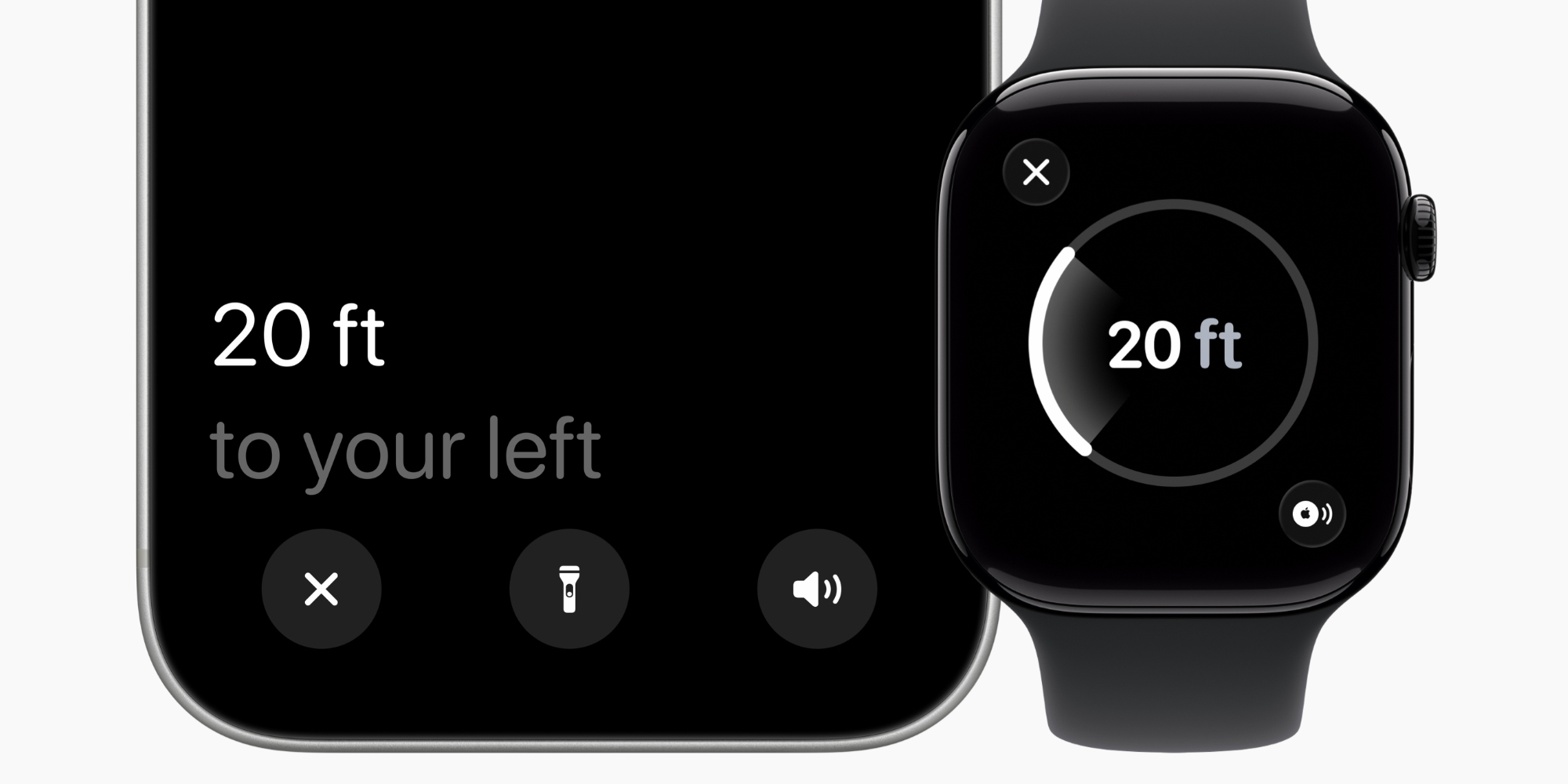
AirTag’s core purpose is to help you find lost objects. And the best feature for doing that has long been Precision Finding.
Precision Finding uses haptic, visual, and audio feedback to guide you step-by-step directly to your lost item.
The feature got better with AirTag 2 thanks to an expanded range that now lets Precision Finding work from up to 1.5x farther away than the first AirTag.
But AirTag 2 has another key Precision Finding improvement: it brings the feature to Apple Watch for the first time.
However, as my colleague Ben pointed out in his hands-on review, the way you set it up isn’t the most intuitive.
On Apple Watch, the Find Items app is typically the place you go for tracking down a lost AirTag.
But to use Precision Finding, watchOS instead sends you to Control Center.
How to set up Precision Finding and requirements for use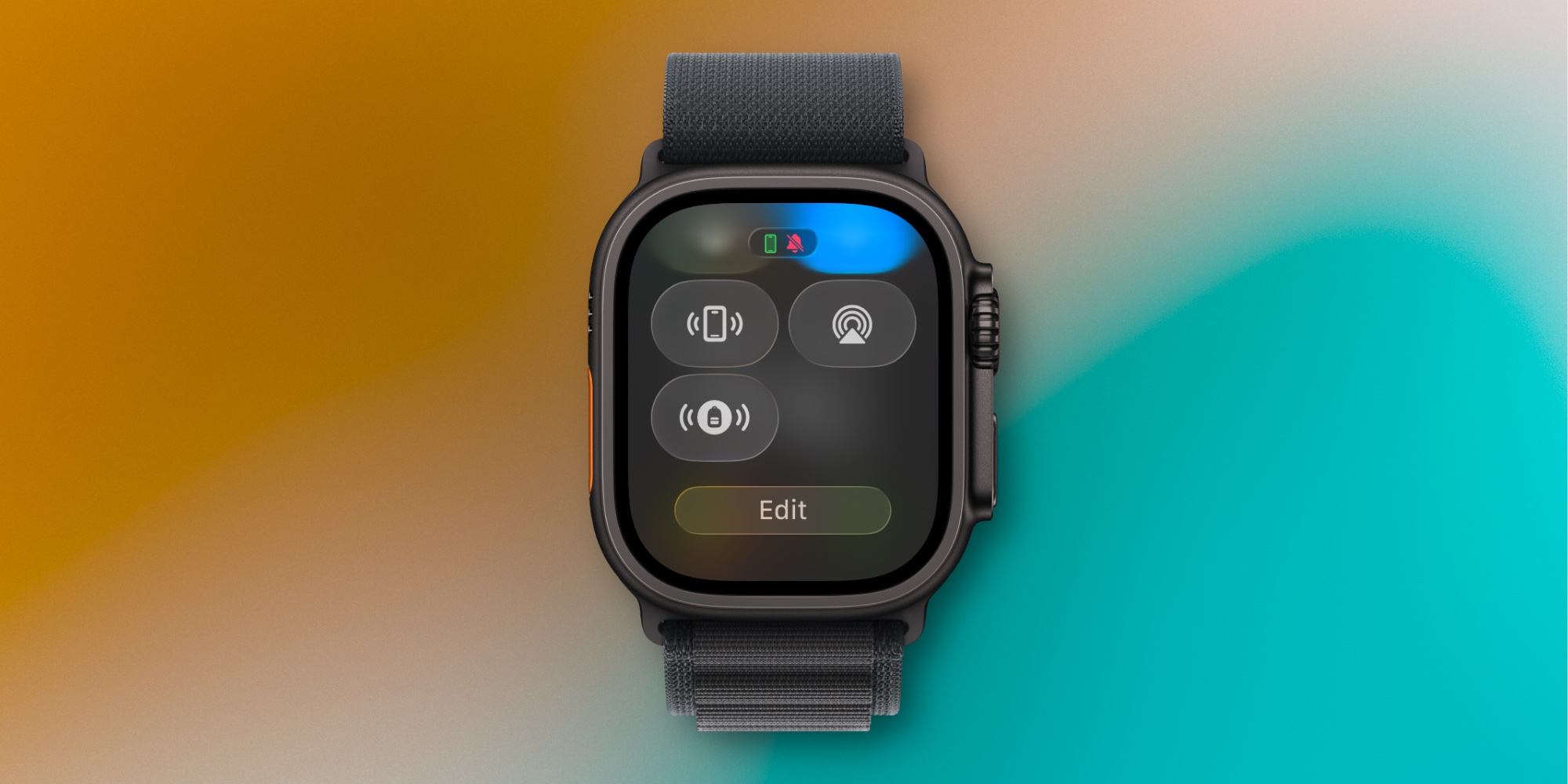
Here’s how you can set up Precision Finding, per Apple:
Once it’s in Control Center, the AirTag will gain a special icon to match its item type. For example, my AirTag 2 is in my backpack, so I see a backpack in Control Center.
In order to use Precision Finding on Apple Watch, there are both hardware and software requirements.
It’s very convenient having quick access to Precision Finding right from Control Center. And I do like how it automatically assigns different icons for each item you add. It would be nice to have the feature available in the Find Items app too, but perhaps that will happen in a future update.
You can buy AirTag 2 on Amazon:
Do you expect to use AirTag Precision Finding on your Apple Watch very often? Let us know in the comments.
Best AirTag and iPhone accessories


FTC: We use income earning auto affiliate links. More.
| # | Наименование новости | Тональность | Информативность | Дата публикации |
|---|---|---|---|---|
| 1 | watchOS 27: Three new Apple Watch features being announced next week | 0 | 16.29 | 01-06-2026 |
| 2 | Apple Watch Ultra 4: Three new features that already have me excited | 0 | 21.16 | 05-08-2026 |
| 3 | Top watchOS 27 features that will enhance your Apple Watch | 0 | 17.67 | 14-07-2026 |
| 4 | watchOS 27 adds new Apple Watch trick that I’ve been loving | 0 | 19.17 | 18-06-2026 |
| 5 | Apple Watch Series 12: Four rumored new features coming soon | 0 | 9.78 | 15-07-2026 |
| 6 | Could Apple’s London Marathon deal signal new Apple Watch features? | 0 | 10.17 | 19-03-2026 |
| 7 | Apple Watch Ultra 4: Four rumored new features coming this fall | 0 | 13.71 | 17-06-2026 |
| 8 | Apple announces new Black Unity Braided Solo Loop for Apple Watch | 0 | 6.72 | 26-01-2026 |
| 9 | Apple Watch and AirPods health features get major new global expansions | 0 | 9.84 | 21-05-2026 |
| 10 | How to share your AirTag location with an airline to find lost luggage | 0 | 7 | 17-07-2026 |