Просмотр новости
Найдите то, что Вас интересует
 Спутники
 РН
РН SpaceX
 Роскосмос
 NASA
NASA
СпутникиРНSpaceXРоскосмосNASAMost WordPress table plugins are built to store and display data.
You add rows. You format columns. You update things manually.
That works — but it’s slow.
And it’s so yesterday!
AI data tables for WordPress introduce a different way of working with data.
Instead of clicking through settings and editing rows one by one, you can simply instruct your table:
You’re no longer just viewing your data.
You’re working with it.
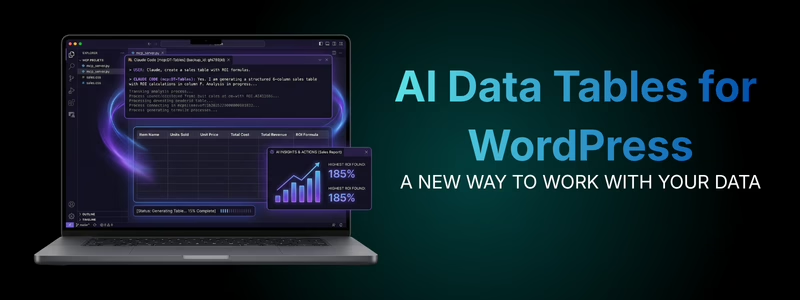
The digital landscape is moving faster than ever. A traditional plugin is just a container — an AI data table plugin is a collaborator.
Instead of spending hours working through rows and Excel exports, you can communicate with your data in plain English — and have it do the work for you.
Here’s what that actually means:
No formulas. No manual updates. No back-and-forth.
Supsystic has built the infrastructure to make this possible.
Our MCP server allows your AI assistant to “see” and work with your tables in real time — giving you a faster, smarter way to manage data in WordPress.
The first step is simple — and powerful.
You can connect AI to your existing tables and start asking questions. Like: “Show me the top 10 products by revenue for last month.”
Instead of manually scanning rows or exporting data, you can:
For end users, this means faster answers without digging through data.
For developers, it means fewer requests to check, analyse, or explain what’s happening inside a table.
At this level, AI acts as a smart layer over your existing tables.
It helps you understand your data — without changing it.

This is where AI moves from answering questions to actually doing the work. It’s the level where things really change.
Instead of just analysing data, you can start instructing your tables to update and evolve.
You can:
Instead of manually editing rows, you can simply describe what you want — and the AI applies those changes across your table instantly.
For example:
“Increase all values in this column by 5% and highlight anything above a set threshold.”
Done.
No exporting. No re-importing. No manual edits.
For end users, this means routine updates take seconds instead of hours, with far less risk of breaking anything.
For developers, this means:
• Less time spent on repetitive updates
• Fewer client support requests
• The ability to let clients make simple changes safely — without breaking anything
Instead of maintaining tables manually, you’re guiding them.

How do you actually use an AI data table in your daily work? It all comes down to “Conversational Creation.”
Build Tables with an AI Data Table PluginSkip the manual setup. Simply tell the AI data table plugin: “Create a new ‘Q2 Performance’ table with columns for Name, Revenue, and Growth %.” The AI does the building; you do the thinking.
Edit Rows via an AI Data Table PluginNeed to update 50 prices at once? Tell the AI data table: “Update all items in the ‘Electronics’ category by 15%.” Watch the cells update in real-time without ever opening the WordPress backend.
This approach works anywhere you rely on structured data:
If your tables change over time, this removes a large part of the manual workload.
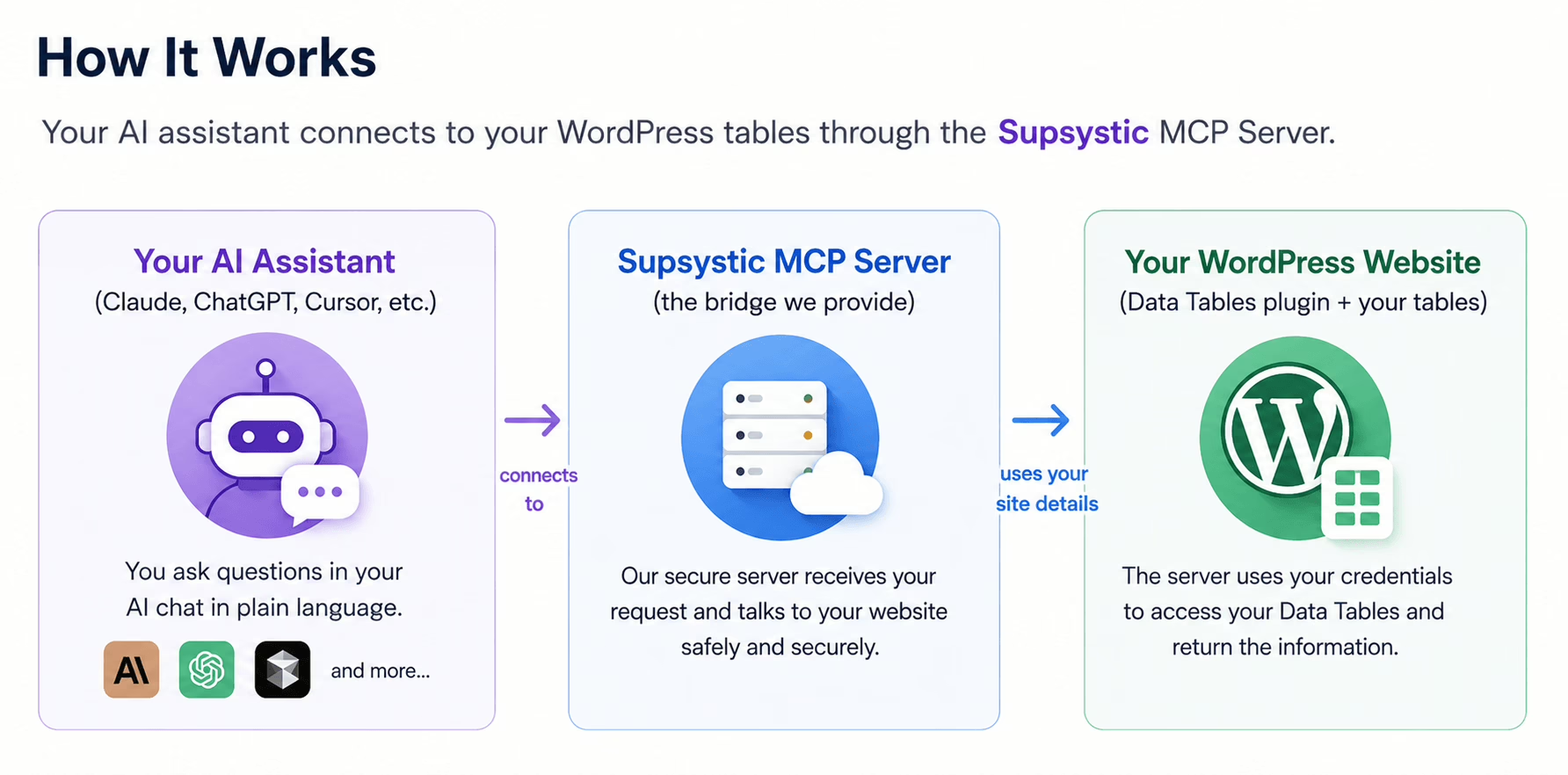
Setup takes 2–3 minutes and requires no technical configuration.
Note: Supsystic provides the MCP connection layer. You do not need to install Node.js, run terminal commands, or set up your own MCP server.
In your WordPress dashboard, go to:
Users > Profile > Application Passwords
Create a new Application Password and copy it.
You’ll use this instead of your normal WordPress password in Step 4.
For Claude:
Settings > Connectors
For other AI tools, look for:
Tools, Integrations, Connectors, or MCP
Choose:
Add Connector
or
Add MCP Server
Paste in the Supsystic MCP connection details.
Add:
This gives your AI permission to access your Data Tables.
In your AI chat, type:
List all my tables
If your tables appear, you’re connected.
Once this is set up, you won’t need to revisit it — you’ll be working with your tables through simple instructions from here on.
If you’re not comfortable with the setup, it’s something your developer can handle quickly. Or reach out to our Support Team.
This workflow connects your WordPress tables with a paid AI tool and our AI add-on.
Once it’s set up, everything is handled through simple instructions.
Everything happens inside WordPress — you’re working directly with your existing tables, not exporting data or jumping between tools.
Changes are applied to your data and table structure — with styling updates possible where supported.
AI Data Tables for WordPress doesn’t replace your workflow.
It removes the slow parts of it.
At the basic level, you can interrogate your data and get answers instantly.
At the next level, you can update and manage your tables without manual effort.
Connect your AI assistant and try your first command in minutes:
| # | Наименование новости | Тональность | Информативность | Дата публикации |
|---|---|---|---|---|
| 1 | Best WordPress Data Table Plugin: The Ultimate 2026 Comparison Guide | 0 | 20 | 18-05-2026 |
| 2 | How to Create Table WordPress Content: 5 Easy Steps to Perfection | 0 | 16.53 | 01-05-2026 |
| 3 | Data Tables Generator Now Supports AI via MCP (Claude, Cursor IDE) | 0 | 9.18 | 14-03-2026 |
| 4 | How to Edit WordPress Tables Without Breaking Your Layout | 0 | 10 | 18-05-2026 |
| 5 | WooCommerce Product Tables Are Now Built Into Data Tables Generator | 0 | 8.1 | 08-07-2026 |
| 6 | Integrating AIDriven Chatbots into WordPress: A Step-by-Step Tutorial #wordpress #artificialintelligence | 0 | 12.15 | 20-10-2025 |
| 7 | Boosting WooCommerce Sales with AI-Driven Personalization Plugins #ecommerce #wordpress | 0 | 12.84 | 24-10-2025 |
| 8 | WordPress.com Changelog: Brand Memory and Better Renewal Warnings | 0 | 8.26 | 14-08-2026 |
| 9 | WordPress Signs the Open Weights and American AI Leadership Letter | 0 | 8.31 | 27-08-2026 |
| 10 | Comment on New AI-Powered Tools for Creating WordPress Learning Materials by Noruzzaman | 0 | 9.26 | 10-04-2026 |