Просмотр новости
Найдите то, что Вас интересует
 Спутники
 РН
РН SpaceX
 Роскосмос
 NASA
NASA
СпутникиРНSpaceXРоскосмосNASABased on our totally unscientific survey (we asked a few people), the file most often edited in a WordPress installation is config.php. Usually less than 4KB, ...
The post Manage WordPress files in the MyKinsta dashboard appeared first on Kinsta®.
Based on our totally unscientific survey (we asked a few people), the file most often edited in a WordPress installation is config.php. Usually less than 4KB, this file contains the information a site needs to get online after a migration or changes (sometimes unexpected) to the database backend.
But editing config.php (even in an emergency) demands access to the server’s file system usually available only through tools like an FTP/SFTP client. That means you need to add server addresses, usernames, and passwords to another application that has access to your website.
Our new Files tool in the MyKinsta dashboard provides quick access to every file in a WordPress installation, including essential components like configuration files. Maybe more importantly, the work within the Files tool we call the file manager around here happens under the same security umbrella you have chosen for MyKinsta’s multi-factor authentication.
How to manage files and folders in MyKinstaThe new file manager is just a couple of clicks away when you log in to MyKinsta. After selecting a WordPress site in the dashboard, you’ll find Files in the left-hand menu:
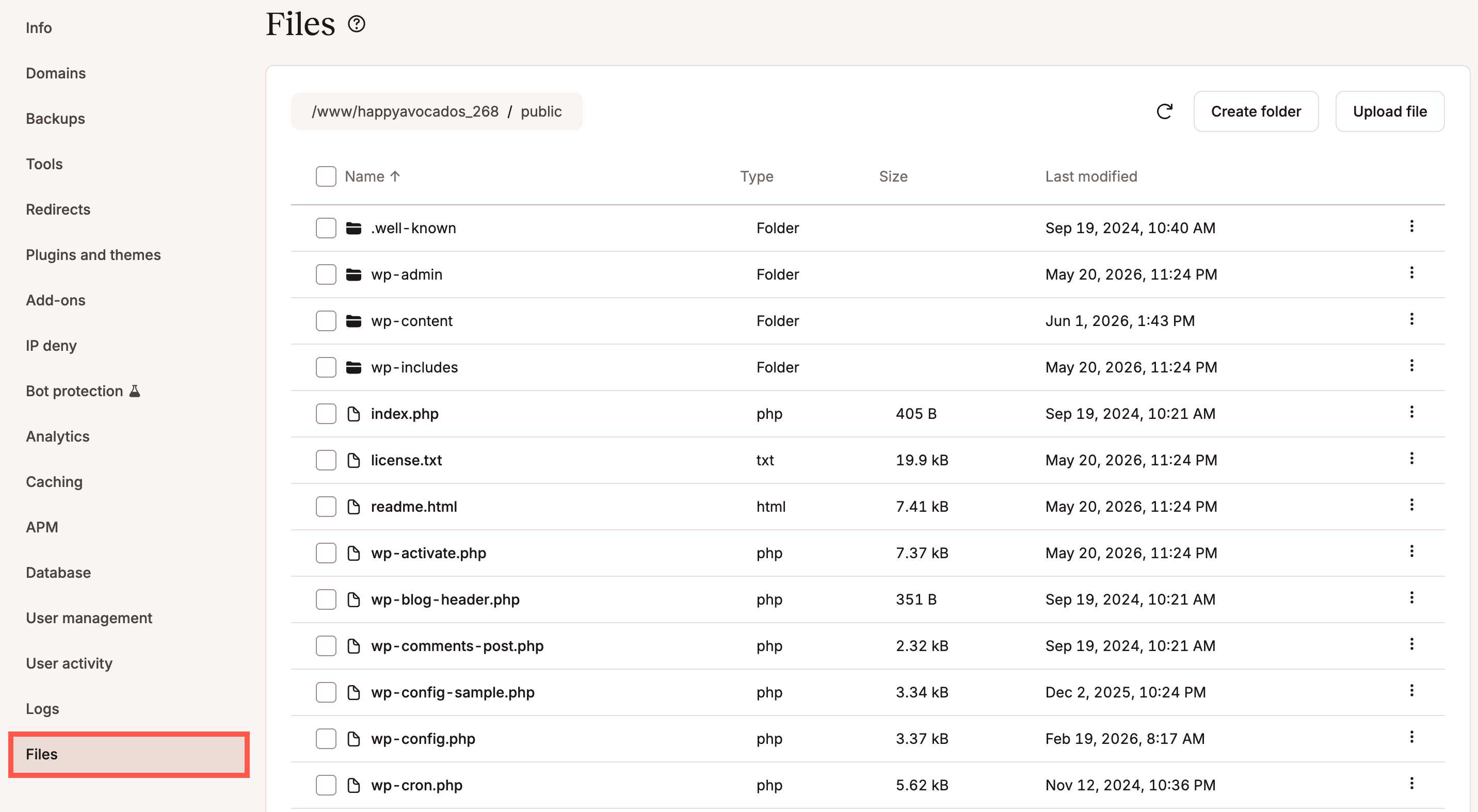 Accessing Files in the MyKinsta dashboard.
From here, you can now…
What’s more, some of these actions can be performed in bulk for multiple files and folders simultaneously.
Let’s take a closer look at some of these capabilities. But first, a warning:
Working with foldersNavigate your website’s file system by clicking on folder names. A breadcrumb menu at the top of the file manager display allows you to jump to any location on the current path.
At any time, you can create a new folder at the current location by clicking the Create folder button near the top of the page:
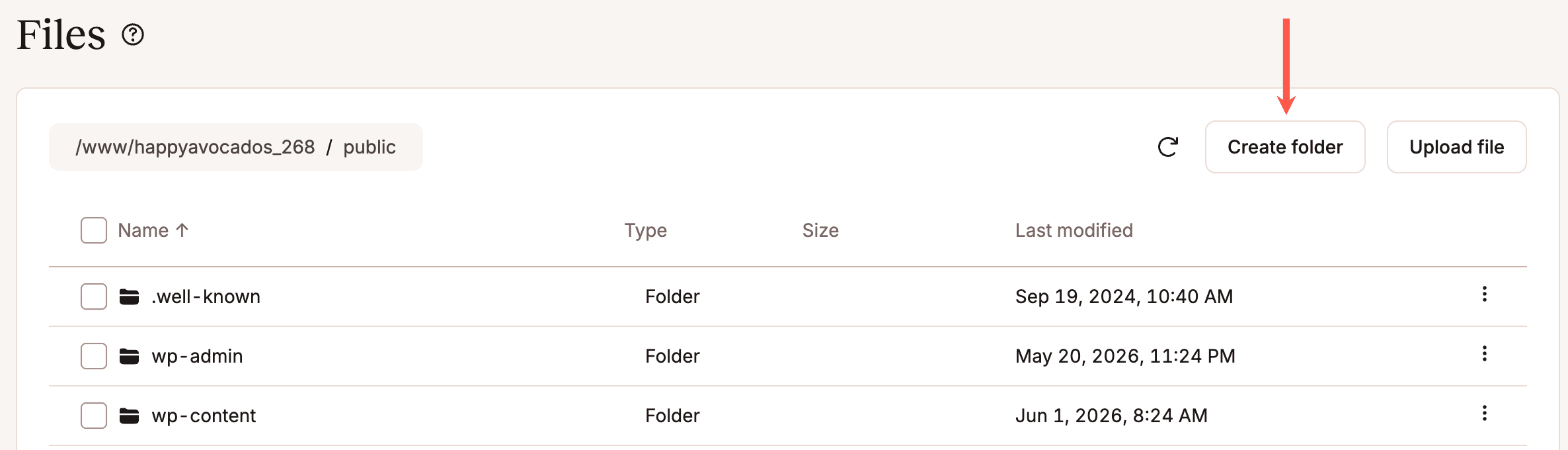 Locating the Create folder button.
Other folder actions (renaming, moving, copying, or deleting) begin by clicking on the kebab (three-dot) menu to the right of a folder name:
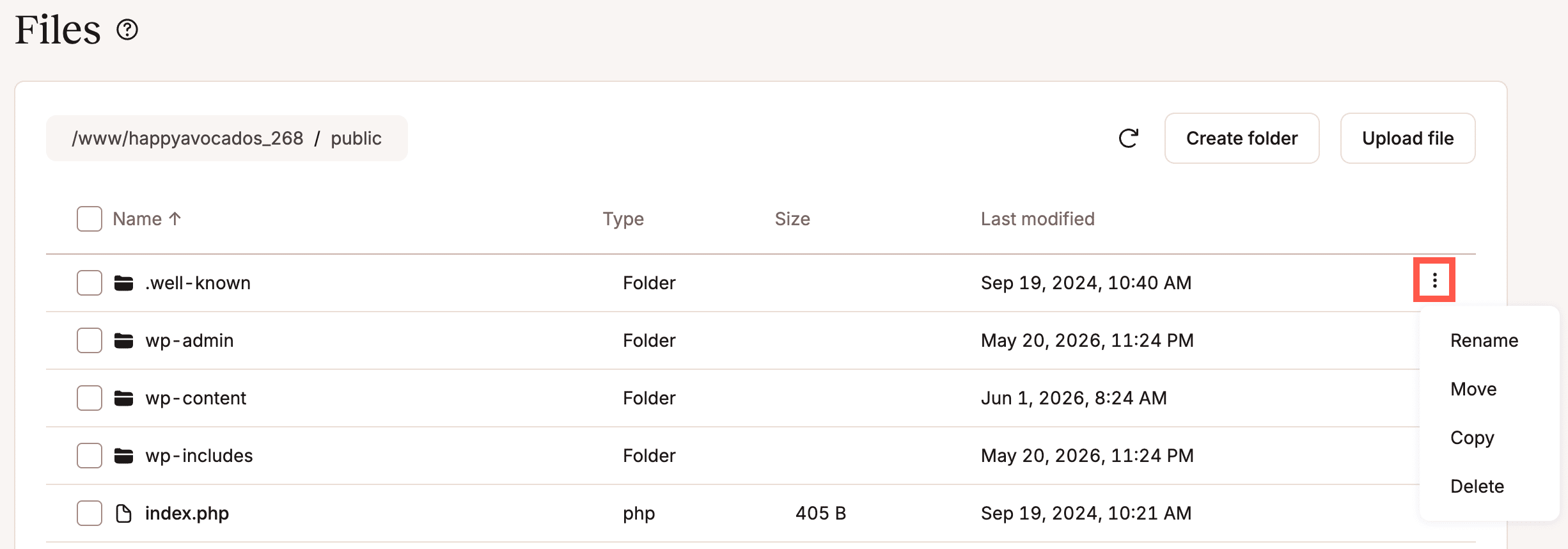
When copying or moving a folder, you will be asked to navigate to the destination for the action:
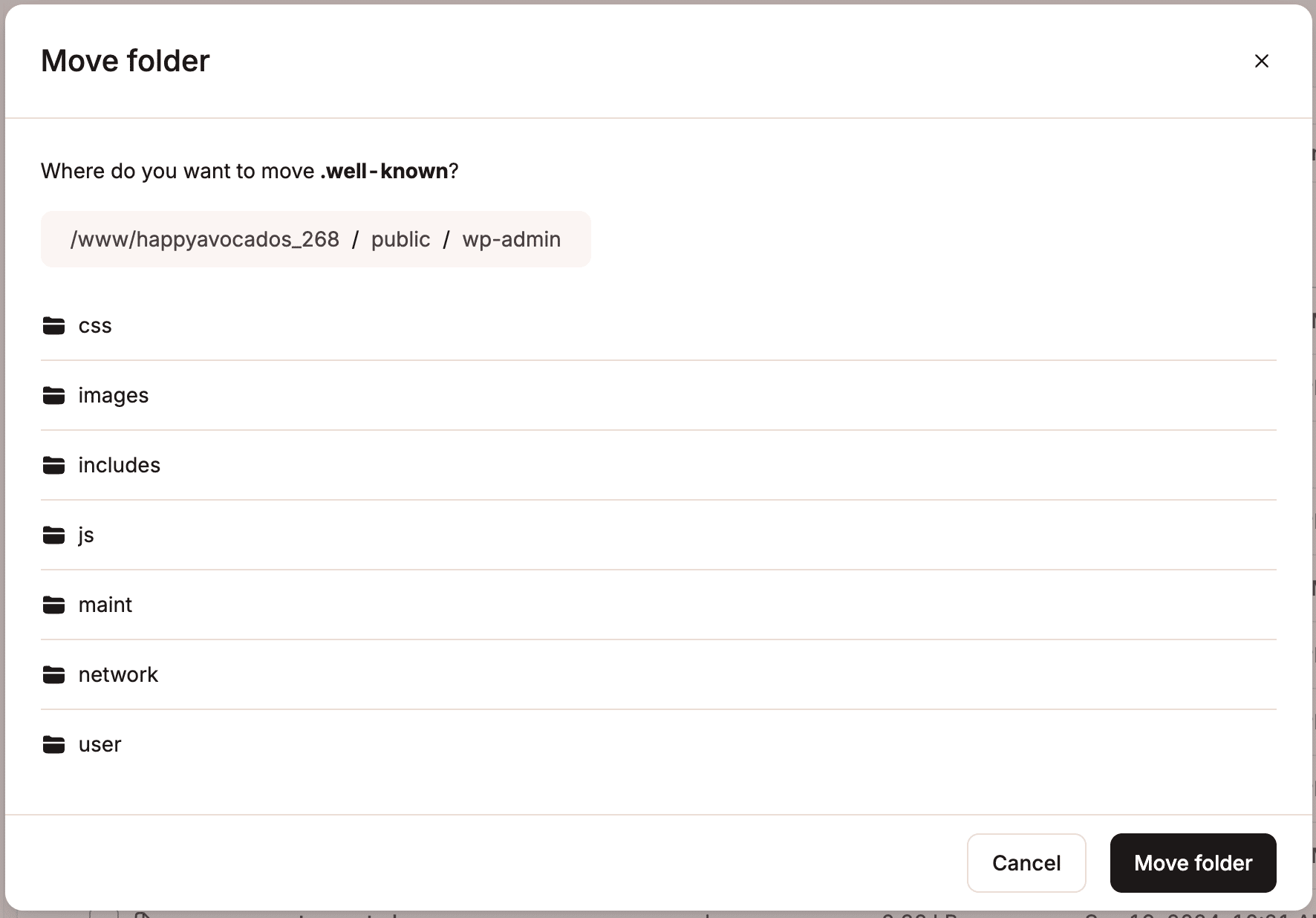 Moving a folder in MyKinsta’s file manager.
Note: When moving, copying, or deleting a folder, you will be moving, copying, or deleting all of that folder’s contents.
The file manager opens with a view of the public folder, which is the root directory of most WordPress sites at Kinsta. But you can navigate up another level for access to resources like site logs:
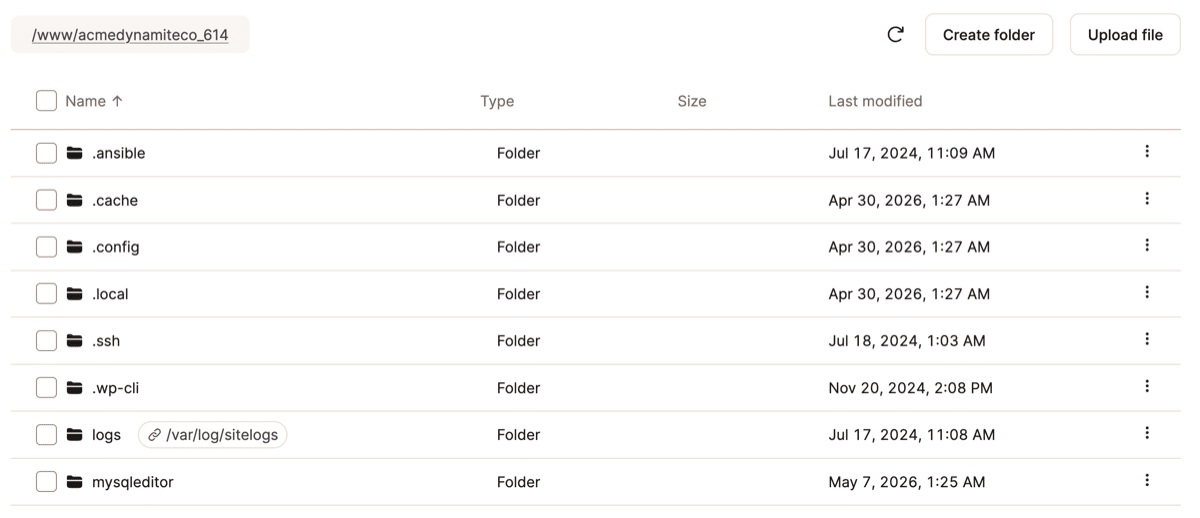 Display of folder contents within the MyKinsya file manager.
The logs folder in the display above is a symlink. The real path of a symlink is displayed beside the file or folder name (/var/log/siteslogs in this case).
Viewing the contents of a file is the default action for plain-text documents in the file manager. Simply click on the filename to view documents like PHP code, JavaScripts, CSS, and more:
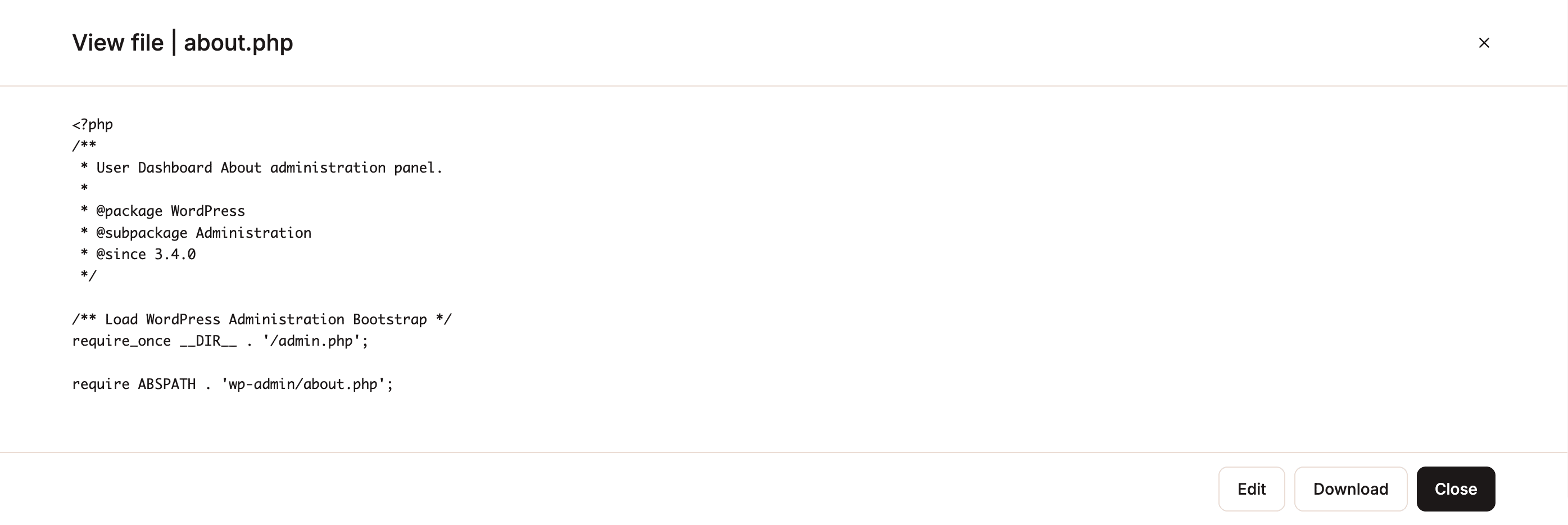 Viewing a PHP file in MyKinsta’s file manager.
You can’t view binary files (like images, PDFs, audio and video files, and Word documents). If you attempt to view a binary file, you are asked if you would like to download the file instead:
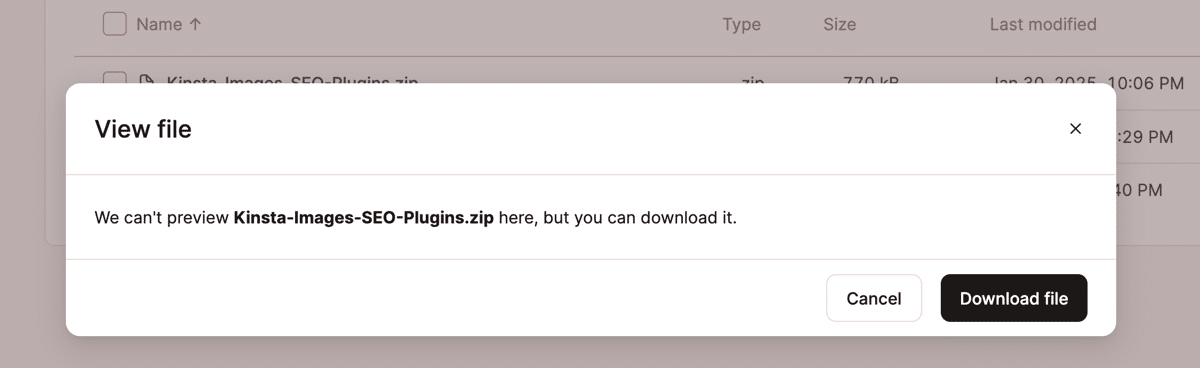 A download prompt for a binary ZIP file in the MyKinsta file manager.
View is just one of the actions available for files in the kebab menu to the right of a filename:
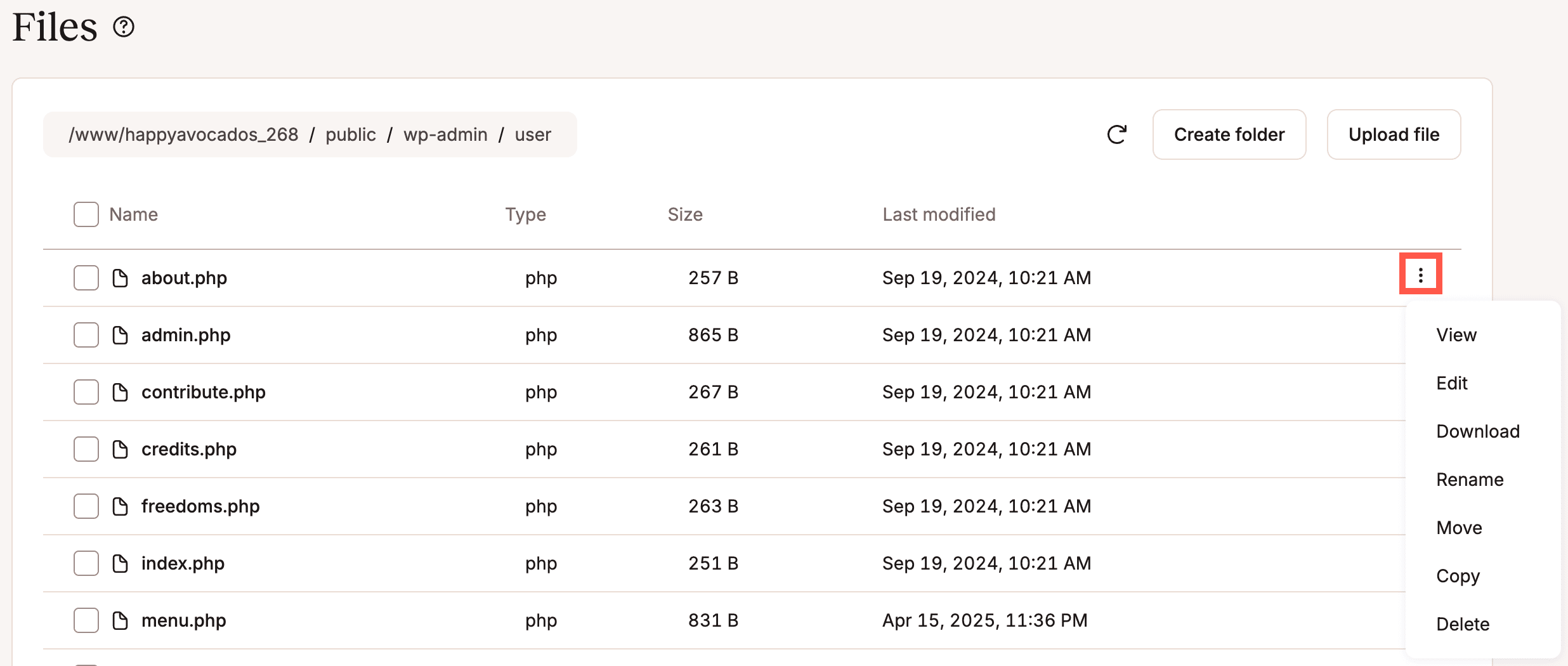 The file options menu in the MyKinsta file manager.
You can begin editing a file by selecting Edit in the kebab menu or by clicking the Edit button when viewing a file:
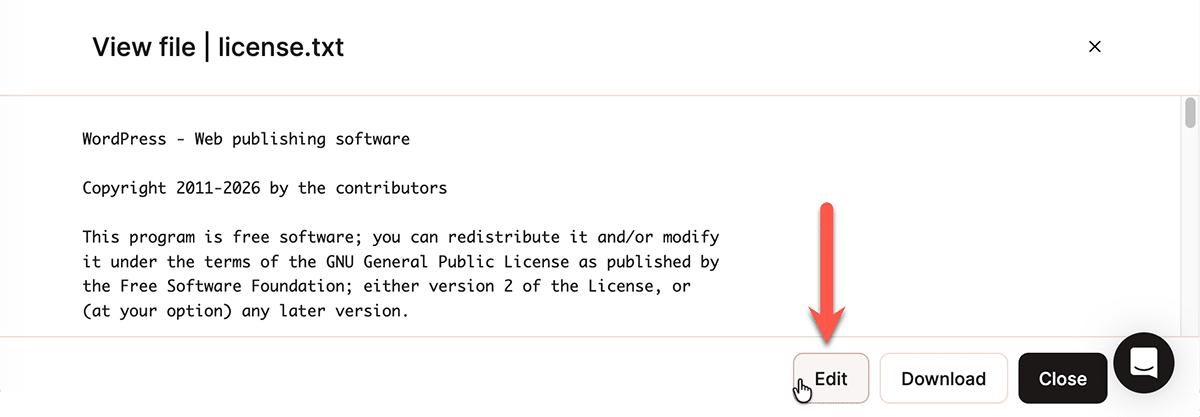 Locating the Edit button in the file manager’s file viewer.
After making edits, you can write the revised file to disk by clicking the Save changes button:
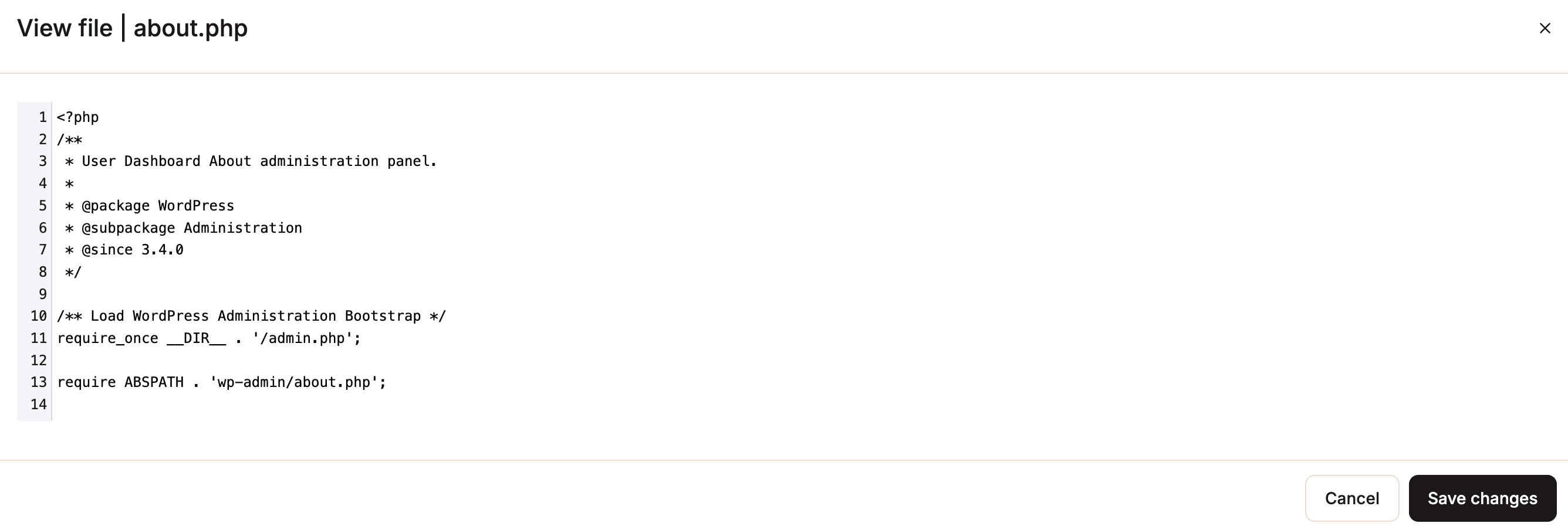 The Save changes button commits edits to disk.
Files can also be downloaded from the server and uploaded:
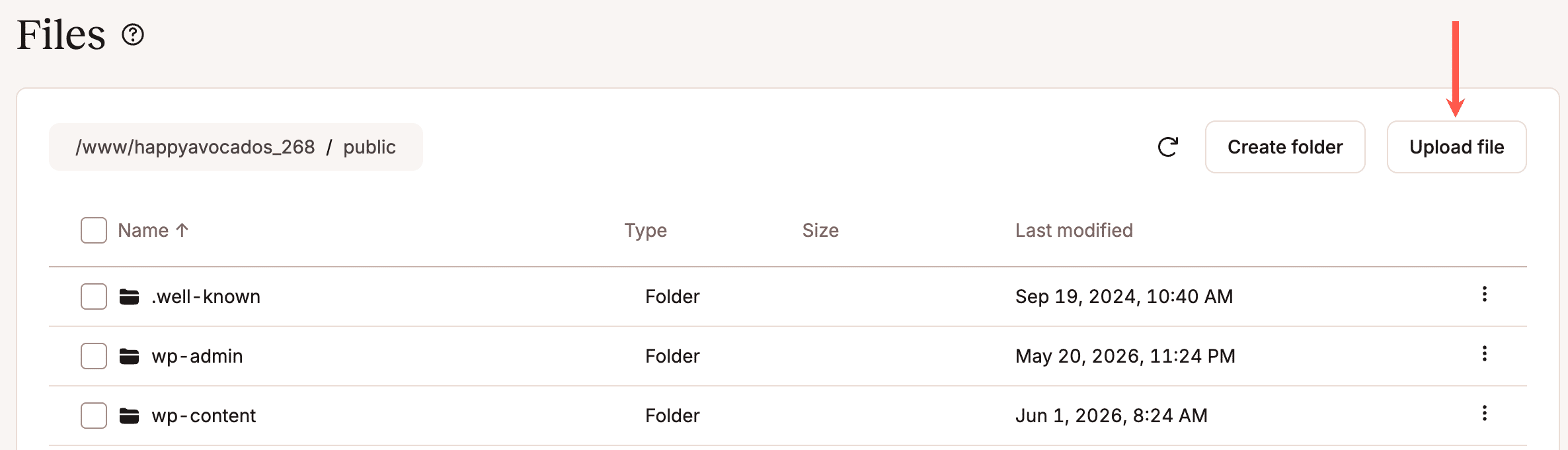 Locating the Upload file button in MyKinsta’s file manager.
This is a great way to download a file for editing in your preferred application before returning it to the server.
Like with folders, when moving or copying a file, the file manager will ask you to navigate to a target destination:
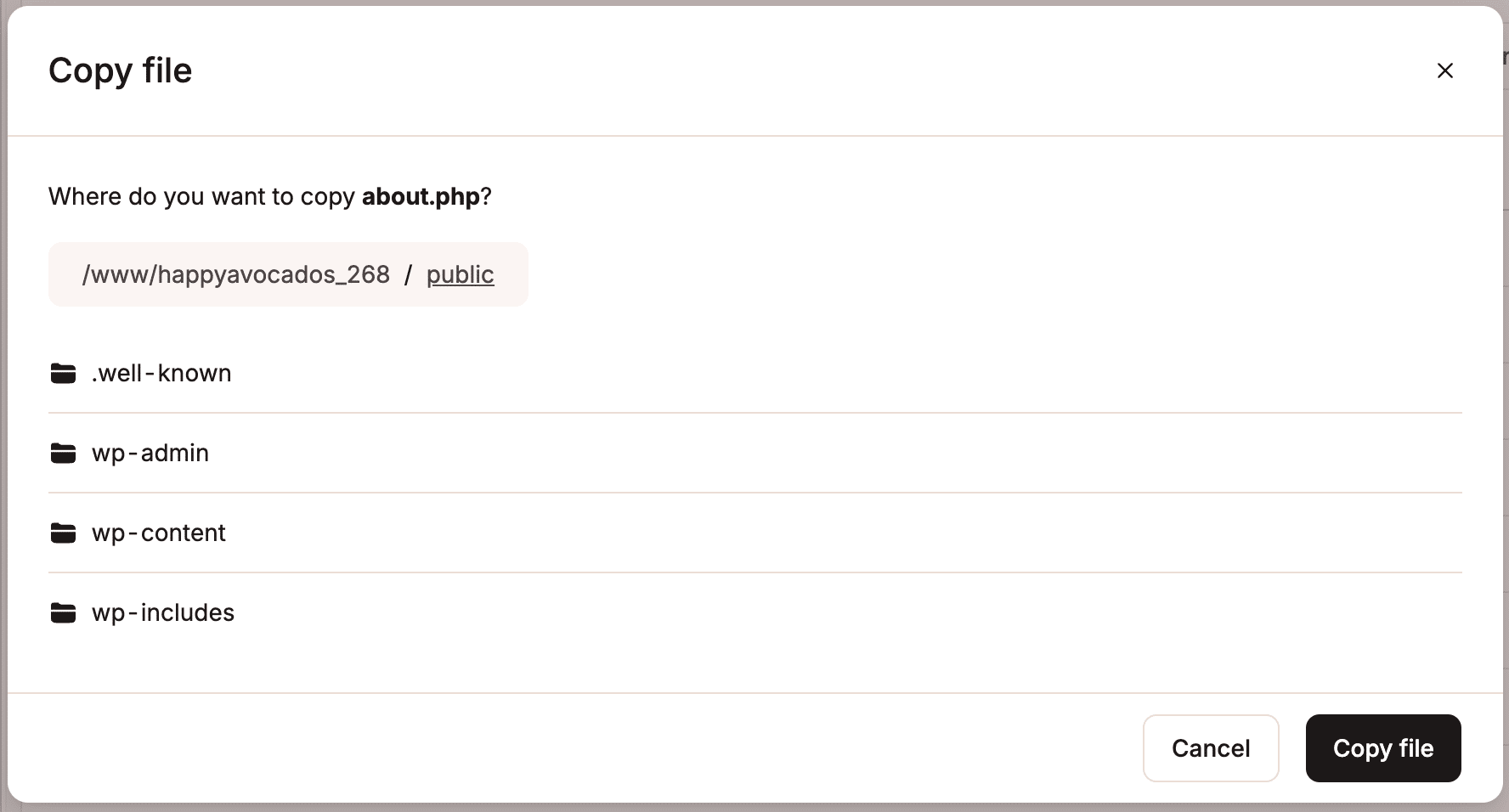 The file manager dialog for copying a file.
You can move, copy, and delete multiple files and folders simultaneously. Select the target files and folders using the checkboxes to the left of their names and then choose the desired action from the Actions menu:
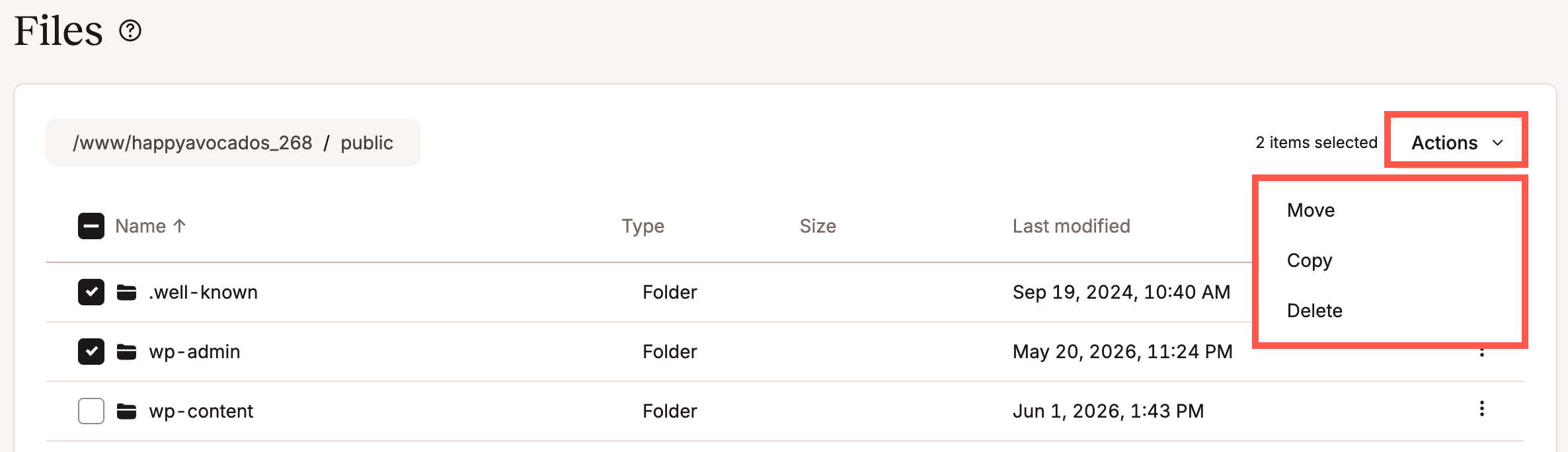 An example of bulk actions in the MyKinsta file manager.
Working with symlinks
An example of bulk actions in the MyKinsta file manager.
Working with symlinks
You can use the file manager to rename, move, copy, and delete symlinks:
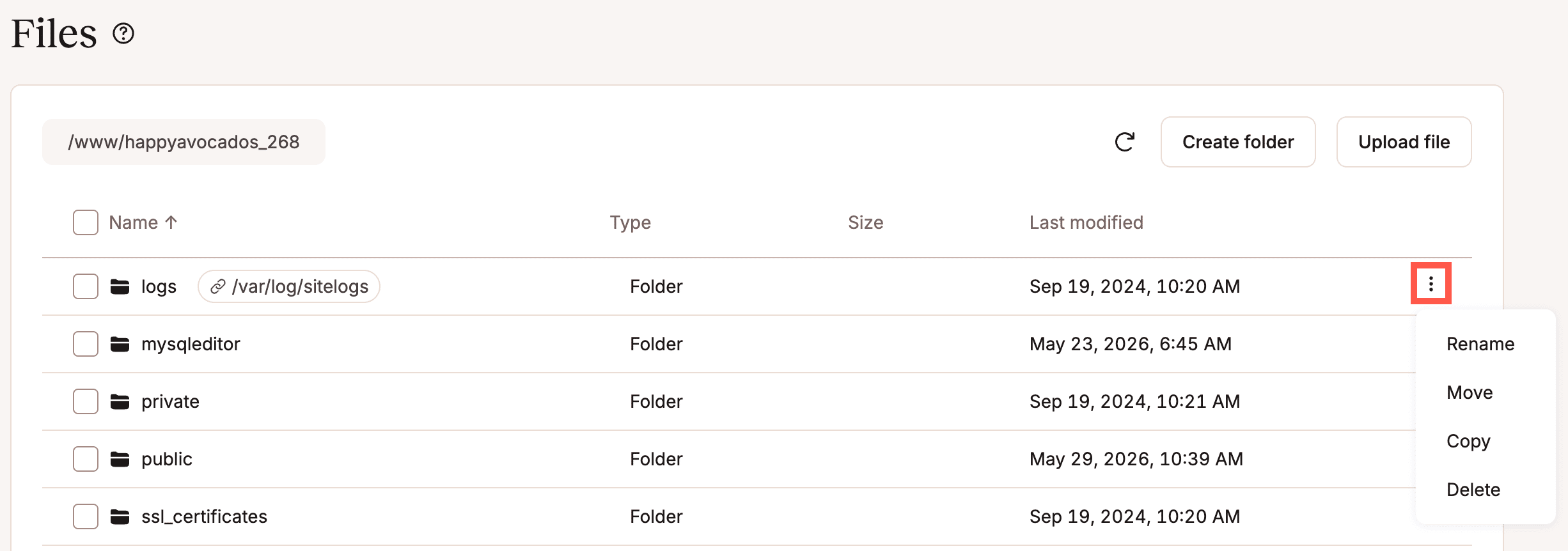 The actions available for symlinks in the MyKinsta file manager.
Tell us what you think
The actions available for symlinks in the MyKinsta file manager.
Tell us what you think
June 2026 marked the first release of the file manager. You can learn more about the feature in our extensive documentation, and we hope you’ll find it to be a time-saver right inside MyKinsta.
Do you have your own wish list for an in-dashboard file manager? Let us know!
| # | Наименование новости | Тональность | Информативность | Дата публикации |
|---|---|---|---|---|
| 1 | Manage domains, HTTPS, logs, and backups with the Kinsta API | 0 | 6.61 | 31-07-2026 |
| 2 | MyKinstaでWordPressサイトのトラブルを迅速に解決する方法 | 0 | 16.04 | 03-08-2026 |
| 3 | See exactly where your site’s traffic goes with bot protection | 0 | 8.27 | 23-07-2026 |
| 4 | Barn2 | 0 | 25.2 | 12-12-2024 |
| 5 | Every Site, One Click Away in the Hosting Dashboard | 0 | 8.57 | 19-08-2026 |
| 6 | Por qué ampliar la infraestructura no resuelve los problemas de tráfico de bots | 0 | 5 | 24-06-2026 |
| 7 | We’re Now Fixing WordPress Sites (Because Someone Has To) – Introducing Themeisle Services | 0 | 7.73 | 27-01-2026 |
| 8 | Por qué el tráfico de bots ahora es un problema de infraestructura (y no solo un problema de SEO) | 0 | 5 | 02-07-2026 |
| 9 | Mike Witt replied to the topic How to hide or replace Gravatar text on profile in the forum How-to & Troubleshooting | 0 | 5 | 27-06-2026 |
| 10 | Merge Proposal: Guidelines built on Knowledge | 0 | 5 | 22-06-2026 |